
Themes

Choose how Mage and its code editors look:
  1. Open your account menu and use the Theme submenu to select System, Light, or Dark. You can also make the same selection under Color mode on this personalization page. System follows your device appearance and is the default when you have not chosen a mode.
  2. Under Dark syntax theme and Light syntax theme, choose the editor colors Mage should use in each mode.
Mage applies the matching syntax theme automatically when you change color modes. The setting also applies to the source and destination YAML configuration editors in data integration pipelines. When System is selected, Mage updates as soon as your operating system or browser appearance changes. Mage listens for that browser preference instead of polling or calculating a day/night schedule. Selecting Light or Dark keeps that mode active regardless of later device appearance changes. Your System, Light, or Dark selection is saved in this browser and preserved when you reload Mage or sign out, so the sign-in page keeps your last selection. Signing in loads that account’s saved preference. If you clear the site’s cookies, the signed-out page defaults to System.
Change the logo that appears in the top left corner.
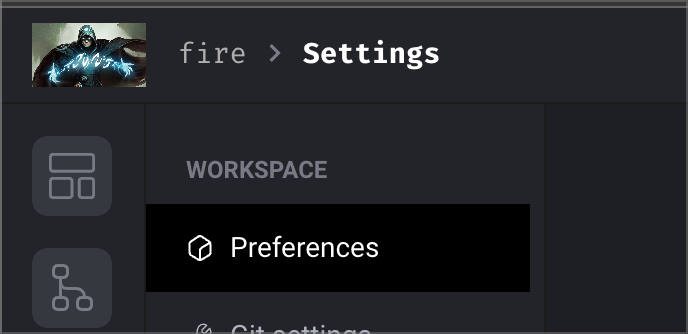
Custom logo design


Layout

Add block buttons

Customize the buttons that show up by default on the Add new block bar on the notebook page while building a pipeline. You can change the order of what appears first as well as which buttons are visible by default and which are displayed when the dropdown menu is shown after clicking the button All blocks.
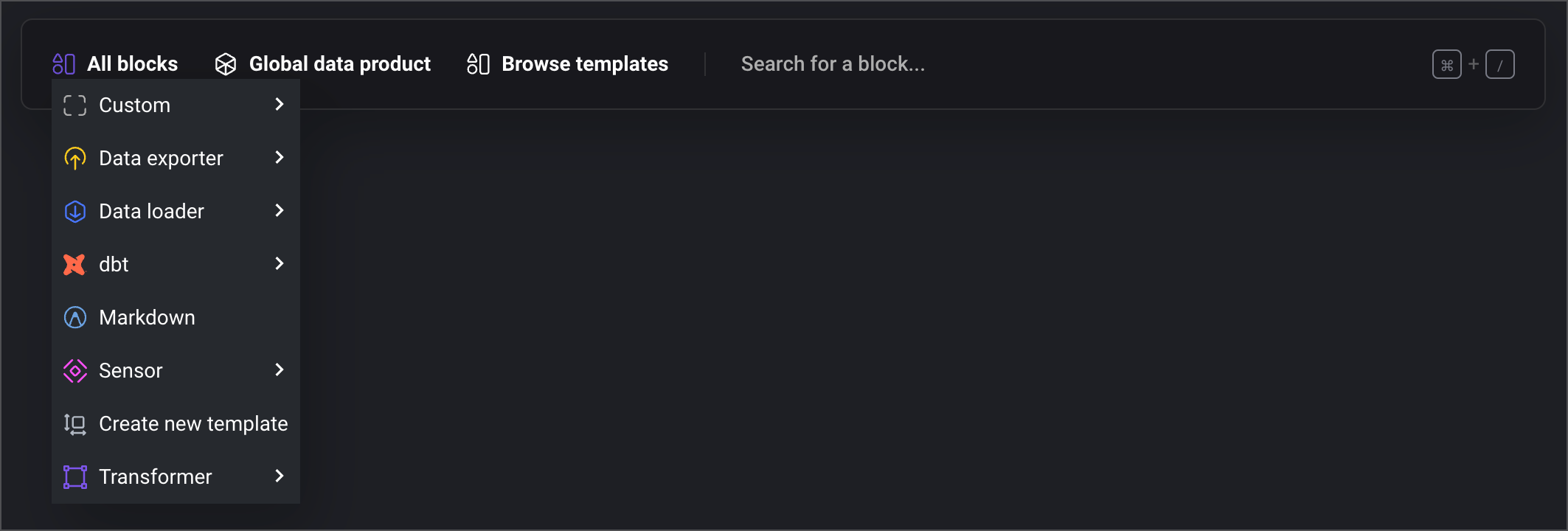
Custom button layout