> ## Documentation Index
> Fetch the complete documentation index at: https://docs.mage.ai/llms.txt
> Use this file to discover all available pages before exploring further.
# Deploy to Azure with Terraform

## Overview
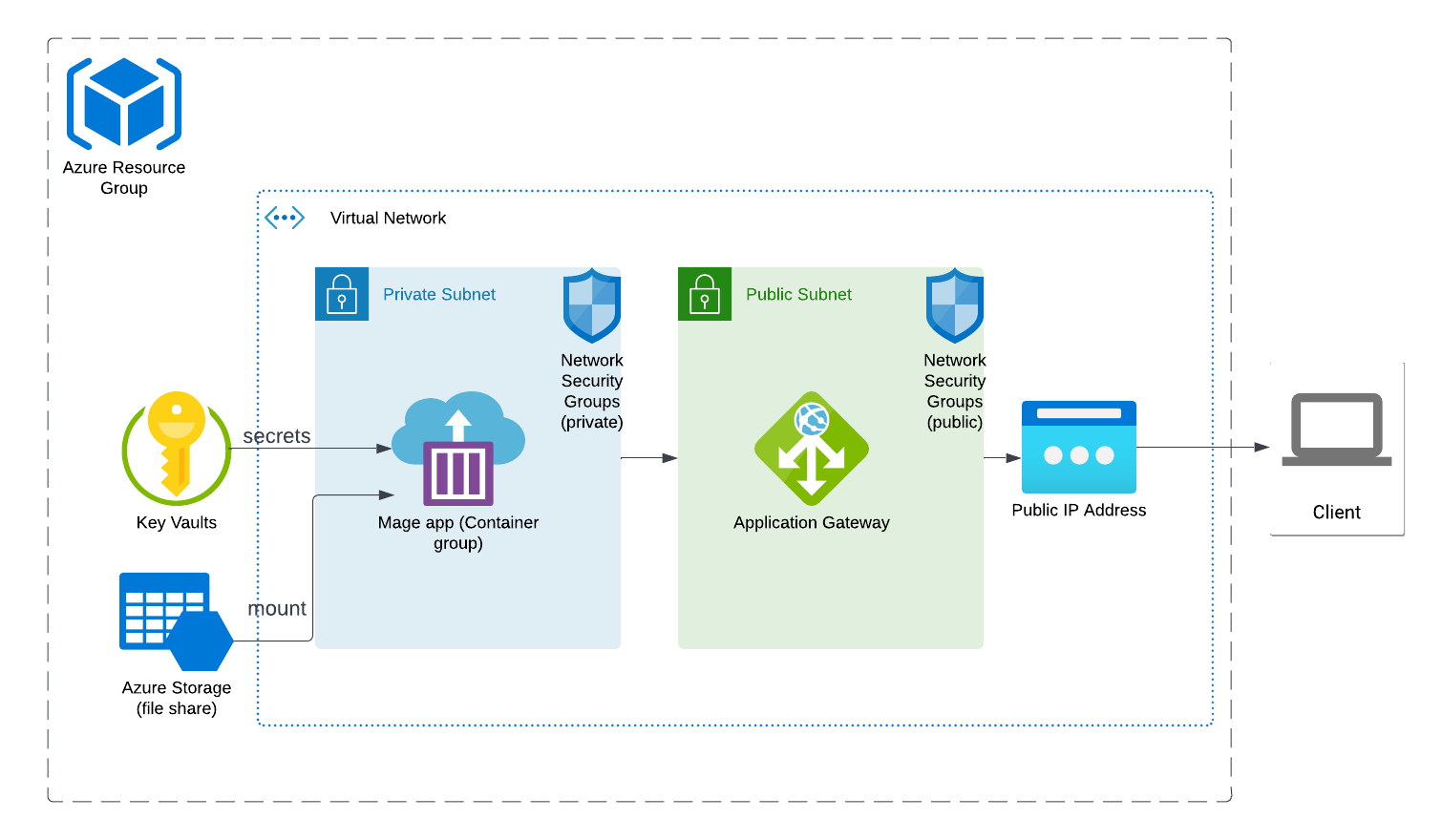
Here is a high level diagram of how Mage interacts with various Azure resources deployed using
this Terraform template.
## Pre-requisites
* Download Mage maintained [Terraform templates](/production/deploying-to-cloud/using-terraform).
***
## 1. Install Azure CLI
Follow these
[instructions](https://learn.microsoft.com/en-us/cli/azure/install-azure-cli) to
install the Azure CLI on your workstation.
***
## 2. Log into Azure from CLI
If you don’t already have an account in Azure, create one
[here](https://portal.azure.com/).
Once you created an account, from your terminal run the following command to log
in:
```bash theme={"system"}
az login
```
Your browser will open and have you sign in with an existing Azure account. Once
completed, your terminal will output something like this:
```json theme={"system"}
[
{
"cloudName": "AzureCloud",
"homeTenantId": "7712a6c4-1684-402f-8d1a-f1bb656e5d40",
"id": "d17fcd32-b98c-4f81-a881-42b8e811a0e8",
"isDefault": true,
"managedByTenants": [],
"name": "Azure subscription 1",
"state": "Enabled",
"tenantId": "7712a6c4-1684-402f-8d1a-f1bb656e5d40",
"user": {
"name": "eng@mage.com",
"type": "user"
}
}
]
```
***
## 3. Customize Terraform settings
**Storage account name (REQUIRED)**
The `storage_account_name` must be unique globally. Before running any Terraform
commands, please change the `default` value of variable named
`storage_account_name` in the
[./azure/variables.tf](https://github.com/mage-ai/mage-ai-terraform-templates/blob/master/azure/variables.tf)
file.
```js theme={"system"}
variable "storage_account_name" {
description = "Storage account name. It must be globally unique across Azure."
default = "something_very_unique"
}
```
**Key vault name (REQUIRED)**
The `key_vault_name` must be unique globally. Before running any Terraform
commands, please change the `default` value of variable named `key_vault_name`
in the
[./azure/variables.tf](https://github.com/mage-ai/mage-ai-terraform-templates/blob/master/azure/variables.tf)
file.
```js theme={"system"}
variable "key_vault_name" {
description = "Key vault name. It must be globally unique across Azure."
default = "something_very_unique"
}
```
**Virtual network name**
In the file
[./azure/variables.tf](https://github.com/mage-ai/mage-ai-terraform-templates/blob/master/azure/variables.tf),
you can change the `default` value under `app_name`:
```js theme={"system"}
variable "app_name" {
type = string
description = "Application Name"
default = "mage-data-prep"
}
```
**Docker image**
In the file
[./azure/variables.tf](https://github.com/mage-ai/mage-ai-terraform-templates/blob/master/azure/variables.tf),
you can change the `default` value under `docker_image`:
```js theme={"system"}
variable "docker_image" {
description = "Docker image url."
default = "mageai/mageai:latest"
}
```
**Custom Docker images**
If you previously tagged a Docker image you built when following this
[CI/CD guide](/production/ci-cd), you must push that locally tagged Docker image
to Azure Container Registry before deploying using Terraform.
**Region**
In the file
[./azure/main.tf](https://github.com/mage-ai/mage-ai-terraform-templates/blob/master/azure/main.tf),
you can change the `location` value under `resource_group`:
```js theme={"system"}
resource "azurerm_resource_group" "resource_group" {
name = "${var.app_name}-${var.app_environment}"
location = "West US 2"
}
```
### More
Other variables defined in
[./azure/variables.tf](https://github.com/mage-ai/mage-ai-terraform-templates/blob/master/azure/variables.tf)
can also be customized to your needs.
### Environment variables for application
Set your environment variables in your running cloud environment by adding the
following under the resource named `azurerm_container_group` in the file
[./azure/main.tf](https://github.com/mage-ai/mage-ai-terraform-templates/blob/master/azure/main.tf):
```js theme={"system"}
resource "azurerm_container_group" "container_group" {
...
container {
...
environment_variables = {
...
"ENVIRONMENT_VARIABLE_NAME" = "ENVIRONMENT_VARIABLE_VALUE"
}
}
}
```
***
## 4. Deploy
1. Change directory into scripts folder:
```bash theme={"system"}
cd azure
```
2. Initialize Terraform
```bash theme={"system"}
terraform init
```
A sample output could look like this:
```
Initializing the backend...
Initializing provider plugins...
- Finding latest version of hashicorp/azurerm...
- Finding latest version of hashicorp/http...
- Installing hashicorp/azurerm v3.24.0...
- Installed hashicorp/azurerm v3.24.0 (signed by HashiCorp)
- Installing hashicorp/http v3.1.0...
- Installed hashicorp/http v3.1.0 (signed by HashiCorp)
Terraform has created a lock file .terraform.lock.hcl to record the provider
selections it made above. Include this file in your version control repository
so that Terraform can guarantee to make the same selections by default when
you run "terraform init" in the future.
Terraform has been successfully initialized!
You may now begin working with Terraform. Try running "terraform plan" to see
any changes that are required for your infrastructure. All Terraform commands
should now work.
If you ever set or change modules or backend configuration for Terraform,
rerun this command to reinitialize your working directory. If you forget, other
commands will detect it and remind you to do so if necessary.
```
### Terraform plan
You can run the following command to see all the resources that will be created
by Terraform: `terraform plan`
By default, here are the **[resources](/production/deploying-to-cloud/azure/resources)** that will be
created.
3. Deploy
```bash theme={"system"}
terraform apply
```
A sample output could look like this:
```
Apply complete! Resources: 4 added, 2 changed, 0 destroyed.
Outputs:
id = "/subscriptions/d17fcd12-b89c-4f81-a221-40b8e768a0e8/resourceGroups/mage-data-prep2-production/providers/Microsoft.ContainerInstance/containerGroups/mage-data-prep-production"
ip = "20.3.85.62"
```
4. In your browser, go to [`http://[IP_address]/`](http://IP_address/).
Change the `IP_address` to the IP address that was output in your terminal
after successfully running `terraform apply`.
***
## Updating Mage versions
After Mage is running in your cloud, you can update the Mage Docker image
version by running the following command in your CLI tool:
```bash theme={"system"}
az container restart --name mage-data-prep-production --resource-group mage-data-prep-production
```
***
## Misc
### Security
By default, `terraform apply` will attempt to add your current workstation’s IP
address to the above mentioned security group.
In order to access Mage on Azure from another local workstation, you must add
that IP address to the security group named
`mage-data-prep-production-nsg-public`.
> Security group name
>
> Your security group might be named differently because you may have changed
> your virtual network name (e.g. `app_name`). The security group you must add
> the IP to will end with `-nsg-public`.
### HTTPS enabling
TBD
### Terminate all resources
If you want to delete all resources created from deploying, run the following
command:
```bash theme={"system"}
terraform destroy
```
A sample output could look like this:
```
Destroy complete! Resources: 10 destroyed.
```
***