> ## Documentation Index
> Fetch the complete documentation index at: https://docs.mage.ai/llms.txt
> Use this file to discover all available pages before exploring further.
# Sign in with Microsoft Entra ID aka Active Directory
> Enable signing in with a Microsoft account in Mage.
### Pre-requisites
First, you'll need to enable user authentication within Mage. You can find out more about
this in the [Overview page](/production/authentication/overview).
### Enable Microsoft sign in
There are two ways to enable Microsoft sign in. You can either register an application in your organization's
own Microsoft Entra ID, or use the default Mage application. We recommend registering your own application unless
there is a specific reason you cannot do so.
You will need to register an application in your organization's Microsoft Entra ID.
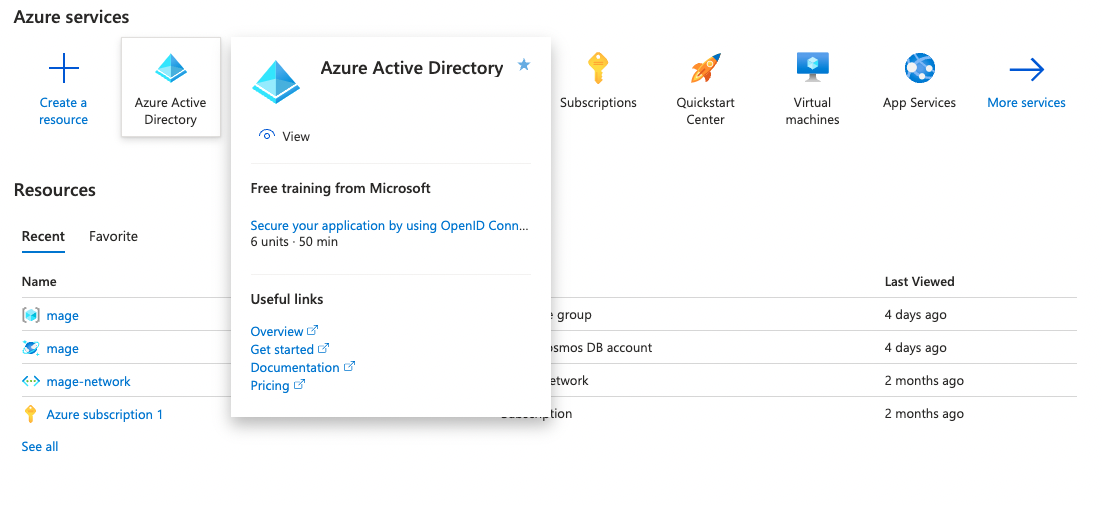
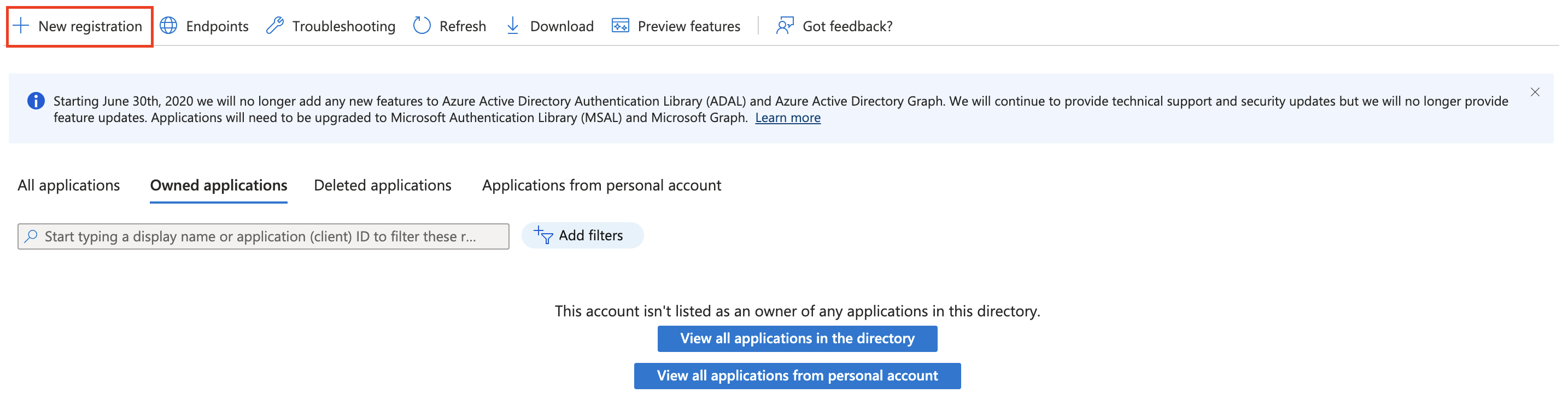
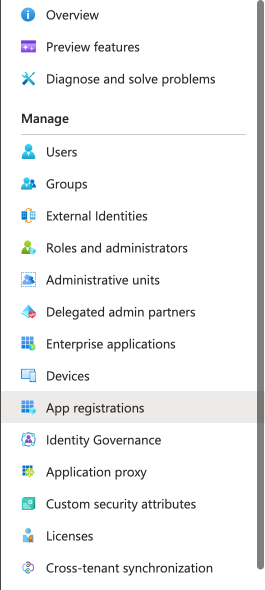 Click the "New registration" button at the top of the page, and fill in the details for your application.
 Make sure you add the following web redirect URI: `http(s):///oauth` (for Mage open-source)
or `https://cluster.mage.ai//oauth?provider=active_directory` (for Mage Pro)
or `https:///oauth?provider=active_directory` (for Mage self-hosted).
Click into the application you created, and click "Certificates & secrets" in the left sidebar.
Make sure you add the following web redirect URI: `http(s):///oauth` (for Mage open-source)
or `https://cluster.mage.ai//oauth?provider=active_directory` (for Mage Pro)
or `https:///oauth?provider=active_directory` (for Mage self-hosted).
Click into the application you created, and click "Certificates & secrets" in the left sidebar.
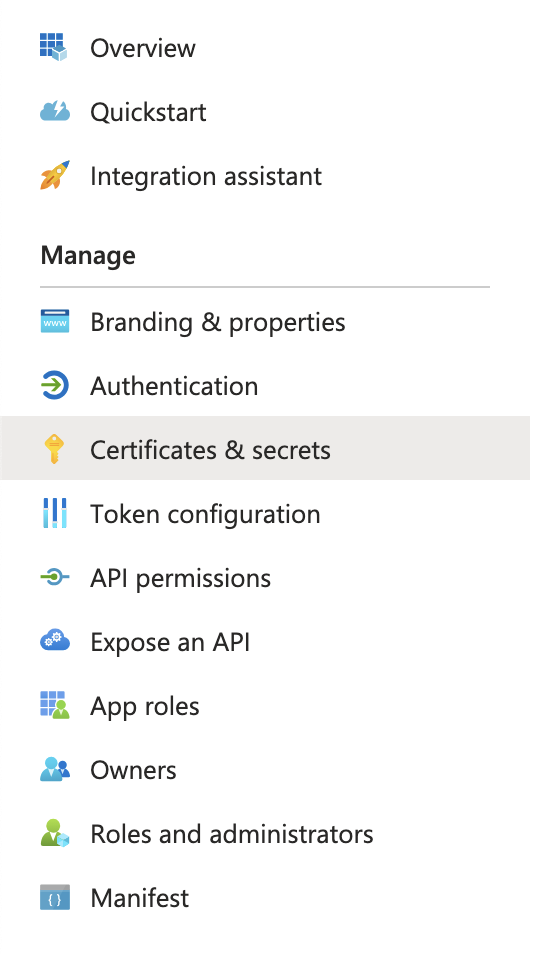 Copy the "Application (client) ID" and the "Directory (tenant) ID" values.
 Create a new client secret and copy the value.
Once you have registered your application, you will need to set the following environment variables
in your Mage setup.
| Name | Value |
| -------------------------------- | ----------------------------- |
| `ACTIVE_DIRECTORY_DIRECTORY_ID` | `` |
| `ACTIVE_DIRECTORY_CLIENT_ID` | `` |
| `ACTIVE_DIRECTORY_CLIENT_SECRET` | `` |
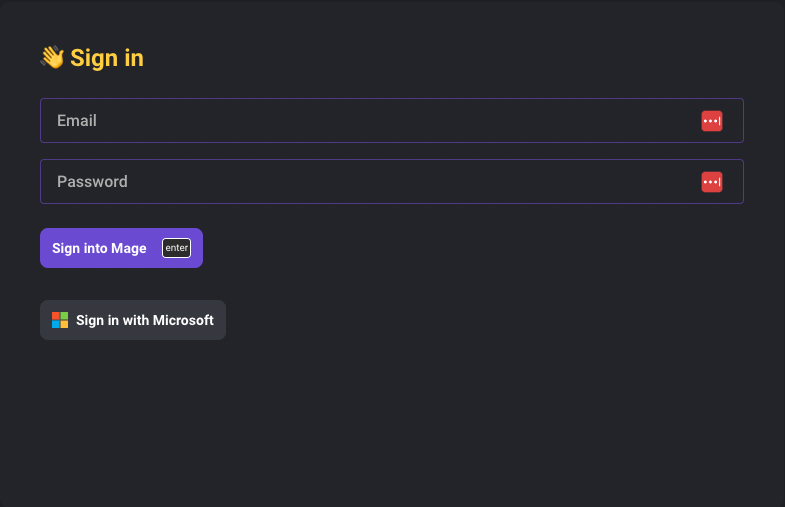
You should now see the "Sign in with Microsoft" button when you start Mage and attempt to sign in.
You may need to restart your Mage server for the changes to take effect.
Create a new client secret and copy the value.
Once you have registered your application, you will need to set the following environment variables
in your Mage setup.
| Name | Value |
| -------------------------------- | ----------------------------- |
| `ACTIVE_DIRECTORY_DIRECTORY_ID` | `` |
| `ACTIVE_DIRECTORY_CLIENT_ID` | `` |
| `ACTIVE_DIRECTORY_CLIENT_SECRET` | `` |
You should now see the "Sign in with Microsoft" button when you start Mage and attempt to sign in.
You may need to restart your Mage server for the changes to take effect.
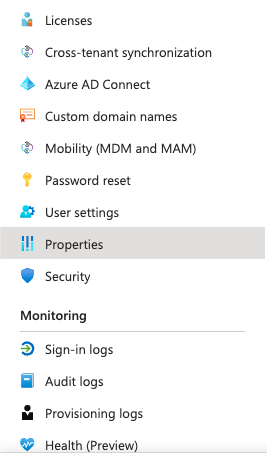
 You will need to get your organization's Tenant ID. You can find this in the
Azure Portal:
You will need to get your organization's Tenant ID. You can find this in the
Azure Portal:
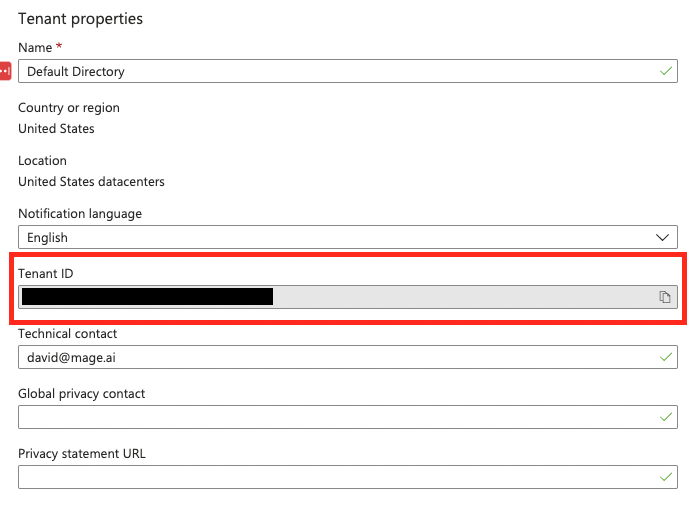 Once you have found your tenant ID, you will need to set the following environment variable
in your Mage setup.
| | |
| ----- | ------------------------------- |
| Name | `ACTIVE_DIRECTORY_DIRECTORY_ID` |
| Value | `` |
You should now see the "Sign in with Microsoft" button when you start Mage and attempt to sign in.
You may need to restart your Mage server for the changes to take effect.
### Configurable environment variables
To configure the environment for Microsoft Azure Cloud and Microsoft Azure Gov Cloud sign-in,
you need to set the following environment variables:
1. You can set the `AZURE_HOST` environment variable to one of the following based on your environment:
```
Public cloud host url: "https://login.microsoftonline.com"
China host url: "https://login.chinacloudapi.cn"
Germany host url: "https://login.microsoftonline.de"
Government host url: "https://login.microsoftonline.us"
```
2. You can set the `MICROSOFT_GRAPH_API_HOST` environment variable to one of the following basd on your environment:
```
Microsoft Graph global service: "https://graph.microsoft.com"
Microsoft Graph for US Government L4: "https://graph.microsoft.us"
Microsoft Graph for US Government L5 (DOD): "https://dod-graph.microsoft.us"
Microsoft Graph China operated by 21Vianet: "https://microsoftgraph.chinacloudapi.cn"
```
### Map AD role to Mage role
You will need to have created your own application and have app roles in order for this mapping to work.
You can map Active Directory roles to Mage roles by setting the `ACTIVE_DIRECTORY_ROLES_MAPPING` environment variable.
The value should be a JSON object with the AD role as the key and the name of the Mage role as the value. For example:
`export ACTIVE_DIRECTORY_ROLES_MAPPING='{"Mage.Edit": "Editor", "Mage.Admin": "Admin"}'`
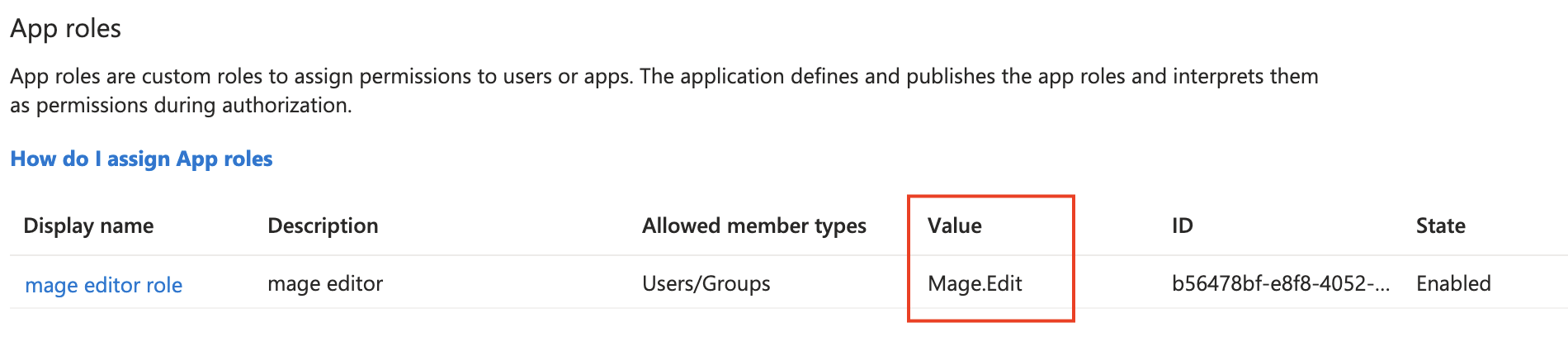
You can find the AD role value in the App roles section of your application in the Azure Portal.
Once you have found your tenant ID, you will need to set the following environment variable
in your Mage setup.
| | |
| ----- | ------------------------------- |
| Name | `ACTIVE_DIRECTORY_DIRECTORY_ID` |
| Value | `` |
You should now see the "Sign in with Microsoft" button when you start Mage and attempt to sign in.
You may need to restart your Mage server for the changes to take effect.
### Configurable environment variables
To configure the environment for Microsoft Azure Cloud and Microsoft Azure Gov Cloud sign-in,
you need to set the following environment variables:
1. You can set the `AZURE_HOST` environment variable to one of the following based on your environment:
```
Public cloud host url: "https://login.microsoftonline.com"
China host url: "https://login.chinacloudapi.cn"
Germany host url: "https://login.microsoftonline.de"
Government host url: "https://login.microsoftonline.us"
```
2. You can set the `MICROSOFT_GRAPH_API_HOST` environment variable to one of the following basd on your environment:
```
Microsoft Graph global service: "https://graph.microsoft.com"
Microsoft Graph for US Government L4: "https://graph.microsoft.us"
Microsoft Graph for US Government L5 (DOD): "https://dod-graph.microsoft.us"
Microsoft Graph China operated by 21Vianet: "https://microsoftgraph.chinacloudapi.cn"
```
### Map AD role to Mage role
You will need to have created your own application and have app roles in order for this mapping to work.
You can map Active Directory roles to Mage roles by setting the `ACTIVE_DIRECTORY_ROLES_MAPPING` environment variable.
The value should be a JSON object with the AD role as the key and the name of the Mage role as the value. For example:
`export ACTIVE_DIRECTORY_ROLES_MAPPING='{"Mage.Edit": "Editor", "Mage.Admin": "Admin"}'`
You can find the AD role value in the App roles section of your application in the Azure Portal.
 When a user signs in for the first time with their Microsoft account, Mage will use this mapping to automatically add
the appropriate roles to the user.
When a user signs in for the first time with their Microsoft account, Mage will use this mapping to automatically add
the appropriate roles to the user.