> ## Documentation Index
> Fetch the complete documentation index at: https://docs.mage.ai/llms.txt
> Use this file to discover all available pages before exploring further.
# Sign in with Google
> Enable signing in with a Google account in Mage.
### Pre-requisites
First, you'll need to enable user authentication within Mage. You can find out more about
this in the [Overview page](/production/authentication/overview).
### Enable Google sign in
Mage will request access for the following scopes:
```
https://www.googleapis.com/auth/userinfo.email
https://www.googleapis.com/auth/userinfo.profile
```
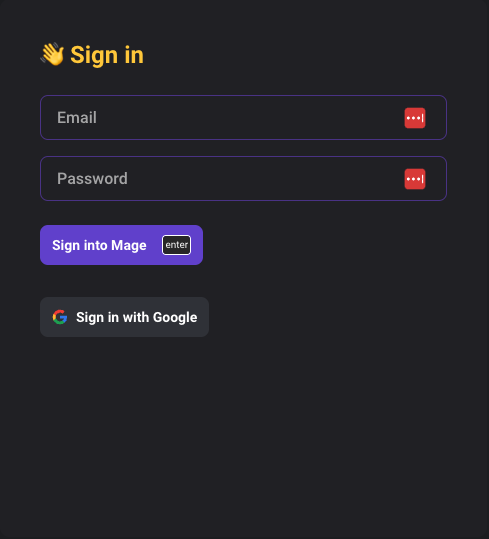
By default, users will not see the "Sign in with Google" option in their sign in page.
You will need to add Mage as an OAuth client in your Google Cloud Platform project.
For more instructions on how to do this, please see the [Google Cloud Platform documentation](https://developers.google.com/identity/protocols/oauth2/openid-connect#appsetup).
Once you have created the credentials, you will need to get the application's client ID and client secret.
You will also need to add `http(s):///oauth` as an authorized redirect URI.
Set the following environment variables in your Mage setup.
| Name | Value |
| ---------------------- | ----------------- |
| `GOOGLE_CLIENT_ID` | `` |
| `GOOGLE_CLIENT_SECRET` | `` |
You should now see the "Sign in with Google" button when you start Mage and attempt to sign in.