> ## Documentation Index
> Fetch the complete documentation index at: https://docs.mage.ai/llms.txt
> Use this file to discover all available pages before exploring further.
# Data Explorer
> Explore warehouse, database, source, destination, and pipeline output data from Mage Pro.
export const ProOnly = ({button = 'Get started for free', description = 'Try our fully managed solution to access this advanced feature.', source = 'documentation', title = 'Only in Mage Pro.'}) => ;
Data Explorer is the fastest way to see what is inside the systems connected to
Mage Pro. It brings your existing `io_config.yaml` profiles, saved data
integration source and destination configs, and compatible pipeline execution
outputs into one workspace for browsing schemas, previewing data, running
guarded SQL, and handing useful context to AI Sidekick.
Use Data Explorer when you want to answer questions before building or changing
a pipeline:
* Which tables, streams, schemas, and columns are available in this warehouse?
* Does this source stream contain the records I expect?
* What does the latest order, event, customer, metric, or operational table look like?
* Can I validate a destination table after a sync without writing a throwaway block?
* What did this upstream pipeline block actually produce?
* Which pipeline run or block run produced the data shape I am debugging?
* What query should become the first version of a loader, chart, dashboard, or investigation?
Data Explorer is intentionally lightweight. It does not create pipelines, run
pipeline schedules, or persist transformation code. It gives teams a governed,
bounded, read-oriented window into connected data so they can move from
discovery to implementation with confidence.
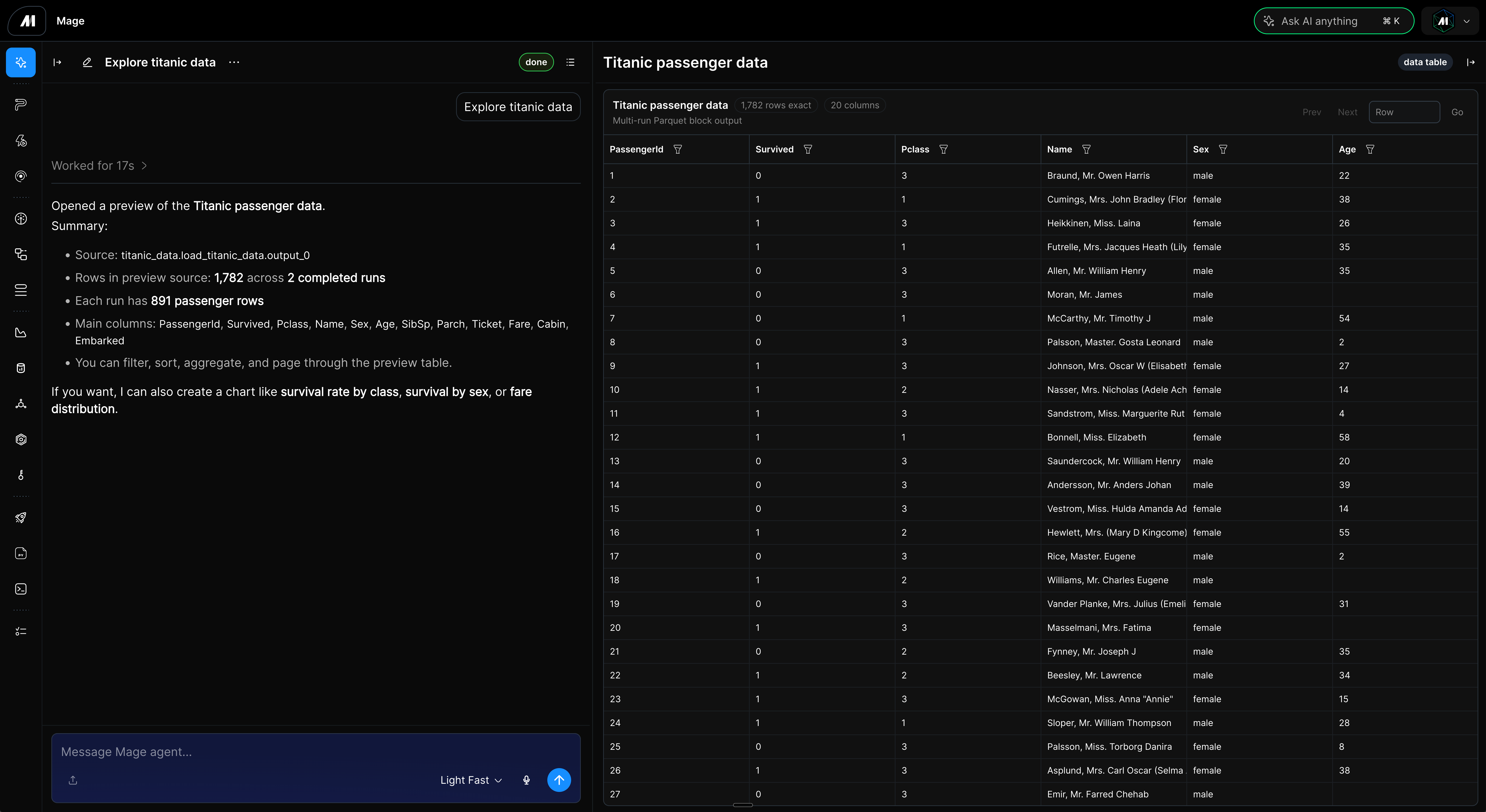 ## Explore data with AI
If AI Sidekick is enabled, Data Explorer shows **Explore data with AI** above the
explorer. Clicking it starts a new Sidekick thread from the Data Explorer page.
Use this when you want Sidekick to help with questions such as:
* "Find the best connection for recent customer activity."
* "Help me write a query for failed payments in the last week."
* "Inspect available tables before I build a loader."
* "Compare the destination table columns with the source stream shape."
* "Help me decide whether the issue is in the source table or a pipeline block output."
* "Find the block run output that explains why this pipeline run produced fewer rows."
The Sidekick handoff is useful when you want to turn exploration into a focused
debugging, validation, or implementation plan.
## Open Data Explorer
In Mage Pro, open Data Explorer from either location:
1. Select **Data Explorer** from the sidebar.
2. Open **Apps**, then select **Data Explorer**.
The page is available at:
```text theme={"system"}
/apps/data-explorer
```
Because Data Explorer is a Mage Pro feature, the page is available only in Mage
Pro workspaces.
## What you can do
Data Explorer combines connection inventory, schema metadata, previews, SQL, and
AI-assisted investigation in one page.
| Capability | What it gives you |
| --------------------------------- | ------------------------------------------------------------------------------------------------------------------------------------------------------- |
| Connection inventory | See supported IO profiles, saved integration sources, saved integration destinations, and compatible pipeline execution outputs in one searchable list. |
| Connection filters | Switch between **All**, **IO configs**, **Sources**, and **Destinations** to focus on the kind of system you are investigating. |
| Schema browser | Browse catalogs or databases, schemas, tables, and columns for supported IO config SQL providers. |
| Table, stream, and output preview | Load a bounded preview from a table, stream, destination table, pipeline block output, or compatible output from a pipeline run or block run. |
| Guarded SQL | Run one read-oriented `SELECT` or `WITH` query against supported SQL connections. |
| Result table | Sort and filter the returned preview window without changing the source system. |
| Run investigation | Inspect the sample rows and output shape from compatible pipeline and block runs so you can debug a real execution without adding temporary code. |
| Expanded results | Hide the explorer panels after a query succeeds and give the result table more room. |
| Metadata refresh | Refresh connection inventory or schema metadata when upstream objects change. |
| Error and warning display | See unavailable connection reasons, metadata load failures, query errors, and preview warnings without exposing credentials. |
| AI handoff | Start Sidekick from Data Explorer when you want help deciding what to inspect next. |
## Supported connections
Data Explorer lists existing connections from:
* `io_config.yaml` SQL provider profiles.
* Saved data integration source configs.
* Saved data integration destination configs.
* Compatible pipeline execution outputs, including block outputs associated with
pipeline runs and block runs.
SQL-capable connections can run queries. Connections with preview support can
preview a table, stream, destination table, or block output. Connections with
neither preview nor query support still appear in the inventory when Mage can
identify them, but Data Explorer marks them as unavailable and shows the reason.
This makes setup issues visible instead of silently hiding incomplete or
placeholder configs.
Supported `io_config.yaml` SQL providers include:
* BigQuery
* ClickHouse
* Databricks
* Druid
* DuckDB
* Microsoft Fabric
* MySQL
* OracleDB
* PostgreSQL
* Redshift
* Snowflake
* Spark
* SQLite
* Microsoft SQL Server
* Trino
SQLite and DuckDB configs are preview-only in Data Explorer V1. Other supported
SQL-capable IO config profiles can preview or query data when their connection
settings are complete.
Saved source and destination configs are discovered from data integration
pipelines. When a source or destination has stream or table options in its
catalog, Data Explorer shows those options in a **Table or stream** selector and
uses the selected value to prepare preview and starter SQL state.
For Delta Lake destinations on Amazon S3, Data Explorer can preview a bounded
window from the saved `delta_lake_s3` config when the config points to a readable
Delta table with either a full `s3://` table URI or a bucket, object key path,
and table name.
Pipeline execution outputs are available for compatible executable blocks and
run outputs. Data Explorer uses Mage's preview system to load a bounded output
window so you can inspect intermediate results from a pipeline run or block run
without adding temporary print statements, export blocks, or one-off validation
code.
## Permissions
Viewers can open Data Explorer and review the connection inventory. Editor access
is required to browse schemas, preview a table, or run SQL.
Saved source and destination configs follow the permissions of the pipeline that
owns the config:
* Users only see integration configs from pipelines they can view.
* Users must be able to edit the owning pipeline before running a preview or SQL
query through that config.
* Pipeline and block run outputs follow the permissions of the pipeline that
produced the output.
Connection metadata and error messages are redacted so credentials, tokens,
passwords, and URI credentials are not exposed in page errors.
## Browse schemas and columns
For supported `io_config.yaml` SQL profiles, Data Explorer can browse metadata
without loading a full warehouse inventory in the initial connection list. It
loads each level as you select it:
1. Catalogs or databases
2. Schemas
3. Tables
4. Columns
When metadata loads, Data Explorer selects the first available catalog or
database, schema, and table by default. Selecting a table fills the preview
target and updates the starter SQL query to `SELECT * FROM `.
Selecting a table also loads its columns and types.
The schema browser includes a search box that filters visible catalogs, schemas,
tables, and columns. It also includes a refresh control for the selected
connection so you can reload metadata after upstream tables or schemas change.
During dependent metadata loads, Data Explorer keeps stable panels visible where
possible so the page does not blank out while the next level loads.
Schema browsing is currently supported for these IO config providers:
* DuckDB
* Microsoft Fabric
* MySQL
* PostgreSQL
* Redshift
* Snowflake
* SQLite
* Microsoft SQL Server
Other SQL-capable IO config profiles can still preview or query data when their
connection settings are complete, but you must type the table name or SQL query
manually.
## Preview a table, stream, or run output
1. Select a connection from **All**, **IO configs**, **Sources**, or
**Destinations**.
2. For `io_config.yaml` connections with metadata support, use the schema
browser to confirm or change the selected catalog or database, schema, and
table.
3. For saved source or destination configs, choose a table or stream when options
are available.
4. For compatible pipeline or block run outputs, choose the output you want to
inspect.
5. If the connection does not provide table options, or the schema browser does
not load a matching table, type the table or stream name.
6. Set a row limit.
7. Click **Preview table**.
Table and stream previews run a bounded `SELECT * FROM ` query.
Pipeline and block run output previews load a bounded output window through
Mage's data preview system. The default row limit is `100`, and Mage clamps row
limits to protect the workspace from accidentally large previews.
Delta Lake S3 previews read the table through Mage's Delta Lake connector and
return only the requested preview window. They are useful when you want to
validate a Delta destination table before using it in Sidekick exploration,
Analytics chart creation, or dashboard refresh.
Preview is useful for quick checks:
```text theme={"system"}
analytics.orders
```
```text theme={"system"}
public.customer_events
```
```text theme={"system"}
stripe_balance_transactions
```
```text theme={"system"}
Pipeline run output / daily_orders / enrich_orders / run 12841
```
Use preview when you need a quick first look. Use SQL when you need joins,
filters, ordering, selected columns, grouping, or source-side predicates.
## Run a SQL query
1. Select a SQL-capable connection.
2. Enter one `SELECT` or `WITH` query.
3. Set a row limit.
4. Click **Run query**.
Data Explorer accepts one `SELECT` or `WITH` statement at a time. Mutating
statements such as `INSERT`, `UPDATE`, `DELETE`, and `DROP` are rejected.
Locking clauses such as `FOR UPDATE` or `FOR SHARE` are rejected. Multi-statement
SQL is rejected. Data Explorer also rejects `SELECT` or `WITH` queries that call
known unsafe functions with side effects, such as functions that update
sequences, terminate sessions, sleep, read server-local files, or execute
provider-specific system commands.
These safeguards are not the same as database-enforced read-only execution for
every provider. PostgreSQL and Redshift preview and query execution start a
database read-only transaction before running the query and roll it back
afterward. Metadata browsing uses server-generated `SELECT` queries with
provider timeout settings. Metadata discovery, preview, and query execution are
also bounded by server-side deadlines. For providers with native timeout
controls, Data Explorer passes those settings to the driver or query job. If a
provider call exceeds the relevant deadline, Data Explorer attempts
provider-native cancellation where available, closes or stops the bounded
execution operation, and returns a timeout error. Other supported providers rely
on statement validation, restricted-function checks, provider timeout or
lock-timeout settings where available, bounded server execution deadlines, and
row-limit enforcement.
For those providers, use credentials that already have the least privileges
needed for exploration.
```sql theme={"system"}
SELECT
order_id,
customer_id,
status,
total_amount,
created_at
FROM analytics.orders
WHERE created_at >= CURRENT_DATE - INTERVAL '7 days'
ORDER BY created_at DESC
LIMIT 100;
```
Another common workflow is using Data Explorer to shape a loader query before
turning it into pipeline code:
```sql theme={"system"}
WITH recent_customers AS (
SELECT
customer_id,
email,
updated_at
FROM warehouse.customers
WHERE updated_at >= CURRENT_DATE - INTERVAL '30 days'
)
SELECT *
FROM recent_customers
ORDER BY updated_at DESC
LIMIT 250;
```
## Review results
After a preview or query succeeds, Data Explorer shows the returned rows in a
table. Use the column headers to sort the returned rows, or open a column filter
to narrow the rows shown in the current result.
These sort and filter controls apply only to the returned sample. To filter the
full source table, add the filter to the SQL query. Returned row counts describe
the loaded preview window, not the total number of rows in the source table. To
answer full-table cardinality questions, run an exact `COUNT(*)` query against
the selected table or filtered query.
When a tabular result is available, click **Expand results** to hide the
connection, schema, and query browser and give the results table more space.
Click **Back** to restore the explorer panels. Data Explorer remembers this
layout preference for future result tables.
If a preview returns warnings from the data preview service, Data Explorer shows
those warnings with the result so the loaded rows are not separated from
important context.
## Practical workflows
### Validate a new connection
1. Add or update an `io_config.yaml` profile.
2. Open Data Explorer.
3. Search for the provider or profile name.
4. Confirm the connection is available.
5. Browse schemas and tables, or type a known table name.
6. Preview a small row window.
7. Run a targeted `SELECT` query to confirm credentials and schema access.
### Inspect a data integration source
1. Open Data Explorer.
2. Select **Sources**.
3. Choose the saved source config from the connection list.
4. Select a stream when the source catalog provides stream options.
5. Preview the stream to confirm field names and representative records.
6. Use the table output to decide what should become a transformation or
downstream validation.
### Check a destination after a sync
1. Open Data Explorer.
2. Select **Destinations**.
3. Choose the destination config owned by the integration pipeline.
4. Select or type the destination table.
5. Preview rows or run a narrow SQL query that checks the records affected by
the latest sync.
### Inspect a pipeline run or block run output
1. Open Data Explorer.
2. Search for the pipeline, block, or run identifier.
3. Choose the compatible pipeline output, block output, pipeline run output, or
block run output from the available results.
4. Preview a bounded output window.
5. Compare the output shape and sample rows with the source, destination, or next
block in the pipeline.
6. Use the result to decide whether the issue came from the upstream data,
transformation code, runtime variables, or a downstream destination.
### Turn discovery into implementation
1. Use the schema browser to find the right table and columns.
2. Run a guarded SQL query with filters, ordering, and selected columns.
3. Copy the query into a data loader, chart workflow, or dashboard workflow.
4. Keep Data Explorer open as a quick verification tool while you iterate.
## Safety model
Data Explorer is built for exploration, not uncontrolled execution.
* It accepts only one `SELECT` or `WITH` statement per query request.
* It rejects mutating statements, locking clauses, multi-statement SQL, and
known unsafe functions.
* It clamps preview and query limits on the server.
* It bounds metadata requests separately from preview and query requests.
* It loads compatible pipeline and block run outputs as bounded preview windows.
* It applies provider timeout settings where available.
* It attempts provider-native cancellation when supported.
* It redacts sensitive config values and error details before returning them.
* PostgreSQL and Redshift query execution use read-only transactions that roll
back after the query.
Use least-privilege database credentials for exploration, especially with
providers where the database driver does not support the same read-only
transaction enforcement as PostgreSQL and Redshift.
## Troubleshooting
### No connections appear
Confirm that the project has a supported `io_config.yaml` SQL profile, saved
data integration source or destination config, or compatible outputs from
pipelines, pipeline runs, or block runs the user can view.
### A connection appears as unavailable
Open the connection and read the unavailable reason. Common causes include
placeholder values, incomplete `io_config.yaml` provider settings, missing
credentials, a saved source or destination provider that cannot be mapped to a
SQL-capable IO provider, a pipeline run whose output is no longer available, or
a block type whose output cannot be previewed.
### Preview or query buttons are disabled
Confirm that the selected connection supports the action, a table or query is
entered, metadata is not still loading, and the user has Editor access. Viewers
can inspect the inventory, but they cannot browse schemas, preview data, or run
SQL.
### Schema browser does not appear
The schema browser appears for supported `io_config.yaml` connections with
metadata support. For other SQL-capable connections, type the table name or SQL
query manually.
### Results are sorted or filtered differently than the source table
Result table sort and filter controls operate on the returned preview window
only. Add `WHERE`, `ORDER BY`, grouping, or joins to the SQL query when the
filter must run against the full source table.
## Explore data with AI
If AI Sidekick is enabled, Data Explorer shows **Explore data with AI** above the
explorer. Clicking it starts a new Sidekick thread from the Data Explorer page.
Use this when you want Sidekick to help with questions such as:
* "Find the best connection for recent customer activity."
* "Help me write a query for failed payments in the last week."
* "Inspect available tables before I build a loader."
* "Compare the destination table columns with the source stream shape."
* "Help me decide whether the issue is in the source table or a pipeline block output."
* "Find the block run output that explains why this pipeline run produced fewer rows."
The Sidekick handoff is useful when you want to turn exploration into a focused
debugging, validation, or implementation plan.
## Open Data Explorer
In Mage Pro, open Data Explorer from either location:
1. Select **Data Explorer** from the sidebar.
2. Open **Apps**, then select **Data Explorer**.
The page is available at:
```text theme={"system"}
/apps/data-explorer
```
Because Data Explorer is a Mage Pro feature, the page is available only in Mage
Pro workspaces.
## What you can do
Data Explorer combines connection inventory, schema metadata, previews, SQL, and
AI-assisted investigation in one page.
| Capability | What it gives you |
| --------------------------------- | ------------------------------------------------------------------------------------------------------------------------------------------------------- |
| Connection inventory | See supported IO profiles, saved integration sources, saved integration destinations, and compatible pipeline execution outputs in one searchable list. |
| Connection filters | Switch between **All**, **IO configs**, **Sources**, and **Destinations** to focus on the kind of system you are investigating. |
| Schema browser | Browse catalogs or databases, schemas, tables, and columns for supported IO config SQL providers. |
| Table, stream, and output preview | Load a bounded preview from a table, stream, destination table, pipeline block output, or compatible output from a pipeline run or block run. |
| Guarded SQL | Run one read-oriented `SELECT` or `WITH` query against supported SQL connections. |
| Result table | Sort and filter the returned preview window without changing the source system. |
| Run investigation | Inspect the sample rows and output shape from compatible pipeline and block runs so you can debug a real execution without adding temporary code. |
| Expanded results | Hide the explorer panels after a query succeeds and give the result table more room. |
| Metadata refresh | Refresh connection inventory or schema metadata when upstream objects change. |
| Error and warning display | See unavailable connection reasons, metadata load failures, query errors, and preview warnings without exposing credentials. |
| AI handoff | Start Sidekick from Data Explorer when you want help deciding what to inspect next. |
## Supported connections
Data Explorer lists existing connections from:
* `io_config.yaml` SQL provider profiles.
* Saved data integration source configs.
* Saved data integration destination configs.
* Compatible pipeline execution outputs, including block outputs associated with
pipeline runs and block runs.
SQL-capable connections can run queries. Connections with preview support can
preview a table, stream, destination table, or block output. Connections with
neither preview nor query support still appear in the inventory when Mage can
identify them, but Data Explorer marks them as unavailable and shows the reason.
This makes setup issues visible instead of silently hiding incomplete or
placeholder configs.
Supported `io_config.yaml` SQL providers include:
* BigQuery
* ClickHouse
* Databricks
* Druid
* DuckDB
* Microsoft Fabric
* MySQL
* OracleDB
* PostgreSQL
* Redshift
* Snowflake
* Spark
* SQLite
* Microsoft SQL Server
* Trino
SQLite and DuckDB configs are preview-only in Data Explorer V1. Other supported
SQL-capable IO config profiles can preview or query data when their connection
settings are complete.
Saved source and destination configs are discovered from data integration
pipelines. When a source or destination has stream or table options in its
catalog, Data Explorer shows those options in a **Table or stream** selector and
uses the selected value to prepare preview and starter SQL state.
For Delta Lake destinations on Amazon S3, Data Explorer can preview a bounded
window from the saved `delta_lake_s3` config when the config points to a readable
Delta table with either a full `s3://` table URI or a bucket, object key path,
and table name.
Pipeline execution outputs are available for compatible executable blocks and
run outputs. Data Explorer uses Mage's preview system to load a bounded output
window so you can inspect intermediate results from a pipeline run or block run
without adding temporary print statements, export blocks, or one-off validation
code.
## Permissions
Viewers can open Data Explorer and review the connection inventory. Editor access
is required to browse schemas, preview a table, or run SQL.
Saved source and destination configs follow the permissions of the pipeline that
owns the config:
* Users only see integration configs from pipelines they can view.
* Users must be able to edit the owning pipeline before running a preview or SQL
query through that config.
* Pipeline and block run outputs follow the permissions of the pipeline that
produced the output.
Connection metadata and error messages are redacted so credentials, tokens,
passwords, and URI credentials are not exposed in page errors.
## Browse schemas and columns
For supported `io_config.yaml` SQL profiles, Data Explorer can browse metadata
without loading a full warehouse inventory in the initial connection list. It
loads each level as you select it:
1. Catalogs or databases
2. Schemas
3. Tables
4. Columns
When metadata loads, Data Explorer selects the first available catalog or
database, schema, and table by default. Selecting a table fills the preview
target and updates the starter SQL query to `SELECT * FROM `.
Selecting a table also loads its columns and types.
The schema browser includes a search box that filters visible catalogs, schemas,
tables, and columns. It also includes a refresh control for the selected
connection so you can reload metadata after upstream tables or schemas change.
During dependent metadata loads, Data Explorer keeps stable panels visible where
possible so the page does not blank out while the next level loads.
Schema browsing is currently supported for these IO config providers:
* DuckDB
* Microsoft Fabric
* MySQL
* PostgreSQL
* Redshift
* Snowflake
* SQLite
* Microsoft SQL Server
Other SQL-capable IO config profiles can still preview or query data when their
connection settings are complete, but you must type the table name or SQL query
manually.
## Preview a table, stream, or run output
1. Select a connection from **All**, **IO configs**, **Sources**, or
**Destinations**.
2. For `io_config.yaml` connections with metadata support, use the schema
browser to confirm or change the selected catalog or database, schema, and
table.
3. For saved source or destination configs, choose a table or stream when options
are available.
4. For compatible pipeline or block run outputs, choose the output you want to
inspect.
5. If the connection does not provide table options, or the schema browser does
not load a matching table, type the table or stream name.
6. Set a row limit.
7. Click **Preview table**.
Table and stream previews run a bounded `SELECT * FROM ` query.
Pipeline and block run output previews load a bounded output window through
Mage's data preview system. The default row limit is `100`, and Mage clamps row
limits to protect the workspace from accidentally large previews.
Delta Lake S3 previews read the table through Mage's Delta Lake connector and
return only the requested preview window. They are useful when you want to
validate a Delta destination table before using it in Sidekick exploration,
Analytics chart creation, or dashboard refresh.
Preview is useful for quick checks:
```text theme={"system"}
analytics.orders
```
```text theme={"system"}
public.customer_events
```
```text theme={"system"}
stripe_balance_transactions
```
```text theme={"system"}
Pipeline run output / daily_orders / enrich_orders / run 12841
```
Use preview when you need a quick first look. Use SQL when you need joins,
filters, ordering, selected columns, grouping, or source-side predicates.
## Run a SQL query
1. Select a SQL-capable connection.
2. Enter one `SELECT` or `WITH` query.
3. Set a row limit.
4. Click **Run query**.
Data Explorer accepts one `SELECT` or `WITH` statement at a time. Mutating
statements such as `INSERT`, `UPDATE`, `DELETE`, and `DROP` are rejected.
Locking clauses such as `FOR UPDATE` or `FOR SHARE` are rejected. Multi-statement
SQL is rejected. Data Explorer also rejects `SELECT` or `WITH` queries that call
known unsafe functions with side effects, such as functions that update
sequences, terminate sessions, sleep, read server-local files, or execute
provider-specific system commands.
These safeguards are not the same as database-enforced read-only execution for
every provider. PostgreSQL and Redshift preview and query execution start a
database read-only transaction before running the query and roll it back
afterward. Metadata browsing uses server-generated `SELECT` queries with
provider timeout settings. Metadata discovery, preview, and query execution are
also bounded by server-side deadlines. For providers with native timeout
controls, Data Explorer passes those settings to the driver or query job. If a
provider call exceeds the relevant deadline, Data Explorer attempts
provider-native cancellation where available, closes or stops the bounded
execution operation, and returns a timeout error. Other supported providers rely
on statement validation, restricted-function checks, provider timeout or
lock-timeout settings where available, bounded server execution deadlines, and
row-limit enforcement.
For those providers, use credentials that already have the least privileges
needed for exploration.
```sql theme={"system"}
SELECT
order_id,
customer_id,
status,
total_amount,
created_at
FROM analytics.orders
WHERE created_at >= CURRENT_DATE - INTERVAL '7 days'
ORDER BY created_at DESC
LIMIT 100;
```
Another common workflow is using Data Explorer to shape a loader query before
turning it into pipeline code:
```sql theme={"system"}
WITH recent_customers AS (
SELECT
customer_id,
email,
updated_at
FROM warehouse.customers
WHERE updated_at >= CURRENT_DATE - INTERVAL '30 days'
)
SELECT *
FROM recent_customers
ORDER BY updated_at DESC
LIMIT 250;
```
## Review results
After a preview or query succeeds, Data Explorer shows the returned rows in a
table. Use the column headers to sort the returned rows, or open a column filter
to narrow the rows shown in the current result.
These sort and filter controls apply only to the returned sample. To filter the
full source table, add the filter to the SQL query. Returned row counts describe
the loaded preview window, not the total number of rows in the source table. To
answer full-table cardinality questions, run an exact `COUNT(*)` query against
the selected table or filtered query.
When a tabular result is available, click **Expand results** to hide the
connection, schema, and query browser and give the results table more space.
Click **Back** to restore the explorer panels. Data Explorer remembers this
layout preference for future result tables.
If a preview returns warnings from the data preview service, Data Explorer shows
those warnings with the result so the loaded rows are not separated from
important context.
## Practical workflows
### Validate a new connection
1. Add or update an `io_config.yaml` profile.
2. Open Data Explorer.
3. Search for the provider or profile name.
4. Confirm the connection is available.
5. Browse schemas and tables, or type a known table name.
6. Preview a small row window.
7. Run a targeted `SELECT` query to confirm credentials and schema access.
### Inspect a data integration source
1. Open Data Explorer.
2. Select **Sources**.
3. Choose the saved source config from the connection list.
4. Select a stream when the source catalog provides stream options.
5. Preview the stream to confirm field names and representative records.
6. Use the table output to decide what should become a transformation or
downstream validation.
### Check a destination after a sync
1. Open Data Explorer.
2. Select **Destinations**.
3. Choose the destination config owned by the integration pipeline.
4. Select or type the destination table.
5. Preview rows or run a narrow SQL query that checks the records affected by
the latest sync.
### Inspect a pipeline run or block run output
1. Open Data Explorer.
2. Search for the pipeline, block, or run identifier.
3. Choose the compatible pipeline output, block output, pipeline run output, or
block run output from the available results.
4. Preview a bounded output window.
5. Compare the output shape and sample rows with the source, destination, or next
block in the pipeline.
6. Use the result to decide whether the issue came from the upstream data,
transformation code, runtime variables, or a downstream destination.
### Turn discovery into implementation
1. Use the schema browser to find the right table and columns.
2. Run a guarded SQL query with filters, ordering, and selected columns.
3. Copy the query into a data loader, chart workflow, or dashboard workflow.
4. Keep Data Explorer open as a quick verification tool while you iterate.
## Safety model
Data Explorer is built for exploration, not uncontrolled execution.
* It accepts only one `SELECT` or `WITH` statement per query request.
* It rejects mutating statements, locking clauses, multi-statement SQL, and
known unsafe functions.
* It clamps preview and query limits on the server.
* It bounds metadata requests separately from preview and query requests.
* It loads compatible pipeline and block run outputs as bounded preview windows.
* It applies provider timeout settings where available.
* It attempts provider-native cancellation when supported.
* It redacts sensitive config values and error details before returning them.
* PostgreSQL and Redshift query execution use read-only transactions that roll
back after the query.
Use least-privilege database credentials for exploration, especially with
providers where the database driver does not support the same read-only
transaction enforcement as PostgreSQL and Redshift.
## Troubleshooting
### No connections appear
Confirm that the project has a supported `io_config.yaml` SQL profile, saved
data integration source or destination config, or compatible outputs from
pipelines, pipeline runs, or block runs the user can view.
### A connection appears as unavailable
Open the connection and read the unavailable reason. Common causes include
placeholder values, incomplete `io_config.yaml` provider settings, missing
credentials, a saved source or destination provider that cannot be mapped to a
SQL-capable IO provider, a pipeline run whose output is no longer available, or
a block type whose output cannot be previewed.
### Preview or query buttons are disabled
Confirm that the selected connection supports the action, a table or query is
entered, metadata is not still loading, and the user has Editor access. Viewers
can inspect the inventory, but they cannot browse schemas, preview data, or run
SQL.
### Schema browser does not appear
The schema browser appears for supported `io_config.yaml` connections with
metadata support. For other SQL-capable connections, type the table name or SQL
query manually.
### Results are sorted or filtered differently than the source table
Result table sort and filter controls operate on the returned preview window
only. Add `WHERE`, `ORDER BY`, grouping, or joins to the SQL query when the
filter must run against the full source table.