> ## Documentation Index
> Fetch the complete documentation index at: https://docs.mage.ai/llms.txt
> Use this file to discover all available pages before exploring further.
# Alerting status updates in Opsgenie
> Get status updates in Opsgenie.
 ## Overview of steps
1. Set up Api Integration for Opsgenie
2. Update Mage project settings
***
## Set up Api Integration for Opsgenie
Follow these
[instructions on Opsgenie](https://support.atlassian.com/opsgenie/docs/create-a-default-api-integration/)
to setup an API Integration in your account.
***
## Update Mage project settings
Once you’ve set up API Integration for Opsgenie, you should have an API Key that Opsgenie
provides.
Follow these steps to add that Opsgenie Configuration to your project settings:
1. Open the Mage tool in your browser (e.g. [http://localhost:6789/](http://localhost:6789/)).
2. Open a pipeline and start editing it (e.g.
[http://localhost:6789/pipelines/example\_pipeline/edit](http://localhost:6789/pipelines/example_pipeline/edit)).
3. In your left sidebar in the file browser, scroll all the way down and click
on a file named `metadata.yaml`.
4. In the `metadata.yaml` file, add a section with the following
configuration or update the existing `notification_config` section:
```yaml theme={"system"}
notification_config:
alert_on:
- trigger_failure
- trigger_passed_sla
```
If you omit the `alert_on` section it will default to `trigger_failure` and `trigger_passed_sla`.
Options:
* `trigger_failure`: alert when a run of a trigger fails
* `trigger_success`: alert when a run of a trigger succeeds
* `trigger_passed_sla`: alert when a run of a trigger passes sla
5. In the `metadata.yaml` file, add the following values:
```yaml theme={"system"}
notification_config:
alert_on:
...
opsgenie_config:
url: "https://api.eu.opsgenie.com/v2/alerts"
api_key: ""
priority: "P2" # Default P3
tags: # Default empty
- production
details: # Default empty
environment: production
responders: # Default empty
- id: "4513b7ea-3b91-438f-b7e4-e3e54af9147c"
type: "team"
```
Change the `your_api_key` value to be the API Key you created from Opsgenie.
***
## What next?
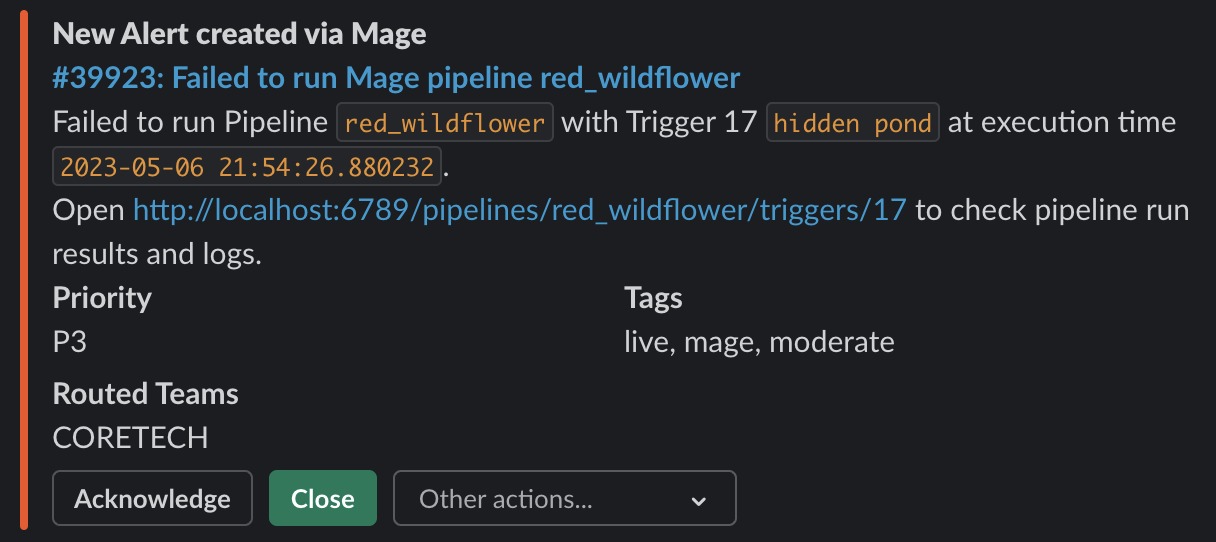
Whenever a pipeline run is successfully completed or fails, an Opsgenie alert be
created.
Here is an example of what the alert could look like:
| |
| ------------------------------------------------------------------------- |
|  |
## Overview of steps
1. Set up Api Integration for Opsgenie
2. Update Mage project settings
***
## Set up Api Integration for Opsgenie
Follow these
[instructions on Opsgenie](https://support.atlassian.com/opsgenie/docs/create-a-default-api-integration/)
to setup an API Integration in your account.
***
## Update Mage project settings
Once you’ve set up API Integration for Opsgenie, you should have an API Key that Opsgenie
provides.
Follow these steps to add that Opsgenie Configuration to your project settings:
1. Open the Mage tool in your browser (e.g. [http://localhost:6789/](http://localhost:6789/)).
2. Open a pipeline and start editing it (e.g.
[http://localhost:6789/pipelines/example\_pipeline/edit](http://localhost:6789/pipelines/example_pipeline/edit)).
3. In your left sidebar in the file browser, scroll all the way down and click
on a file named `metadata.yaml`.
4. In the `metadata.yaml` file, add a section with the following
configuration or update the existing `notification_config` section:
```yaml theme={"system"}
notification_config:
alert_on:
- trigger_failure
- trigger_passed_sla
```
If you omit the `alert_on` section it will default to `trigger_failure` and `trigger_passed_sla`.
Options:
* `trigger_failure`: alert when a run of a trigger fails
* `trigger_success`: alert when a run of a trigger succeeds
* `trigger_passed_sla`: alert when a run of a trigger passes sla
5. In the `metadata.yaml` file, add the following values:
```yaml theme={"system"}
notification_config:
alert_on:
...
opsgenie_config:
url: "https://api.eu.opsgenie.com/v2/alerts"
api_key: ""
priority: "P2" # Default P3
tags: # Default empty
- production
details: # Default empty
environment: production
responders: # Default empty
- id: "4513b7ea-3b91-438f-b7e4-e3e54af9147c"
type: "team"
```
Change the `your_api_key` value to be the API Key you created from Opsgenie.
***
## What next?
Whenever a pipeline run is successfully completed or fails, an Opsgenie alert be
created.
Here is an example of what the alert could look like:
| |
| ------------------------------------------------------------------------- |
|  |