> ## Documentation Index
> Fetch the complete documentation index at: https://docs.mage.ai/llms.txt
> Use this file to discover all available pages before exploring further.

# File versioning and history

> Local file edit tracking and version history for restoring changes made in the past.

export const ProOnly = ({button = 'Get started for free', description = 'Try our fully managed solution to access this advanced feature.', source = 'documentation', title = 'Only in Mage Pro.'}) => <a href={`https://cloud.mage.ai/sign-up?source=${source}`} className="block my-4 px-5 py-4 overflow-hidden rounded-xl flex gap-3 border border-emerald-500/20 bg-emerald-50/50 dark:border-emerald-500/30 dark:bg-emerald-500/10" target="_blank">
    <div style={{
  display: 'flex',
  alignItems: 'center',
  width: '100%'
}}>
      <div className="text-sm prose min-w-0 text-emerald-900 dark:text-emerald-200" style={{
  flex: 1
}}>
        {title}
        <p className="normal">{description}</p>
      </div>

      <div> </div>

      <div>
        <ProButton label={button} href={`https://cloud.mage.ai/sign-up?source=${source}`} />
      </div>
    </div>
  </a>;

export const ProButton = ({href, label = 'Get started with Mage Pro for free', source = 'documentation'}) => <div style={{
  height: 32,
  position: 'relative'
}}>
    <a target="_blank" className="group px-4 py-1.5 relative inline-flex items-center text-sm font-medium rounded-full" href={href ?? `https://cloud.mage.ai/sign-up?source=${source}`}>
      <span className="absolute inset-0 bg-primary-dark dark:bg-primary-light/10 border-primary-light/30 rounded-full dark:border group-hover:opacity-[0.9] dark:group-hover:border-primary-light/60">
      </span>

      <div className="mr-0.5 space-x-2.5 flex items-center">
        <span class="z-10 text-white dark:text-primary-light">
          {label}
        </span>

        <svg width="3" height="24" viewBox="0 -9 3 24" class="h-5 rotate-0 overflow-visible text-white/90 dark:text-primary-light">
          <path d="M0 0L3 3L0 6" fill="none" stroke="currentColor" stroke-width="1.5" stroke-linecap="round"></path>
        </svg>
      </div>
    </a>
  </div>;

<ProOnly source="file-versioning" />

Mage Pro includes built-in file versioning, eliminating the need to configure Git for rolling back changes or recovering previous file versions.

### How It Works

Every update to a file's contents automatically creates a new version that can be restored at any time. This applies to all files, including pipeline configurations.

### Restoring a Previous File Version

1. **Open the file** – In the pipeline editor, select the file you want to recover from the left hand file browser
2. **Access version history** – Click the "Version history" button in the top-left portion of the file browser

<Frame>
  <p align="center">
    <img alt="Version history button" src="https://raw.githubusercontent.com/mage-ai/assets/main/pro/features/click-version-history.png" />
  </p>
</Frame>

3. **Select a version** – Choose the version you want to restore from the available options
4. **Restore** – Click the "Restore this version" button to apply the changes
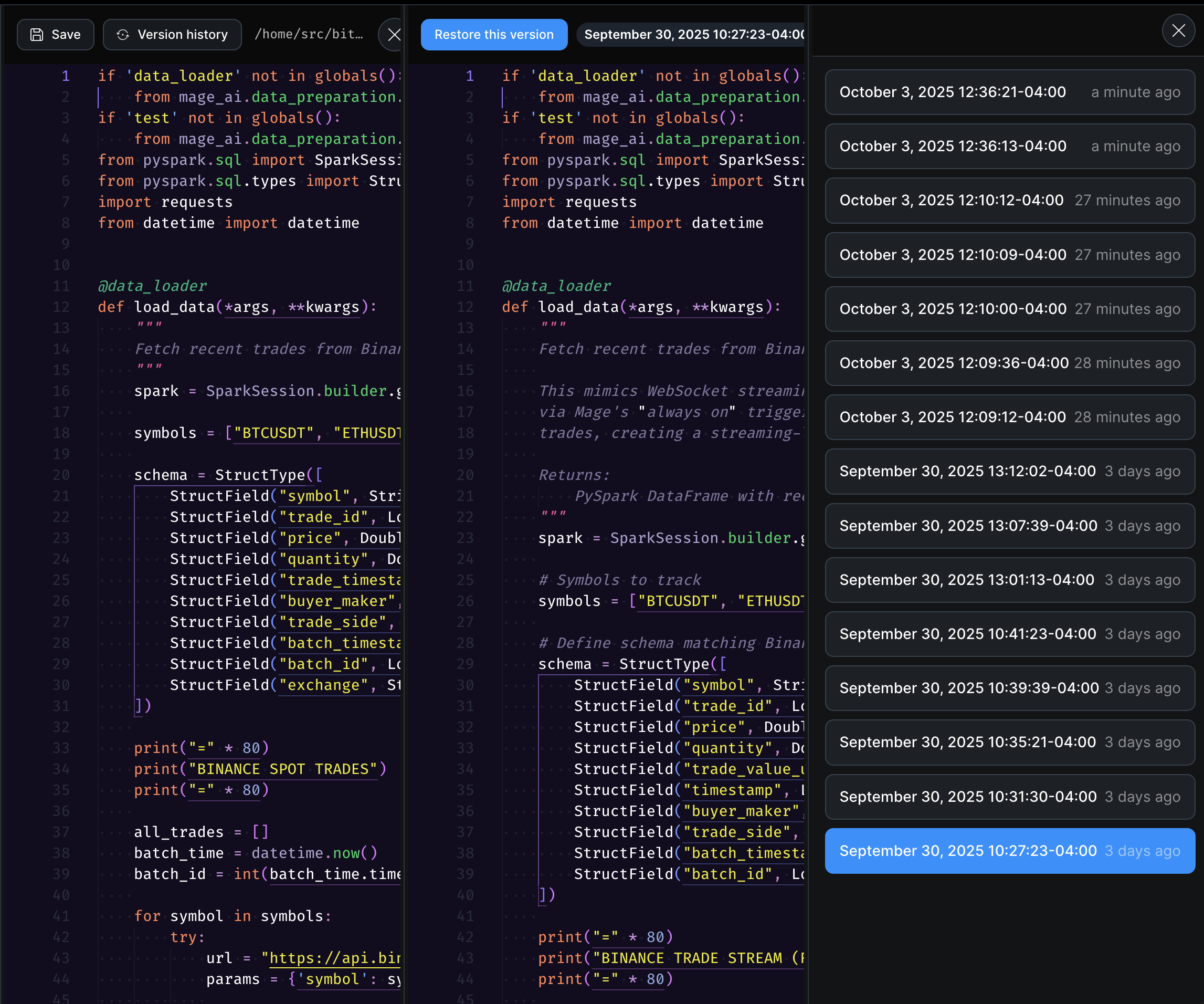
<Frame>
  <p align="center">
    <img alt="Change version history" src="https://raw.githubusercontent.com/mage-ai/assets/main/pro/features/change-version-history.png" />
  </p>
</Frame>

Once restored, the selected version becomes the current active version of your file.

Version history gives you the confidence to experiment and iterate freely without fear of losing work. If you make a mistake or need to reference previous logic, you can always roll back to any saved version.
