> ## Documentation Index
> Fetch the complete documentation index at: https://docs.mage.ai/llms.txt
> Use this file to discover all available pages before exploring further.
# Google Cloud PubSub
> Ingest data from Google Cloud PubSub event streaming sources.

## Config
```yaml theme={"system"}
connector_type: google_cloud_pubsub
project_id: test-project-id
topic_id: test-topic-id
subscription_id: test-subscription-id-0
timeout: 5
batch_size: 100
pubsub_emulator_host: null # "host.docker.internal:8085"
path_to_credentials_json_file: "./google_credentials.json"
```
The `pubsub_emulator_host` parameter is optional, which could be used when you need to test
the Google Cloud PubSub service locally through an emulator (see more details at the bottom).
## Start Mage
### Create a new pipeline
1. Open Mage in your browser.
2. Click `+ New pipeline`, then select `Streaming`.
3. Add a data loader block, select `Google Cloud PubSub`, and change the settings to those of your PubSub project:
```yaml theme={"system"}
connector_type: google_cloud_pubsub
project_id: test-project-id
topic_id: test-topic-id
subscription_id: test-subscription-id-0
timeout: 5
batch_size: 100
pubsub_emulator_host: null
path_to_credentials_json_file: "./google_credentials.json"
```
4. Add a transformer block and paste the following:
```python theme={"system"}
from typing import Dict, List
if 'transformer' not in globals():
from mage_ai.data_preparation.decorators import transformer
@transformer
def transform(messages: List[Dict], *args, **kwargs):
"""
Template code for a transformer block.
Args:
messages: List of messages in the stream.
Returns:
Transformed messages
"""
# Specify your transformation logic here
print(f'Transform: {messages}')
return messages
```
5. Add a data exporter block, select `Dummy` and keep the default settings:
```yaml theme={"system"}
connector_type: dummy
print_msg: true
```
## 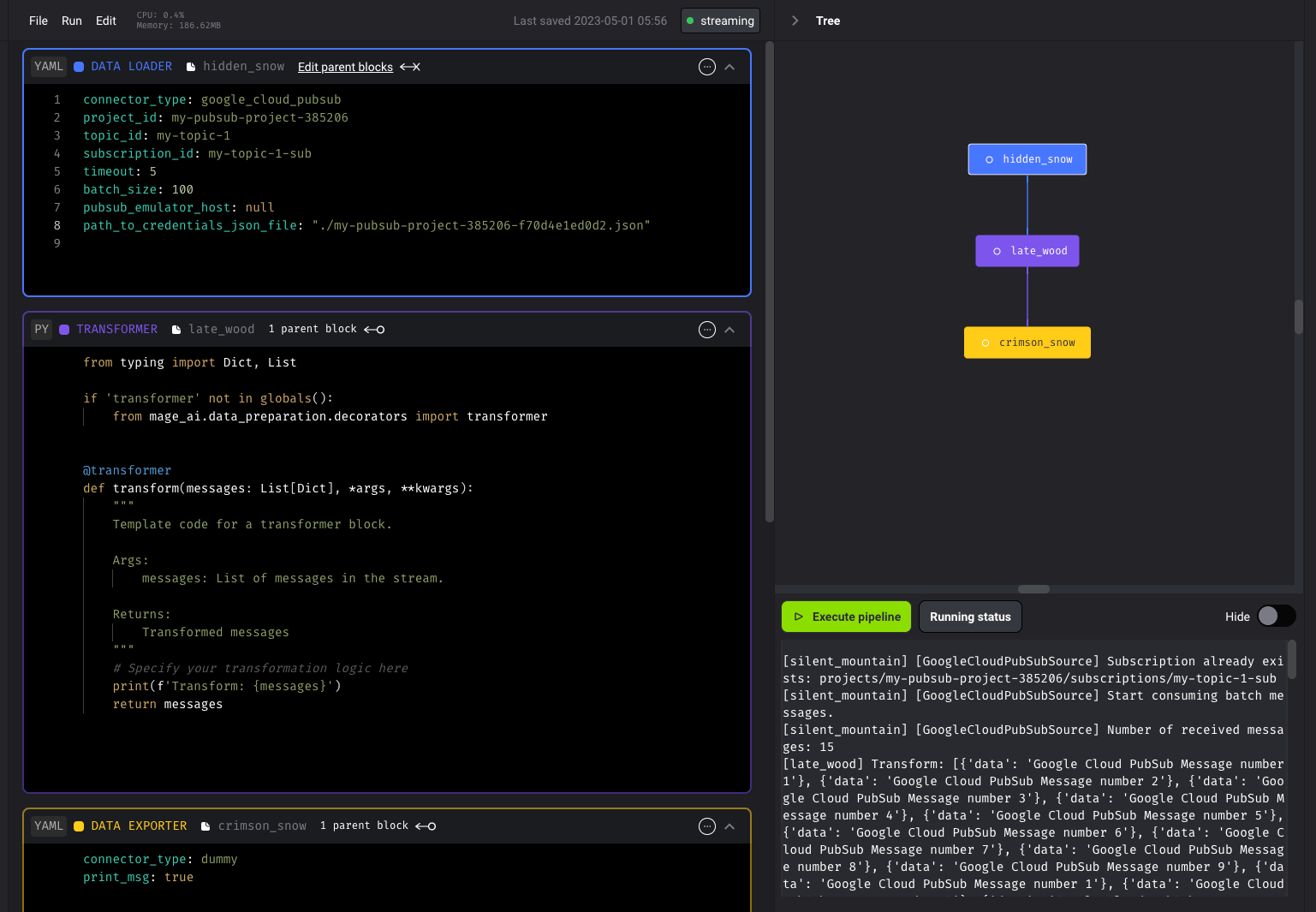 ## Test pipeline
Open the streaming pipeline you just created, and in the right side panel near
the bottom, click the button Execute pipeline to test the pipeline.
### Publish some testing messages
Please use the publisher example given in the [Testing apps locally with the emulator](https://cloud.google.com/pubsub/docs/emulator)
```
python publisher.py test-project-id publish test-topic-id
```
You should see an output similar to the following:
```
[silent_mountain] [GoogleCloudPubSubSource] Subscription already exists: projects/my-pubsub-project-385206/subscriptions/my-topic-1-sub
[silent_mountain] [GoogleCloudPubSubSource] Start consuming batch messages.
[silent_mountain] [GoogleCloudPubSubSource] Number of received messages: 4
[late_wood] Transform: [{'data': 'Google Cloud PubSub Message number 1'}, {'data': 'Google Cloud PubSub Message number 8'}, {'data': 'Google Cloud PubSub Message number 2'}, {'data': 'Google Cloud PubSub Message number 3'}]
[silent_mountain] [DummySink] Batch ingest 4 records, time=1682968557.6466439. Sample: {'data': 'Google Cloud PubSub Message number 1'}
[silent_mountain] [GoogleCloudPubSubSource] Received and acknowledged 4 messages from projects/my-pubsub-project-385206/subscriptions/my-topic-1-sub.
[silent_mountain] [GoogleCloudPubSubSource] Number of received messages: 4
[late_wood] Transform: [{'data': 'Google Cloud PubSub Message number 7'}, {'data': 'Google Cloud PubSub Message number 9'}, {'data': 'Google Cloud PubSub Message number 4'}, {'data': 'Google Cloud PubSub Message number 5'}]
[silent_mountain] [DummySink] Batch ingest 4 records, time=1682968559.027885. Sample: {'data': 'Google Cloud PubSub Message number 7'}
[silent_mountain] [GoogleCloudPubSubSource] Received and acknowledged 4 messages from projects/my-pubsub-project-385206/subscriptions/my-topic-1-sub.
[silent_mountain] [GoogleCloudPubSubSource] Number of received messages: 1
[late_wood] Transform: [{'data': 'Google Cloud PubSub Message number 6'}]
[silent_mountain] [DummySink] Batch ingest 1 records, time=1682968560.894928. Sample: {'data': 'Google Cloud PubSub Message number 6'}
[silent_mountain] [GoogleCloudPubSubSource] Received and acknowledged 1 messages from projects/my-pubsub-project-385206/subscriptions/my-topic-1-sub.
```
## Set up Google Cloud Pubsub emulator
To test out Google Cloud PubSub source locally, follow the instructions in
[Testing apps locally with the emulator](https://cloud.google.com/pubsub/docs/emulator)
to set up the local Google Cloud PubSub emulator.
## Create a `project_id` for testing
Use the command listed under the `Starting the emulator` section to create a `project_id`, e.g.,
```
gcloud beta emulators pubsub start --project=test-project-id
$(gcloud beta emulators pubsub env-init)
```
## Create a topic and a subscription
Use the `gcloud pubsub topics create` command to create a topic:
```
gcloud pubsub topics create test-topic-id
```
After you create a topic, you can subscribe or publish to it. Use the
`gcloud pubsub subscriptions create` command to create a subscription.
```
gcloud pubsub subscriptions create test-subscription-id-0 --topic test-topic-id
```
Only messages published to the topic after the subscription is created
are available to subscriber applications.
## Test pipeline
Open the streaming pipeline you just created, and in the right side panel near
the bottom, click the button Execute pipeline to test the pipeline.
### Publish some testing messages
Please use the publisher example given in the [Testing apps locally with the emulator](https://cloud.google.com/pubsub/docs/emulator)
```
python publisher.py test-project-id publish test-topic-id
```
You should see an output similar to the following:
```
[silent_mountain] [GoogleCloudPubSubSource] Subscription already exists: projects/my-pubsub-project-385206/subscriptions/my-topic-1-sub
[silent_mountain] [GoogleCloudPubSubSource] Start consuming batch messages.
[silent_mountain] [GoogleCloudPubSubSource] Number of received messages: 4
[late_wood] Transform: [{'data': 'Google Cloud PubSub Message number 1'}, {'data': 'Google Cloud PubSub Message number 8'}, {'data': 'Google Cloud PubSub Message number 2'}, {'data': 'Google Cloud PubSub Message number 3'}]
[silent_mountain] [DummySink] Batch ingest 4 records, time=1682968557.6466439. Sample: {'data': 'Google Cloud PubSub Message number 1'}
[silent_mountain] [GoogleCloudPubSubSource] Received and acknowledged 4 messages from projects/my-pubsub-project-385206/subscriptions/my-topic-1-sub.
[silent_mountain] [GoogleCloudPubSubSource] Number of received messages: 4
[late_wood] Transform: [{'data': 'Google Cloud PubSub Message number 7'}, {'data': 'Google Cloud PubSub Message number 9'}, {'data': 'Google Cloud PubSub Message number 4'}, {'data': 'Google Cloud PubSub Message number 5'}]
[silent_mountain] [DummySink] Batch ingest 4 records, time=1682968559.027885. Sample: {'data': 'Google Cloud PubSub Message number 7'}
[silent_mountain] [GoogleCloudPubSubSource] Received and acknowledged 4 messages from projects/my-pubsub-project-385206/subscriptions/my-topic-1-sub.
[silent_mountain] [GoogleCloudPubSubSource] Number of received messages: 1
[late_wood] Transform: [{'data': 'Google Cloud PubSub Message number 6'}]
[silent_mountain] [DummySink] Batch ingest 1 records, time=1682968560.894928. Sample: {'data': 'Google Cloud PubSub Message number 6'}
[silent_mountain] [GoogleCloudPubSubSource] Received and acknowledged 1 messages from projects/my-pubsub-project-385206/subscriptions/my-topic-1-sub.
```
## Set up Google Cloud Pubsub emulator
To test out Google Cloud PubSub source locally, follow the instructions in
[Testing apps locally with the emulator](https://cloud.google.com/pubsub/docs/emulator)
to set up the local Google Cloud PubSub emulator.
## Create a `project_id` for testing
Use the command listed under the `Starting the emulator` section to create a `project_id`, e.g.,
```
gcloud beta emulators pubsub start --project=test-project-id
$(gcloud beta emulators pubsub env-init)
```
## Create a topic and a subscription
Use the `gcloud pubsub topics create` command to create a topic:
```
gcloud pubsub topics create test-topic-id
```
After you create a topic, you can subscribe or publish to it. Use the
`gcloud pubsub subscriptions create` command to create a subscription.
```
gcloud pubsub subscriptions create test-subscription-id-0 --topic test-topic-id
```
Only messages published to the topic after the subscription is created
are available to subscriber applications.