> ## Documentation Index
> Fetch the complete documentation index at: https://docs.mage.ai/llms.txt
> Use this file to discover all available pages before exploring further.
# Importing pipelines
> Import a pipeline zip file into your project.
Requires version `0.9.63` or greater. This feature is supported in single projects.
It may not work in setups using the multi-project platform.
## Overview
If you have a zip file with a pipeline's `metadata.yaml` configuration file and block files,
you can import that pipeline into your project. This could be useful if you want to import
a pipeline from a different project.
## Supported block file types
1. Custom
2. Data exporter
3. Data loader
4. Markdown
5. Scratchpad
6. Sensor
7. Transformer
## Unsupported block file types
Including these types of block files in your pipeline zip file may cause errors when trying
to import it.
1. Callback
2. Chart
3. Conditional
4. dbt
5. Extension
## Downloading a pipeline
You can download a pipeline from your project as a zip file by going to the Pipelines
Dashboard (`/pipelines`), right-clicking one of the pipeline rows, and selecting
"Download (keep folder structure)" or "Download (without folder structure)". You can use
this pipeline zip file to import the pipeline into another Mage project.
Note that the unsupported block file types listed above may not be included in the downloaded
pipeline zip file.
## Required files and folder structure of imported pipeline zip file
At a minimum, the pipeline zip file (which has a `.zip` file extension) should contain a
root folder and a pipeline configuration file (i.e. `metadata.yaml`). There could be zero block
files if the pipeline has no blocks.
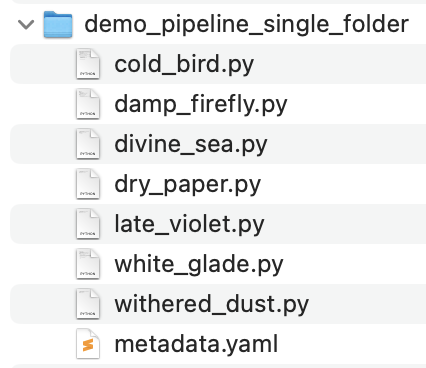
### Single folder structure
* Root folder
* Pipeline config file (`metadata.yaml`)
* Block file 1 (e.g. `block1.py`)
* Block file 2 (e.g. `block2.py`)
* Additional block files...
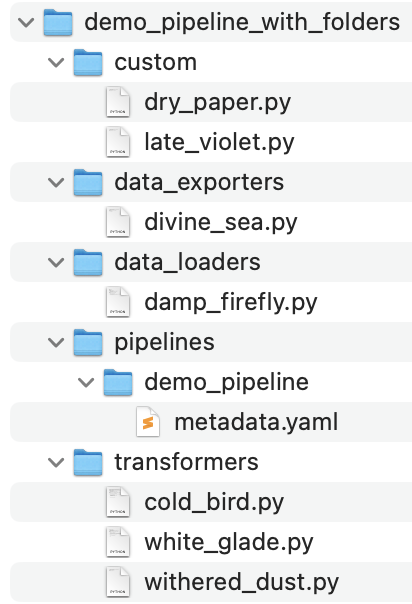
### Subfolder structure
* Root folder
* Pipelines folder (i.e. `pipelines`)
* Pipeline folder (this is the pipeline UUID)
* Pipeline config file (`metadata.yaml`)
* Block type 1 folder (e.g. `data_loaders`, `transformers`, `custom`, etc.)
* Block file 1 for block type 1 (e.g. `data_loader_block_file1.py`)
* Block file 2 for block type 1 (e.g. `data_loader_block_file2.py`)
* Additional block files for block type 1...
* Block type 2 folder (e.g. `data_exporters`, `sensors`, `scratchpads`, etc.)
* Block file 1 for block type 2 (e.g. `transformer_block_file1.py`)
* Block file 2 for block type 2 (e.g. `transformer_block_file2.py`)
* Additional block files for block type 2...
* Additional block folders and files...
## How to import a pipeline
1. Go to the Pipelines Dashboard (`/pipelines`).
2. Click on the `+ New` button.
3. Select "Import pipeline zip" from the dropdown menu.
4. Toggle the "Overwrite pipeline files" setting on if you want to have any conflicting pipelines
replaced and conflicting block files overwritten (e.g. if the pipeline with the same blocks
already exists in your project). If this setting is left disabled, a new pipeline and new
block files will be created if the pipeline/blocks already exist.
5. Add a pipeline zip file by clicking the file drop area to select a file or by
dragging and dropping a file into the file drop area.
6. The pipeline import should automatically start.