> ## Documentation Index
> Fetch the complete documentation index at: https://docs.mage.ai/llms.txt
> Use this file to discover all available pages before exploring further.
# ETL pipeline tutorial
> Build a data pipeline that loads restaurant data, transforms it, then exports it to a DuckDB database. 🦆
## Overview
In this tutorial, we'll create a data pipeline with the following steps:
We'll use a Python block to load data from an online endpoint— a CSV file containing restaurant user transactions. We'll also run a test to make sure the data is clean.
We'll use a Python block to transform the data by cleaning the columns and creating a new column, `number of meals`, that counts the number of meals for each user.
Finally, we'll write the transformed data to a local DuckDB table.
If you haven't created a Mage project before, follow the [setup guide](/getting-started/setup) before starting this tutorial.
## Quickstart
Want to dive in? Simply run the following command to clone a pre-built repo:
```bash Mac/Linux theme={"system"}
git clone https://github.com/mage-ai/etl-demo mage-etl-demo \
&& cd mage-etl-demo \
&& cp dev.env .env && rm dev.env \
&& docker compose up
```
```bash Windows theme={"system"}
git clone https://github.com/mage-ai/etl-demo mage-etl-demo
cd mage-etl-demo
cp dev.env .env
rm dev.env
docker compose up
```
Then navigate to `https://localhost:6789` in your browser to see the pipeline in action!
## Tutorial
Open the pipelines list page (`/pipelines`). This is the default page when navigating to Mage in your web browser. If you have Mage running, just click [here](https://localhost:6789/pipelines).
In the top left corner, select the button labeled *+ New*, then select the option labeled *Standard (batch)* to create a new pipeline.
In the left vertical navigation, click the last link labeled *Pipeline settings*. Change the pipeline's name to `ETL demo`. Click the button labeled *Save pipeline settings*.
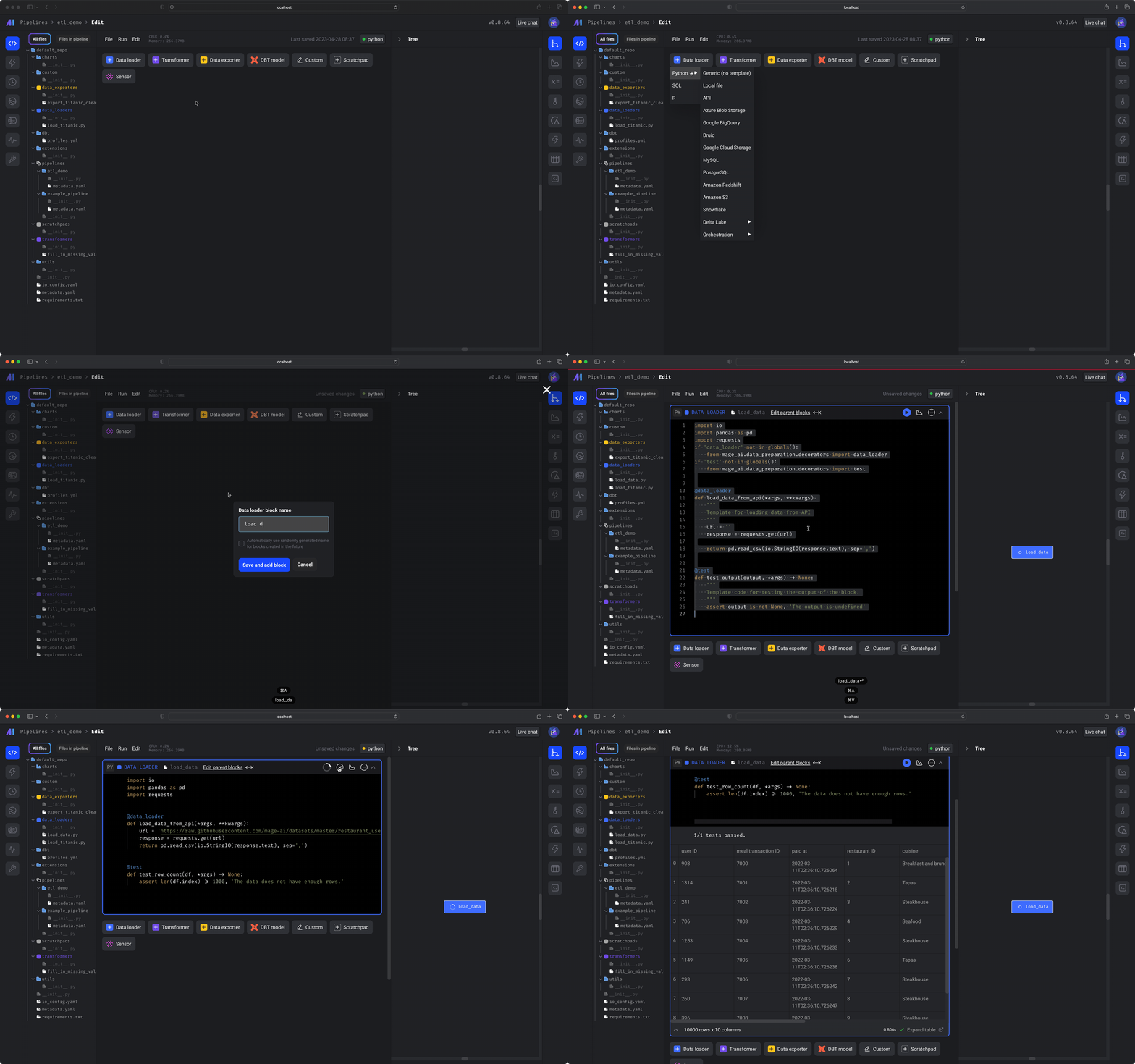
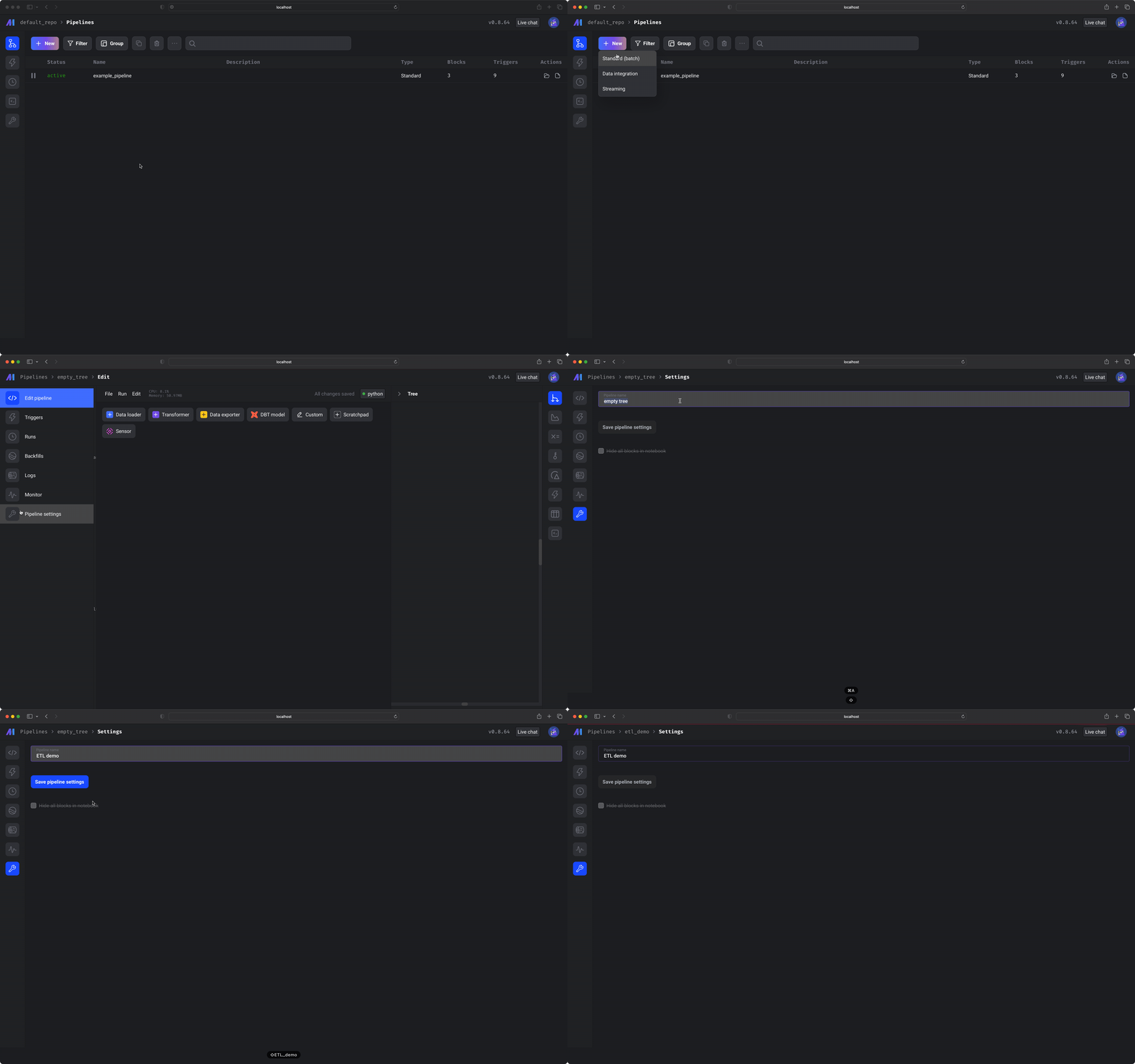 In the left vertical navigation, click the 1st link labeled *Edit pipeline*. Click the button labeled *+ Data loader* then hover over *Python*, and click the option labeled *API*.
A dialog menu will appear. Change the block name to `load data`. Click the button labeled *Save and add block*. Paste the following code in the data loader block:
```python theme={"system"}
import io
import pandas as pd
import requests
@data_loader
def load_data_from_api(*args, **kwargs):
url = 'https://raw.githubusercontent.com/mage-ai/datasets/master/restaurant_user_transactions.csv'
response = requests.get(url)
return pd.read_csv(io.StringIO(response.text), sep=',')
@test
def test_row_count(df, *args) -> None:
assert len(df.index) >= 1000, 'The data does not have enough rows.'
```
Run the block by clicking the play icon button in the top right corner of the data loader block or one of the following keyboard shortcuts:
* `⌘ + Enter`
* `Control + Enter`
* `Shift + Enter`
After you run the block (⌘ + Enter), you'll see a sample of the data that was loaded.
In the left vertical navigation, click the 1st link labeled *Edit pipeline*. Click the button labeled *+ Data loader* then hover over *Python*, and click the option labeled *API*.
A dialog menu will appear. Change the block name to `load data`. Click the button labeled *Save and add block*. Paste the following code in the data loader block:
```python theme={"system"}
import io
import pandas as pd
import requests
@data_loader
def load_data_from_api(*args, **kwargs):
url = 'https://raw.githubusercontent.com/mage-ai/datasets/master/restaurant_user_transactions.csv'
response = requests.get(url)
return pd.read_csv(io.StringIO(response.text), sep=',')
@test
def test_row_count(df, *args) -> None:
assert len(df.index) >= 1000, 'The data does not have enough rows.'
```
Run the block by clicking the play icon button in the top right corner of the data loader block or one of the following keyboard shortcuts:
* `⌘ + Enter`
* `Control + Enter`
* `Shift + Enter`
After you run the block (⌘ + Enter), you'll see a sample of the data that was loaded.
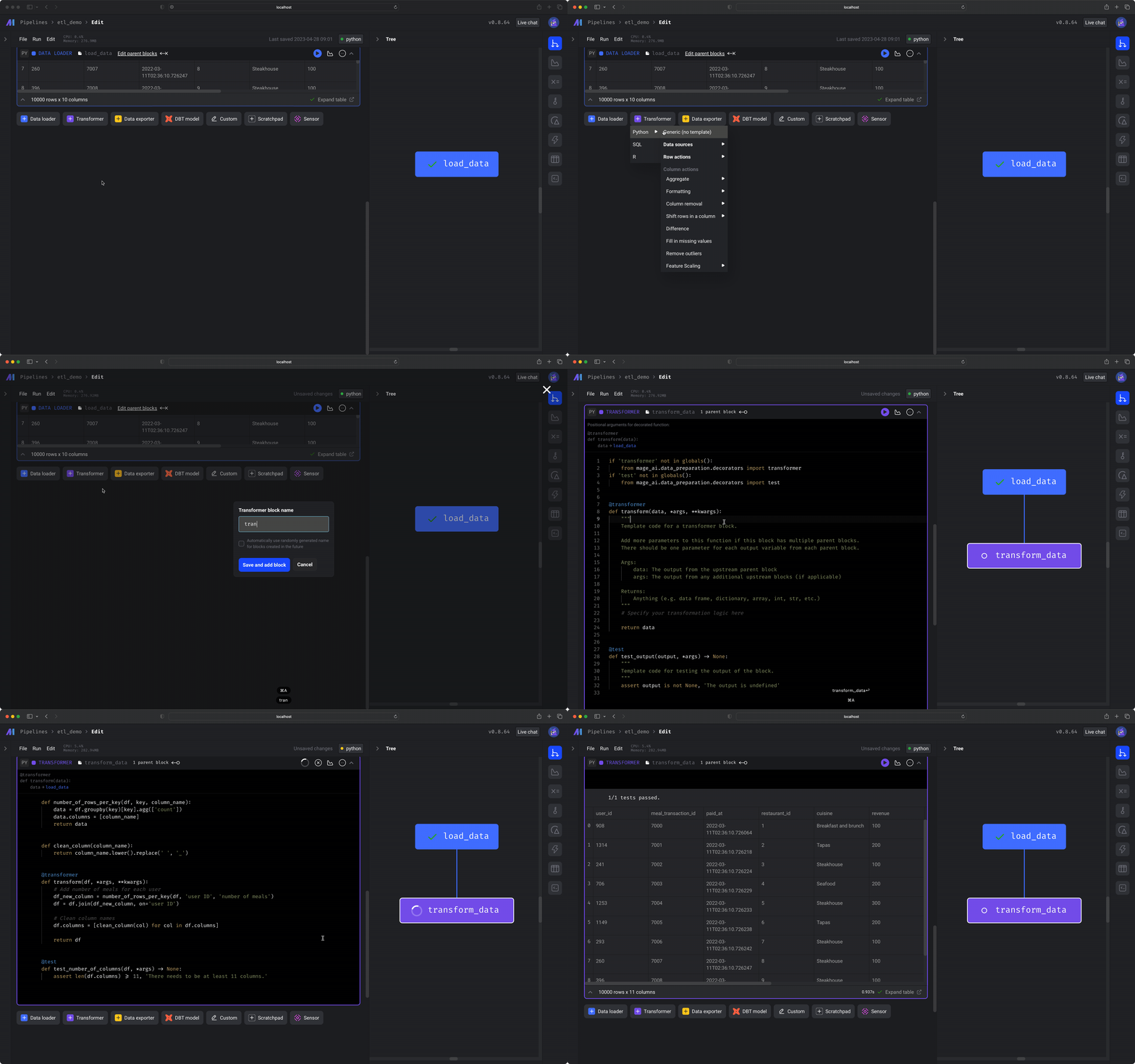
 Let's transform the data in 2 ways:
* Add a column that counts the number of meals for each user.
* Clean the column names to properly store in a PostgreSQL database.
Follow these steps:
Click the button labeled *+ Transformer*, then hover over *Python*, and click the option labeled *Generic (no template)*. Paste the following code in the transformer block:
```python theme={"system"}
def number_of_rows_per_key(df, key, column_name):
data = df.groupby(key)[key].agg(['count'])
data.columns = [column_name]
return data
def clean_column(column_name):
return column_name.lower().replace(' ', '_')
@transformer
def transform(df, *args, **kwargs):
# Add number of meals for each user
df_new_column = number_of_rows_per_key(df, 'user ID', 'number of meals')
df = df.join(df_new_column, on='user ID')
# Clean column names
df.columns = [clean_column(col) for col in df.columns]
return df.iloc[:100]
@test
def test_number_of_columns(df, *args) -> None:
assert len(df.columns) >= 11, 'There needs to be at least 11 columns.'
```
Run the block by clicking the play icon button in the top right corner of the data loader block or press 1 of the following keyboard shortcuts:
* `⌘ + Enter`
* `Control + Enter`
* `Shift + Enter`
After you run the block (⌘ + Enter), you'll see a sample of the data that was transformed.
Let's transform the data in 2 ways:
* Add a column that counts the number of meals for each user.
* Clean the column names to properly store in a PostgreSQL database.
Follow these steps:
Click the button labeled *+ Transformer*, then hover over *Python*, and click the option labeled *Generic (no template)*. Paste the following code in the transformer block:
```python theme={"system"}
def number_of_rows_per_key(df, key, column_name):
data = df.groupby(key)[key].agg(['count'])
data.columns = [column_name]
return data
def clean_column(column_name):
return column_name.lower().replace(' ', '_')
@transformer
def transform(df, *args, **kwargs):
# Add number of meals for each user
df_new_column = number_of_rows_per_key(df, 'user ID', 'number of meals')
df = df.join(df_new_column, on='user ID')
# Clean column names
df.columns = [clean_column(col) for col in df.columns]
return df.iloc[:100]
@test
def test_number_of_columns(df, *args) -> None:
assert len(df.columns) >= 11, 'There needs to be at least 11 columns.'
```
Run the block by clicking the play icon button in the top right corner of the data loader block or press 1 of the following keyboard shortcuts:
* `⌘ + Enter`
* `Control + Enter`
* `Shift + Enter`
After you run the block (⌘ + Enter), you'll see a sample of the data that was transformed.
 Let's export the data to a local DuckDB database! Create a new `Data Exporter` SQL block and change the connection type to be `DuckDB`.
Next, change the `Table name` to be `magic_duck.restaurant_user_transactions` and make sure the content of the block is:
```sql theme={"system"}
SELECT * FROM {{ df_1 }}
```
This will take our data from the previous block and export it to a local DuckDB table— `magic_duck.restaurant_user_transactions`! 🎉
After you run the block (⌘ + Enter), you'll see a sample of the data that was exported.
Let's export the data to a local DuckDB database! Create a new `Data Exporter` SQL block and change the connection type to be `DuckDB`.
Next, change the `Table name` to be `magic_duck.restaurant_user_transactions` and make sure the content of the block is:
```sql theme={"system"}
SELECT * FROM {{ df_1 }}
```
This will take our data from the previous block and export it to a local DuckDB table— `magic_duck.restaurant_user_transactions`! 🎉
After you run the block (⌘ + Enter), you'll see a sample of the data that was exported.
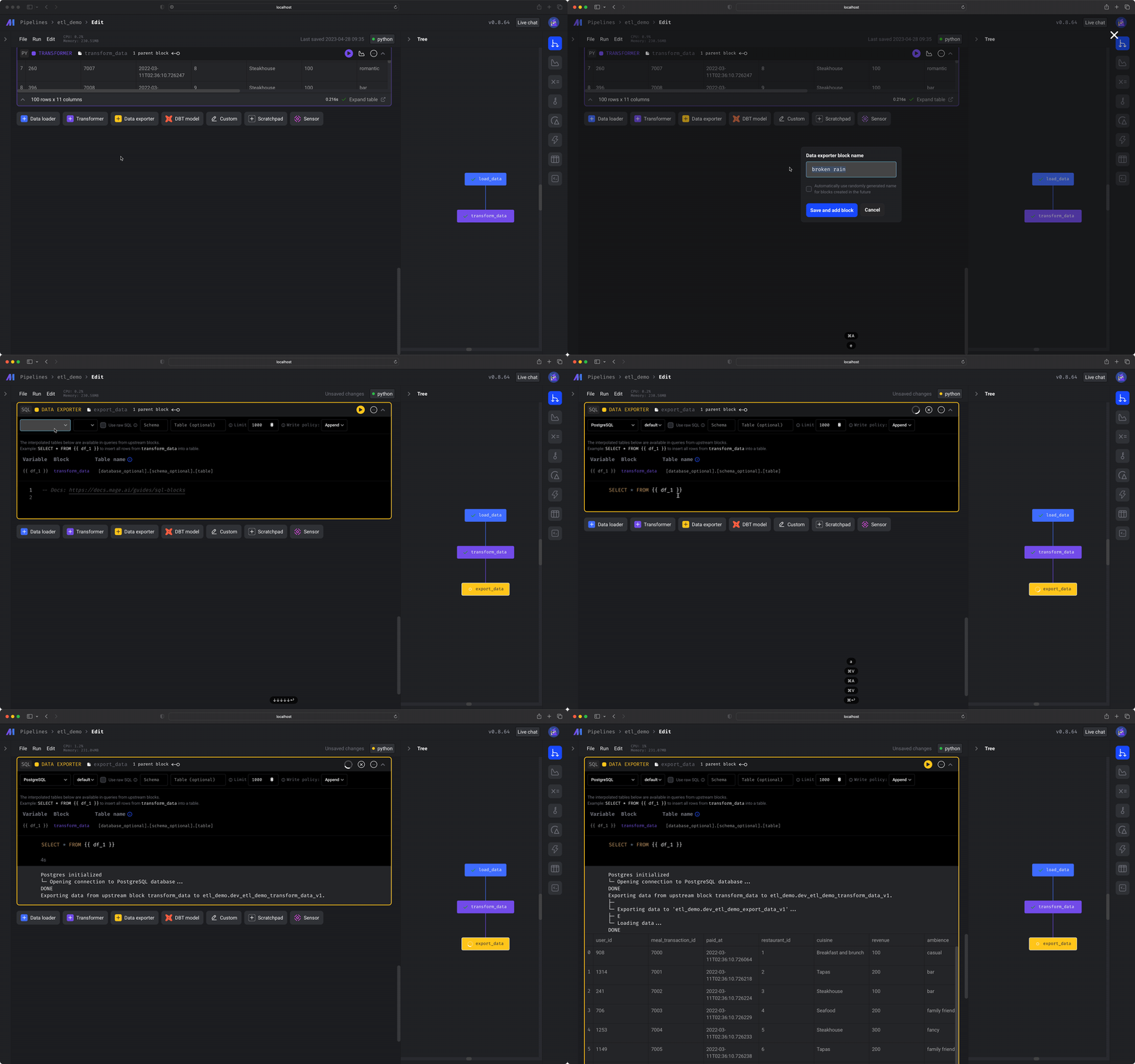 You should also see some logs indicating the export was completed, e.g.
```bash theme={"system"}
DuckDB initialized
└─ Opening connection to DuckDB...DONE
Exporting data from upstream block floral_star to restaurant_user_transactions.
Type: integer
Type: integer
Type: string
Type: integer
Type: string
Type: integer
Type: string
Type: integer
Type: integer
Type: integer
```
**🎉 Congratulations!**
You've successfully built an end-to-end ETL pipeline that loaded data,
transformed it, and exported it to a database.
Now you're ready to raid the dungeons and find magical treasures with your new powers!
You should also see some logs indicating the export was completed, e.g.
```bash theme={"system"}
DuckDB initialized
└─ Opening connection to DuckDB...DONE
Exporting data from upstream block floral_star to restaurant_user_transactions.
Type: integer
Type: integer
Type: string
Type: integer
Type: string
Type: integer
Type: string
Type: integer
Type: integer
Type: integer
```
**🎉 Congratulations!**
You've successfully built an end-to-end ETL pipeline that loaded data,
transformed it, and exported it to a database.
Now you're ready to raid the dungeons and find magical treasures with your new powers!
 If you have more questions or ideas, get real-time help in our live support
[Slack channel](https://www.mage.ai/chat).
If you have more questions or ideas, get real-time help in our live support
[Slack channel](https://www.mage.ai/chat).