> ## Documentation Index
> Fetch the complete documentation index at: https://docs.mage.ai/llms.txt
> Use this file to discover all available pages before exploring further.
# Configure Git
> This page will walk you through the process of authenticating with SSH or HTTPS and configuring Git for use with Mage Git Sync.
If you're wondering which Git resource to use in Mage, see [this](docs/getting-started/setting-up-git) page for a high-level overview of Git functionality. If you'd like to use Mage's GitHub integration (recommended for GitHub users), there's a different method of configuration. See [this](/production/data-sync/github) page for more information.
If you've decided on a method that uses HTTPS or SSH authentication (Git Sync or Git Integration), this page will walk you through configuring one of those methods.
## Configure Git settings
By using the Git integration through Mage, Mage will automatically set your local repo as a safe directory (i.e. `git config --global --add safe.directory `)
To use the Mage Git integration, you will need to first configure Git settings. The following instructions are tailored to Github, but the Git integration can work with other Git providers as well, such as GitLab, BitBucket, or Azure DevOps:
**SSH keys with passphrase are not supported**
The Git integration currently does not support repositories that require an SSH key with a passphrase.
You can, however, use the Mage terminal and the git CLI to perform your git actions.
You'll still need to generate your SSH keys as normal. You can start a ssh-agent in the terminal so that
you don't have to enter your SSH key passphrase every time you perform an action.
`eval $(ssh-agent -s) && ssh-add ~/.ssh/id_rsa`
Ensure that `.preferences.yaml` is added to your repo's `.gitignore` file so that your Git settings aren't pushed to Github.
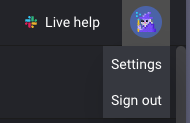
Navigate to the Wizard icon in the top right, then select *Settings* to open your Mage settings.
 There should be an option for *Git settings* on the left side of the settings modal.
Change the authentication type to SSH. The interface will change for you to input a remote repo url.
There should be an option for *Git settings* on the left side of the settings modal.
Change the authentication type to SSH. The interface will change for you to input a remote repo url.
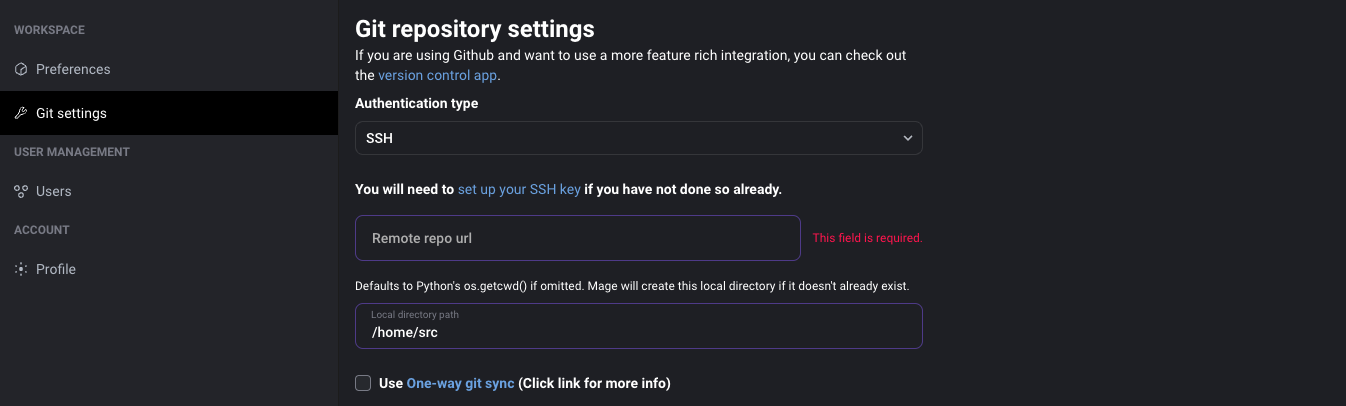 If you haven't already, configure your SSH key— this will allow your instance to access GitHub. Our [instructions](/development/git/configure#generate-ssh-token#generate-ssh-token) can help if you're unfamiliar with the process.
* `Remote repo url`: Your Github repository's remote url. Use the SSH link instead of HTTPS link.
* `Local directory path`: The directory in your machine that will be synced with the Github repository. If this field is omitted, it will default to the path determined by Python's `os.getcwd()`. You can check what your current working directory is in a Scratchpad block.
Filling out these fields will allow Mage to recreate your git and SSH settings if they are deleted (i.e. if your container restarts):
If you are using a AWS CodeCommit repository, you will need to set the username to the SSH Key ID of the SSH public key added to your AWS IAM user.
* `Username`: Your git username. If you push to your remote repo, this username will show up next to your commits.
* `Email`: Your git email. Used for the same purpose as your username.
* `SSH public key in base64`, `SSH public key in base64`: Enter your SSH public and private key encoded in base64. You can follow the instructions in the field description if you want to Mage to save your SSH keys.
Click "Save repository settings" to complete the setup.
Ensure that `.preferences.yaml` is added to your repo's `.gitignore` file so that your Git settings aren't pushed to Github.
Navigate to the Wizard icon in the top right, then select *Settings* to open your Mage settings.
There should be an option for *Git settings* on the left side of the settings modal.
* [GitHub](https://docs.github.com/en/authentication/keeping-your-account-and-data-secure/creating-a-personal-access-token)
* [GitLab](https://docs.gitlab.com/ee/user/profile/personal_access_tokens.html#create-a-personal-access-token)
* `Remote repo url`: Your Github repository's remote url. Use the SSH link instead of HTTPS link.
* `Local directory path`: The directory in your machine that will be synced with the Github repository. If this field is omitted, it will default to the path determined by Python's `os.getcwd()`. You can check what your current working directory is in a Scratchpad block.
* `Username`: Your git username. If you push to your remote repo, this username will show up next to your commits.
* `Email`: Your git email. Used for the same purpose as your username.
* `Access token`: Enter the Git access token that you created in step 4.
Click "Save repository settings" to complete the setup.
### Generate SSH Token
If you're using a method that requires an SSH token in Mage, this section will walk you through generating one. If you're using a method that requires an HTTPS token, you can skip this section.
Follow GitHub's guide [here](https://docs.github.com/en/authentication/connecting-to-github-with-ssh/checking-for-existing-ssh-keys) to check for an existing SSH key.
If no key exists, generate a new key using this [guide](https://docs.github.com/en/authentication/connecting-to-github-with-ssh/generating-a-new-ssh-key-and-adding-it-to-the-ssh-agent).
You may skip this step if you already have a key.
This step allows your Git provider to recognize your SSH key and communicate.
* [GitHub Docs](https://docs.github.com/en/authentication/connecting-to-github-with-ssh/adding-a-new-ssh-key-to-your-github-account)
* [GitLab Docs](https://docs.gitlab.com/ee/user/ssh.html#add-an-ssh-key-to-your-gitlab-account)
* [GitHub Docs](https://docs.github.com/en/authentication/connecting-to-github-with-ssh/testing-your-ssh-connection)
* [GitLab Docs](https://docs.gitlab.com/ee/user/ssh.html#verify-that-you-can-connect)
The first time you connect using your Git provider, you'll get a message about verifying authenticity and adding the provider to your known hosts.
For example:
```txt theme={"system"}
The authenticity of host 'gitlab.example.com (35.231.145.151)' can't be established.
ECDSA key fingerprint is SHA256:HbW3g8zUjNSksFbqTiUWPWg2Bq1x8xdGUrliXFzSnUw.
Are you sure you want to continue connecting (yes/no)? yes
Warning: Permanently added 'gitlab.example.com' (ECDSA) to the list of known hosts.
```
This is normal and expected. Type `yes` and press enter to continue.
If you haven't already, configure your SSH key— this will allow your instance to access GitHub. Our [instructions](/development/git/configure#generate-ssh-token#generate-ssh-token) can help if you're unfamiliar with the process.
* `Remote repo url`: Your Github repository's remote url. Use the SSH link instead of HTTPS link.
* `Local directory path`: The directory in your machine that will be synced with the Github repository. If this field is omitted, it will default to the path determined by Python's `os.getcwd()`. You can check what your current working directory is in a Scratchpad block.
Filling out these fields will allow Mage to recreate your git and SSH settings if they are deleted (i.e. if your container restarts):
If you are using a AWS CodeCommit repository, you will need to set the username to the SSH Key ID of the SSH public key added to your AWS IAM user.
* `Username`: Your git username. If you push to your remote repo, this username will show up next to your commits.
* `Email`: Your git email. Used for the same purpose as your username.
* `SSH public key in base64`, `SSH public key in base64`: Enter your SSH public and private key encoded in base64. You can follow the instructions in the field description if you want to Mage to save your SSH keys.
Click "Save repository settings" to complete the setup.
Ensure that `.preferences.yaml` is added to your repo's `.gitignore` file so that your Git settings aren't pushed to Github.
Navigate to the Wizard icon in the top right, then select *Settings* to open your Mage settings.
There should be an option for *Git settings* on the left side of the settings modal.
* [GitHub](https://docs.github.com/en/authentication/keeping-your-account-and-data-secure/creating-a-personal-access-token)
* [GitLab](https://docs.gitlab.com/ee/user/profile/personal_access_tokens.html#create-a-personal-access-token)
* `Remote repo url`: Your Github repository's remote url. Use the SSH link instead of HTTPS link.
* `Local directory path`: The directory in your machine that will be synced with the Github repository. If this field is omitted, it will default to the path determined by Python's `os.getcwd()`. You can check what your current working directory is in a Scratchpad block.
* `Username`: Your git username. If you push to your remote repo, this username will show up next to your commits.
* `Email`: Your git email. Used for the same purpose as your username.
* `Access token`: Enter the Git access token that you created in step 4.
Click "Save repository settings" to complete the setup.
### Generate SSH Token
If you're using a method that requires an SSH token in Mage, this section will walk you through generating one. If you're using a method that requires an HTTPS token, you can skip this section.
Follow GitHub's guide [here](https://docs.github.com/en/authentication/connecting-to-github-with-ssh/checking-for-existing-ssh-keys) to check for an existing SSH key.
If no key exists, generate a new key using this [guide](https://docs.github.com/en/authentication/connecting-to-github-with-ssh/generating-a-new-ssh-key-and-adding-it-to-the-ssh-agent).
You may skip this step if you already have a key.
This step allows your Git provider to recognize your SSH key and communicate.
* [GitHub Docs](https://docs.github.com/en/authentication/connecting-to-github-with-ssh/adding-a-new-ssh-key-to-your-github-account)
* [GitLab Docs](https://docs.gitlab.com/ee/user/ssh.html#add-an-ssh-key-to-your-gitlab-account)
* [GitHub Docs](https://docs.github.com/en/authentication/connecting-to-github-with-ssh/testing-your-ssh-connection)
* [GitLab Docs](https://docs.gitlab.com/ee/user/ssh.html#verify-that-you-can-connect)
The first time you connect using your Git provider, you'll get a message about verifying authenticity and adding the provider to your known hosts.
For example:
```txt theme={"system"}
The authenticity of host 'gitlab.example.com (35.231.145.151)' can't be established.
ECDSA key fingerprint is SHA256:HbW3g8zUjNSksFbqTiUWPWg2Bq1x8xdGUrliXFzSnUw.
Are you sure you want to continue connecting (yes/no)? yes
Warning: Permanently added 'gitlab.example.com' (ECDSA) to the list of known hosts.
```
This is normal and expected. Type `yes` and press enter to continue.
