> ## Documentation Index
> Fetch the complete documentation index at: https://docs.mage.ai/llms.txt
> Use this file to discover all available pages before exploring further.
# Mage Pro workspaces
> Set up Mage Pro workspaces for organizing your own personal environment.
export const ProOnly = ({button = 'Get started for free', description = 'Try our fully managed solution to access this advanced feature.', source = 'documentation', title = 'Only in Mage Pro.'}) =>
;
## Overview
Mage Pro workspaces provide isolated environments for developing and managing data pipelines. Each workspace operates as a separate container instance, allowing for independent resource allocation and configuration management.
## Core Components
* Runtime Environment: Containerized Python environment
* Storage System: Persistent volume for code and data
* Resource Manager: Kubernetes-based resource allocation
* Access Control: Role-based permission system
To utilize the collaborative workspace environment, please contact Mage to request an account upgrade.
The Mage team will need to enable this feature for your organization.
## Setup Guide
* **Step 1**: After logging into the Mage Pro environment you will be in the Workspaces interface (url: [https://cluster.mage.ai/\[cluster-uuid\]/manage](https://cluster.mage.ai/\[cluster-uuid]/manage)). Press the Create new workspace button.
* **Step 2**: Give the workspace a name.
* **Step 3**: Click the dropdown arrow and toggle on the Kubernetes configuration if you need to custom configure your Kubernetes container. (see Kubernetes container configuration section for more details).
* **Step 4**: Click the Lifecycle (optional) dropdown to create lifecycle management policies (see Lifecycle management policies section for more information).
* **Step 5**: Click the create button and wait a few minutes for your workspace to start.
* **Step 6**: Once your workspace is running, click the workspace open button under the open column in the workspace management interface.
## Workspace Configuration Options
Mage Pro workspaces support comprehensive configuration options that allow you to customize your workspace environment, resources, and behavior. Configuration options vary by cluster type (Kubernetes, Docker).
### Basic Workspace Configuration
All workspace types support these basic fields:
* **`name`** (required): The workspace name. Must be unique within your cluster.
* **`lifecycle_config`** (optional): Lifecycle management policies (see [Lifecycle Management Policies](#lifecycle-management-policies-optional) section below).
### Kubernetes Workspace Configuration
Kubernetes workspaces support the following configuration options:
#### Container Configuration (YAML)
The `container_config` field accepts a YAML string that allows you to configure:
1. **Resource Configuration**: Controls memory and CPU allocation for your workspace container
2. **Environment Variables**: Customize environment variables for your workspace
3. **Other Container Settings**: Any other Kubernetes container configuration options
* **Step 4**: Click the create button and wait a few minutes for your workspace to start.
* **Step 5**: Once your workspace is running, click the workspace open button under the open column in the workspace management interface.
## Kubernetes container configuration
Kubernetes provides a robust container orchestration system for managing your workspace resources and environment. The configuration above covers two key aspects:
1. Resource Configuration: Controls memory and CPU allocation for your workspace container, with both minimum guarantees and upper limits to ensure stable performance.
2. Environment Configuration: Enables customization of environment variables, specifically the project code location if you've modified it from the default path.
These settings help maintain workspace stability and ensure proper resource allocation for development tasks.
### Environment configuration
#### Setting `USER_CODE_PATH`
If you've modified the default `USER_CODE_PATH` environment variable in the base project (Mage Pro management portal), update your Kubernetes configuration:
```yaml theme={"system"}
env:
- name: USER_CODE_PATH
value: /home/src/
```
This environment variable tells your workspace where to find your project code.
#### Adding Other Environment Variables
You can define additional environment variables in the same env section to further configure your workspace:
```yaml theme={"system"}
env:
- name: USER_CODE_PATH
value: /home/src/
- name: ENV
value: dev
- name: TS_AUTHKEY
value:
- name: TS_EXTRA_ARGS
value: --accept-routes
```
**Note on ENV variable**: If you set `WORKSPACE_ENV_PATTERN` at the cluster level, the `ENV` variable will be automatically set based on the workspace name. You can still explicitly set `ENV` in the container configuration to override the pattern. See the [Auto-set ENV variable from workspace name](#auto-set-env-variable-from-workspace-name) section for more details.
### Resource configuration (optional)
**Optionally** configure your workspace's computing resources in Kubernetes:
```yaml theme={"system"}
resources:
requests: # Minimum resources guaranteed
memory: "2Gi" # 2 gigabytes of RAM
cpu: "1" # 1 full CPU core
limits: # Maximum resources allowed
memory: "4Gi" # 4 gigabytes RAM ceiling
cpu: "2" # Can use up to 2 CPU cores
```
This configuration ensures your workspace has adequate resources for development while preventing resource overconsumption. The requests represent guaranteed minimums, while limits prevent your workspace from using more than its allocated share.
#### Default Resource Configuration
These environment variables set default resource requests and limits for Kubernetes workspace containers. They are applied when a workspace's `container_config` does not specify resources (or when specific fields like `requests.cpu` or `limits.memory` are omitted). User-specified values in `container_config` always take precedence.
| Variable | Purpose | Example Value |
| -------------------------------------------- | ----------------------------------------------- | ------------- |
| `WORKSPACE_DEFAULT_RESOURCE_REQUESTS_CPU` | Default CPU request for workspace containers | `500m` |
| `WORKSPACE_DEFAULT_RESOURCE_REQUESTS_MEMORY` | Default memory request for workspace containers | `2Gi` |
| `WORKSPACE_DEFAULT_RESOURCE_LIMITS_CPU` | Default CPU limit for workspace containers | `4` |
| `WORKSPACE_DEFAULT_RESOURCE_LIMITS_MEMORY` | Default memory limit for workspace containers | `8Gi` |
**Example:**
```bash theme={"system"}
export WORKSPACE_DEFAULT_RESOURCE_REQUESTS_CPU="500m"
export WORKSPACE_DEFAULT_RESOURCE_REQUESTS_MEMORY="2Gi"
export WORKSPACE_DEFAULT_RESOURCE_LIMITS_CPU="4"
export WORKSPACE_DEFAULT_RESOURCE_LIMITS_MEMORY="8Gi"
```
#### Complete Kubernetes Container Configuration Example
Here's a complete example of a Kubernetes `container_config` YAML:
```yaml theme={"system"}
env:
- name: USER_CODE_PATH
value: /home/src/
- name: ENV
value: dev
- name: TS_AUTHKEY
value:
- name: TS_EXTRA_ARGS
value: --accept-routes
resources:
requests: # Minimum resources guaranteed
memory: "2Gi" # 2 gigabytes of RAM
cpu: "1" # 1 full CPU core
limits: # Maximum resources allowed
memory: "4Gi" # 4 gigabytes RAM ceiling
cpu: "2" # Can use up to 2 CPU cores
```
**Resource Configuration Details:**
* **`requests`**: Minimum resources guaranteed to your workspace. Kubernetes will ensure these resources are available.
* **`limits`**: Maximum resources your workspace can use. Prevents resource overconsumption and ensures fair resource allocation across workspaces.
**Note**: You can include any valid Kubernetes container configuration in the `container_config` YAML, including:
* Container image (`image`)
* Environment variables (`env`)
* Resource requests and limits (`resources`)
* Volume mounts (`volumeMounts`)
* Security context (`securityContext`)
* And other Kubernetes container spec fields
#### Container Image Configuration
When creating or updating a workspace, you can specify the container image in the `container_config` YAML:
```yaml theme={"system"}
image: [image_repo]/mage-pro:20260112-1200
```
**Important behavior when updating workspaces:**
* **If `image` is specified**: The workspace will use the specified image.
* **If `image` is NOT specified**: The system will use the image from the main cluster pod configuration template (`pod_config`), **not** the current workspace's image.
This means that when updating a workspace without specifying an `image` in `container_config`, the workspace image may change to match the main cluster pod configuration, even if the workspace currently uses a different image. To preserve the current image, explicitly include it in your `container_config` when updating.
### Pod Scheduling Configuration
You can control which nodes your workspace pods are scheduled on using `nodeSelector`, `affinity`, and `tolerations`.
#### Node Selector
Use `nodeSelector` to schedule workspace pods on nodes with specific labels. This is the simplest way to target specific nodes.
**Example:**
```yaml theme={"system"}
nodeSelector:
disktype: ssd
instance-type: gpu
```
#### Affinity
Use `affinity` for more advanced scheduling rules, including node affinity, pod affinity, and pod anti-affinity.
**Node Affinity Example:**
```yaml theme={"system"}
affinity:
nodeAffinity:
requiredDuringSchedulingIgnoredDuringExecution:
nodeSelectorTerms:
- matchExpressions:
- key: kubernetes.io/os
operator: In
values:
- linux
preferredDuringSchedulingIgnoredDuringExecution:
- weight: 100
preference:
matchExpressions:
- key: node-type
operator: In
values:
- compute-optimized
```
**Pod Anti-Affinity Example (spread workspaces across nodes):**
```yaml theme={"system"}
affinity:
podAntiAffinity:
preferredDuringSchedulingIgnoredDuringExecution:
- weight: 100
podAffinityTerm:
labelSelector:
matchExpressions:
- key: app
operator: In
values:
- workspace
topologyKey: kubernetes.io/hostname
```
#### Tolerations
Use `tolerations` to allow workspace pods to be scheduled on nodes with taints.
**Example:**
```yaml theme={"system"}
tolerations:
- key: "workspace"
operator: "Equal"
value: "true"
effect: "NoSchedule"
- key: "gpu"
operator: "Exists"
effect: "NoSchedule"
```
#### Complete Example with Scheduling Configuration
Here's a complete example combining resource configuration with pod scheduling:
```yaml theme={"system"}
env:
- name: USER_CODE_PATH
value: /home/src/my-project
- name: ENV
value: production
resources:
requests:
memory: "4Gi"
cpu: "2"
limits:
memory: "8Gi"
cpu: "4"
nodeSelector:
instance-type: gpu
affinity:
nodeAffinity:
requiredDuringSchedulingIgnoredDuringExecution:
nodeSelectorTerms:
- matchExpressions:
- key: zone
operator: In
values:
- us-west-2a
- us-west-2b
tolerations:
- key: "gpu"
operator: "Equal"
value: "true"
effect: "NoSchedule"
```
**Note**: These pod-level scheduling configurations (`nodeSelector`, `affinity`, `tolerations`) are applied to the workspace pod, not the container. They control where Kubernetes schedules your workspace pods in the cluster.
## Share secrets across workspaces
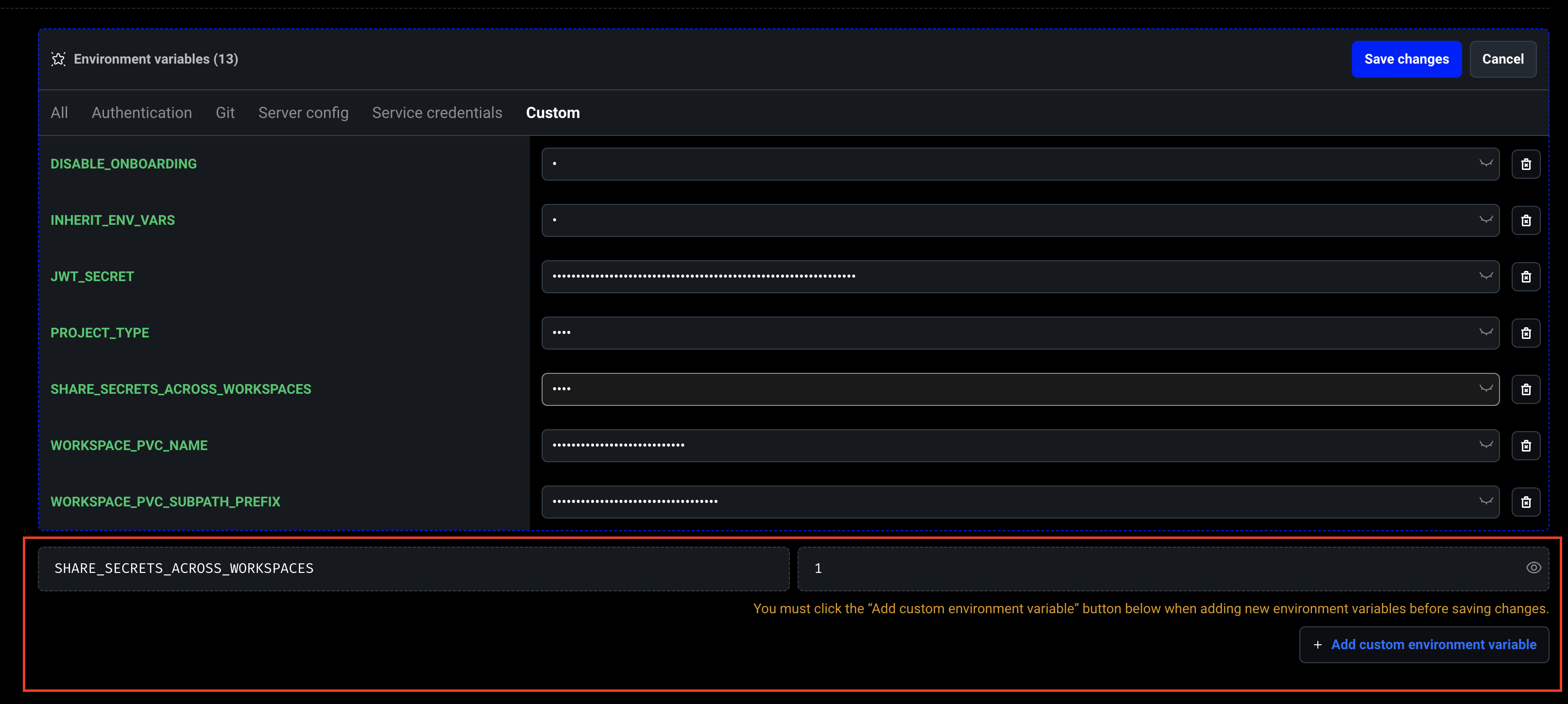
To share secrets across different workspaces, you need to set the `SHARE_SECRETS_ACROSS_WORKSPACES` environment variable at the **cluster level** (not at the workspace level) and set the value to `1` to enable this feature. This will allow developers to share their secrets across different workspaces within a cluster.
**Note**: The `SHARE_SECRETS_ACROSS_WORKSPACES` environment variable must be set on the **main cluster container**, not on individual workspaces.
## Share secrets across workspaces
To share secrets across different workspaces developers need to create a custom environment variable
called `SHARE_SECRETS_ACROSS_WORKSPACES` then set the value to `1` to enable this feature. This will
allow developers to share their secrets across different workspaces within a cluster.
## Inherit environment variables
Configuring your Mage Pro workspaces to inherit the main cluster’s environment
variables is essential for efficiently configuring your workspace container.
The following options allow you to control how variables are shared within your environment.
To enable environment variable inheritance in workspaces, you must set the `INHERIT_ENV_VARS` environment variable at the **cluster level** (not at the workspace level):
To enable environment variable inheritance in workspaces, you must set:
```bash theme={"system"}
INHERIT_ENV_VARS=1
```
**Note**: The `INHERIT_ENV_VARS` environment variable must be set on the **main cluster container**, not on individual workspaces. This applies to **both Managed Cloud** and **Self-hosted Mage Pro**.
### Managed Cloud
The `USER_DEFINED_VARS` environment variable (set at the **cluster level**) lets you control which environment variables are inherited by workspaces.
This applies to **both Managed Cloud** and **Self-hosted Mage Pro**.
### Managed Cloud
The USER\_DEFINED\_VARS environment variable lets you control which environment variables are inherited by workspaces.
It accepts a comma-separated list of variable names, giving you flexibility to include only the configuration values you need across workspaces.
* If `USER_DEFINED_VARS` is **not set**: all environment variables will be inherited automatically.
* If `USER_DEFINED_VARS` is **set**: only the specified variables will be inherited.
**Example – inherit specific variables:**
```bash theme={"system"}
USER_DEFINED_VARS=VAR1,VAR2
```
**Example – inherit by pattern (wildcard/regex):**
```bash theme={"system"}
USER_DEFINED_VARS=DEV_ENV_*
```
This will inherit all environment variables matching the pattern (e.g., any starting with `DEV_ENV_*`).
### Self-hosted Mage Pro (Hybrid Cloud, Private Cloud, On-prem)
You **must** set `USER_DEFINED_VARS` at the **cluster level** to define which variables to inherit:
You **must** set `USER_DEFINED_VARS` to define which variables to inherit:
```bash theme={"system"}
USER_DEFINED_VARS=VAR1,VAR2
```
Wildcard/regex-style patterns are supported here as well.
### Auto-set ENV variable from workspace name
You can automatically set the `ENV` environment variable for each workspace based on its name using the `WORKSPACE_ENV_PATTERN` cluster-level environment variable. This eliminates the need to manually set `ENV` in each workspace's container configuration.
**Configuration:**
Set `WORKSPACE_ENV_PATTERN` at the **cluster level** (not at the workspace level):
```bash theme={"system"}
WORKSPACE_ENV_PATTERN=dev_{workspace_name}
```
* `{workspace_name}`: Placeholder that will be replaced with the actual workspace name
* The pattern supports any string with the `{workspace_name}` placeholder
**How it works:**
* If `ENV` is not explicitly set in a workspace's container configuration, it will be automatically set using the pattern
* If `ENV` is explicitly set in the workspace's container configuration, that value takes precedence over the pattern
* The pattern is only applied when `WORKSPACE_ENV_PATTERN` is defined
**Examples:**
**Example 1: Simple prefix pattern**
```bash theme={"system"}
WORKSPACE_ENV_PATTERN=dev_{workspace_name}
```
For a workspace named `my-workspace`, this sets `ENV=dev_my-workspace`.
**Example 2: Environment prefix with suffix**
```bash theme={"system"}
WORKSPACE_ENV_PATTERN=env-{workspace_name}-prod
```
For a workspace named `analytics`, this sets `ENV=env-analytics-prod`.
**Example 3: Just workspace name**
```bash theme={"system"}
WORKSPACE_ENV_PATTERN={workspace_name}
```
For a workspace named `production`, this sets `ENV=production`.
**Integration with environment-specific variable inheritance:**
When `ENV` is automatically set via `WORKSPACE_ENV_PATTERN`, it enables the environment-specific variable inheritance feature. You can then use:
```bash theme={"system"}
WORKSPACE_ENV_PATTERN=dev_{workspace_name}
USER_DEFINED_VARS__ENV__dev_my-workspace=DEV_ENV_*
```
This automatically sets `ENV=dev_my-workspace` for a workspace named `my-workspace`, and that workspace will inherit all variables matching `DEV_ENV_*` from the cluster.
### Inherit variables by workspace environment
You can define inheritance rules per workspace environment using cluster-level environment variables with the `ENV` variable:
### Inherit variables by workspace environment (new)
You can define inheritance rules per workspace environment using the `ENV` variable:
```bash theme={"system"}
USER_DEFINED_VARS__ENV__{env_value}={pattern}
```
* `{env_value}`: value of the `ENV` variable in the workspace.
* `{pattern}`: wildcard/regex pattern for matching variables.
**Example:**
```bash theme={"system"}
USER_DEFINED_VARS__ENV__dev=DEV_ENV_*
```
Any workspace with `ENV=dev` inherits all variables matching `DEV_ENV_*`.
**Combined example with WORKSPACE\_ENV\_PATTERN:**
```bash theme={"system"}
# Automatically set ENV based on workspace name
WORKSPACE_ENV_PATTERN=dev_{workspace_name}
# Inherit variables based on the auto-set ENV value
USER_DEFINED_VARS__ENV__dev_workspace1=DEV_ENV_*
USER_DEFINED_VARS__ENV__dev_workspace2=PROD_ENV_*
```
In this example:
* A workspace named `workspace1` automatically gets `ENV=dev_workspace1` and inherits variables matching `DEV_ENV_*`
* A workspace named `workspace2` automatically gets `ENV=dev_workspace2` and inherits variables matching `PROD_ENV_*`
### Updating workspaces after environment variable changes
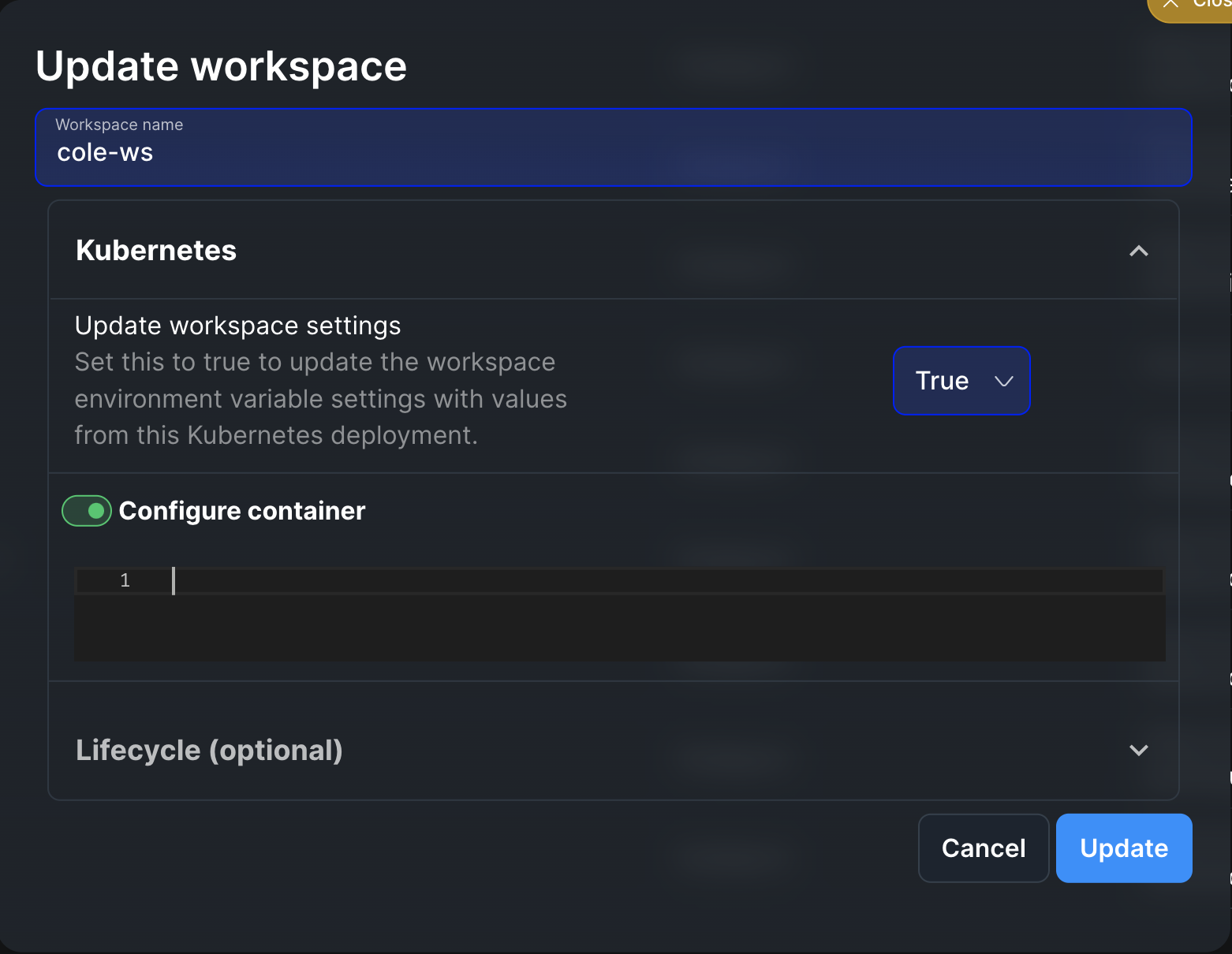
When you add or modify environment variables in your base cluster, existing workspaces will not automatically inherit these changes. To ensure your workspaces reflect the updated environment configuration, you must restart the affected workspaces.
To update a workspace:
1. Open the workspace settings by clicking into the workspace you want to update
2. Click the update button for your workspace
3. Click the dropdown arrow on the Kubernetes configuration section
4. Toggle the "update workspace settings" option to true
5. Click update
The container will take up to several minutes to update and restart with the new environment configuration.
**Note on container image during updates:**
When updating a workspace, if you don't explicitly specify the `image` field in your `container_config` YAML, the system will use the image from the main cluster pod configuration template, not the workspace's current image. This means:
* If your workspace currently uses a custom image (e.g., `my-custom-image:v1`) and you update the workspace without specifying `image` in `container_config`, the image may change to match the main cluster pod configuration (e.g., `mageai/mageai:latest`).
* To preserve your current workspace image during updates, explicitly include it in your `container_config`:
```yaml theme={"system"}
image: my-custom-image:v1
env:
- name: USER_CODE_PATH
value: /home/src/my-project
```
## Lifecycle Management Policies (Optional)
Mage Pro workspaces support various lifecycle management policies that control how your workspace behaves throughout its runtime. These policies include automated termination settings, pre-initialization scripts, and post-initialization procedures, giving you complete control over your workspace's behavior from startup to shutdown.
Lifecycle configuration is specified in the `lifecycle_config` field as a YAML object:
```yaml theme={"system"}
termination_policy:
enable_auto_termination: true
max_idle_seconds: 1800
pre_start_script_path: /path/to/script.sh
post_start:
command: ["echo", "Workspace started"]
hook_path: /path/to/hook.sh
```
### Termination Policy
The termination policy controls how your workspace shuts down when inactive.
**Configuration:**
* **`enable_auto_termination`** (boolean): Enable or disable automatic termination. Defaults to `false`.
* **`max_idle_seconds`** (integer): The number of seconds of inactivity before the workspace is automatically terminated. The idle time is measured in seconds, and you can set this duration based on your needs. For example:
* `1800` seconds = 30 minutes
* `3600` seconds = 1 hour
* `7200` seconds = 2 hours
**Example:**
```yaml theme={"system"}
termination_policy:
enable_auto_termination: true
max_idle_seconds: 1800
```
## Lifecycle management policies (optional)
Mage Pro workspaces support various lifecycle management policies that control how your workspace behaves throughout its runtime. These policies include automated termination settings, pre-initialization scripts, and post-initialization procedures, giving you complete control over your workspace's behavior from startup to shutdown.
### Termination Policy
The termination policy controls how your workspace shuts down when inactive. You can enable auto-termination, which will automatically shut down your workspace after a specified period of inactivity. The idle time is measured in seconds, and you can set this duration based on your needs. For example, you might set it to 1800 seconds (30 minutes) or 3600 seconds (1 hour).
### Pre-Start Scripts
Pre-start scripts run before your workspace container is initialized. These scripts must include a `get_custom_configs` method that returns a dictionary of configurations. This is where you can set up environment variables, modify container configurations, and prepare any necessary resources. The script executes before any workspace services start, making it ideal for initial setup and configuration tasks.
**Configuration:**
* **`pre_start_script_path`** (string): Path to the pre-start script. Can be:
* Absolute path: `/absolute/path/to/script.sh`
* Relative path: `scripts/pre_start.sh` (relative to the root project directory)
**Example:**
```yaml theme={"system"}
pre_start_script_path: /home/src/scripts/setup_workspace.sh
```
### Post-Start Scripts
Post-start scripts execute after requirements installation and before the workspace server starts. These scripts are executed via the `mage run-post-start-hooks` command and run with graceful error handling—if a post-start hook fails, it logs a warning but does not prevent the container from starting. These scripts are typically used for starting services, performing health checks, or completing any additional setup tasks that depend on installed requirements but must run before the workspace server is fully started.
**Configuration:**
* **`post_start.command`** (string or array of strings): Command to execute. Can be specified as:
* **JSON array of strings**: `["echo", "Workspace started"]` or `["python", "script.py", "--arg", "value"]`
* **Shell command string**: `echo "Hello" && echo "World"` or `pip install playwright && playwright install --with-deps`
* **`post_start.hook_path`** (string): Path to a script file. Can be:
* Absolute path: `/absolute/path/to/hook.sh`
* Relative path: `scripts/post_start.sh` (relative to the root project directory)
**Note**: You can specify either `command` or `hook_path`, or both. If both are specified, the command will execute first, followed by the hook script. Post-start hooks execute after requirements installation but before the Mage server starts, ensuring they run early in the container startup process.
**Example 1: Post-start command as JSON array**
```yaml theme={"system"}
post_start:
command: ["echo", "Workspace started"]
```
**Example 2: Post-start command as shell string**
```yaml theme={"system"}
post_start:
command: echo "Hello" && echo "World"
```
**Example 3: Post-start command with multiple operations (shell string)**
```yaml theme={"system"}
post_start:
command: pip install playwright && playwright install --with-deps
```
**Example 4: Post-start hook script**
```yaml theme={"system"}
post_start:
hook_path: /home/src/scripts/post_start.sh
```
Where `post_start.sh` contains multiple commands:
```bash theme={"system"}
#!/bin/bash
echo "Starting service 1..."
service1 start
echo "Starting service 2..."
service2 start
```
**Example 5: Command and hook script (command runs first, then hook)**
```yaml theme={"system"}
post_start:
command: ["echo", "Workspace started"]
hook_path: /home/src/scripts/start_services.sh
```
**Important Notes:**
* Post-start hooks execute after requirements installation but before the Mage server starts
* If a post-start hook fails, it logs a warning but does not prevent the container from starting
* Shell command strings support operators like `&&`, `||`, etc.
* Hook scripts must be executable and located in a path accessible to the container
## Setting workspaces for self-hosted Mage Pro cluster
This section applies to **self-hosted Mage Pro clusters** only. These configurations are not applicable to Managed Cloud deployments.
### Workspace Configuration Environment Variables
These environment variables are set at the **cluster level** to configure default workspace behavior. They control how workspaces are created, what storage they use, and how they're exposed via ingress.
#### Ingress Configuration
* **`WORKSPACE_INGRESS_NAME`** (optional): Name of the Kubernetes ingress resource to use for workspaces. Defaults to the cluster UUID (`MAGE_CLUSTER_UUID`). If not set, workspaces will be accessible through the service directly rather than via ingress.
* **`WORKSPACE_INGRESS_TYPE`** (optional): Type of ingress controller to use. Supported values:
* `nginx` (default): Use NGINX ingress controller
* `alb`: Use AWS Application Load Balancer ingress
* `istio`: Use Istio ingress gateway
Default: `nginx`
* **`WORKSPACE_INGRESS_PATH_TYPE`** (optional): Path type for ingress paths. Supported values:
* `ImplementationSpecific` (default): Path matching is implementation-specific
* `Prefix`: Path must match as a prefix
Default: `ImplementationSpecific`
#### Storage Configuration
You can configure workspace storage in one of two ways:
##### Option 1: Individual PVCs per Workspace (using WORKSPACE\_STORAGE\_CLASS)
* **`WORKSPACE_STORAGE_CLASS`** (optional): Kubernetes storage class name to use for workspace persistent volumes. When configured, each workspace will create its own PersistentVolumeClaim (PVC) using this storage class.
Default: `efs-sc-us-west-2`
**Use case**: When you want each workspace to have its own isolated storage volume.
##### Option 2: Shared PVC across Workspaces (using WORKSPACE\_PVC\_NAME + WORKSPACE\_PVC\_SUBPATH\_PREFIX)
* **`WORKSPACE_PVC_NAME`** (optional): Name of an existing PersistentVolumeClaim (PVC) to share across all workspaces. When set, all workspaces will use this shared PVC instead of creating individual PVCs.
* **`WORKSPACE_PVC_SUBPATH_PREFIX`** (optional): Prefix for subpaths when using a shared PVC. Each workspace will use a separate subfolder under this prefix to isolate its data. **Required** when `WORKSPACE_PVC_NAME` is set.
**Example**: If `WORKSPACE_PVC_SUBPATH_PREFIX=workspaces`, a workspace named `my-workspace` will use the subpath `workspaces/my-workspace`.
**Use case**: When you want to share storage across multiple workspaces and manage storage more efficiently.
**Important**: Configure either `WORKSPACE_STORAGE_CLASS` (for individual PVCs) or `WORKSPACE_PVC_NAME` + `WORKSPACE_PVC_SUBPATH_PREFIX` (for shared PVC), but not both. If both are configured, the shared PVC option takes precedence.
#### Pod Configuration
* **`INHERIT_POD_ANNOTATIONS`** (optional, boolean): If `true`, workspace pods will inherit annotations from the main cluster pod. This is useful for passing through annotations like Prometheus scraping labels, service mesh configuration, etc.
Default: `false`
#### Default Resource Configuration
These environment variables set default resource requests and limits for Kubernetes workspace containers. They are applied when a workspace's `container_config` does not specify resources (or when specific fields like `requests.cpu` or `limits.memory` are omitted). User-specified values in `container_config` always take precedence.
| Variable | Purpose | Example Value |
| -------------------------------------------- | ----------------------------------------------- | ------------- |
| `WORKSPACE_DEFAULT_RESOURCE_REQUESTS_CPU` | Default CPU request for workspace containers | `500m` |
| `WORKSPACE_DEFAULT_RESOURCE_REQUESTS_MEMORY` | Default memory request for workspace containers | `2Gi` |
| `WORKSPACE_DEFAULT_RESOURCE_LIMITS_CPU` | Default CPU limit for workspace containers | `4` |
| `WORKSPACE_DEFAULT_RESOURCE_LIMITS_MEMORY` | Default memory limit for workspace containers | `8Gi` |
**Example:**
```bash theme={"system"}
export WORKSPACE_DEFAULT_RESOURCE_REQUESTS_CPU="500m"
export WORKSPACE_DEFAULT_RESOURCE_REQUESTS_MEMORY="2Gi"
export WORKSPACE_DEFAULT_RESOURCE_LIMITS_CPU="4"
export WORKSPACE_DEFAULT_RESOURCE_LIMITS_MEMORY="8Gi"
```
#### Default Workspace Config File
* **`WORKSPACE_DEFAULT_CONFIG_PATH`** (optional): Path to a YAML file that defines default workspace configuration applied when creating or updating workspaces. The file is merged with user-defined config based on the `enforce` flag. The file is read on the **control-plane** only; it is not mounted into workspace pods.
**Helm chart (recommended):** When deploying **Mage Pro** with the [Mage Helm chart](https://github.com/mage-ai/helm-charts), configure the default via **`workspaceConfig`** in `values.yaml`. The chart creates a ConfigMap from your config, mounts it on the control-plane, and sets `WORKSPACE_DEFAULT_CONFIG_PATH` automatically. Do not set the env var manually when using the chart. See [Using Helm](/production/deploying-to-cloud/using-helm#default-workspace-and-k8s-executor-config) for details.
**Supported fields** (top-level in the YAML file):
| Field | Type | Description |
| ---------------------- | --------------------- | ------------------------------------------------------------------------------------------ |
| `container_config` | YAML string or object | Default container configuration (image, resources, env, volumeMounts, etc.). |
| `service_account_name` | string | Default Kubernetes service account for workspace pods. |
| `lifecycle_config` | object | Default lifecycle configuration (termination policy, pre-start scripts, post-start hooks). |
**Policy fields:**
| Field | Description |
| -------------- | ---------------------------------------------------------------------------------------------------------------- |
| `enabled` | If `false`, the policy is not applied. |
| `enforce` | Controls who wins when both the default file and the user set the same key. See **Priority when merging** below. |
| *(other keys)* | `container_config`, `service_account_name`, `lifecycle_config` (see table above). |
**Priority when merging default file with user config**
The default file is merged with the workspace config supplied by the user (UI or API). The **effective priority** (who wins for a given key) depends on `enforce`:
| `enforce` | Effective priority | Result |
| ----------- | ------------------------------------------------------------------ | ----------------------------------------------------------------------------------------------------------------------------------------------------------------------------------------- |
| **`true`** | **Default file is highest.** Default file → user config. | Values from the file override user-defined values. Use this to enforce cluster-wide workspace defaults (e.g. resources, service account) that users cannot override. |
| **`false`** | **User is highest.** User config → default file (fills gaps only). | User config overrides the default file for the same keys. The file only fills in keys the user did not set. Use this to provide optional defaults while allowing per-workspace overrides. |
**Top-level format**:
```yaml theme={"system"}
enabled: true # Set to false to disable this policy entirely
enforce: false # User wins on conflicts; file only fills in missing keys
container_config:
resources:
limits:
cpu: "2"
memory: "4Gi"
requests:
cpu: "1"
memory: "2Gi"
nodeSelector:
node.kubernetes.io/instance-type: "m5.large"
tolerations:
- key: "dedicated"
operator: "Equal"
value: "mage"
effect: "NoSchedule"
lifecycle_config:
post_start:
command: echo "Hello World"
service_account_name: workspace-sa
```
The config file must exist at the specified path on the **control-plane** pod. Use a ConfigMap or volume mount to make the file available.
#### Example Configuration
**Example 1: Individual PVCs per workspace**
```bash theme={"system"}
# Ingress configuration
export WORKSPACE_INGRESS_NAME=my-cluster-ingress
export WORKSPACE_INGRESS_TYPE=nginx
export WORKSPACE_INGRESS_PATH_TYPE=Prefix
# Storage configuration - each workspace gets its own PVC
export WORKSPACE_STORAGE_CLASS=fast-ssd
# Pod configuration
export INHERIT_POD_ANNOTATIONS=true
```
**Example 2: Shared PVC across workspaces**
```bash theme={"system"}
# Ingress configuration
export WORKSPACE_INGRESS_NAME=my-cluster-ingress
export WORKSPACE_INGRESS_TYPE=nginx
export WORKSPACE_INGRESS_PATH_TYPE=Prefix
# Storage configuration - all workspaces share one PVC with separate subfolders
export WORKSPACE_PVC_NAME=shared-workspace-storage
export WORKSPACE_PVC_SUBPATH_PREFIX=workspaces
# Pod configuration
export INHERIT_POD_ANNOTATIONS=true
```
**Note**: These environment variables are set on the **main cluster container**, not on individual workspaces. They control the default behavior when creating new workspaces. Individual workspaces can override some of these settings (like storage class) in their own configuration.
### Docker Workspace Configuration
Docker workspaces support additional configuration options specific to Docker containers:
#### Docker Workspace Environment Variables
These environment variables are set at the **cluster level** to configure default Docker workspace behavior:
* **`DOCKER_HOST`** (optional): Docker daemon host. Defaults to `unix://var/run/docker.sock`.
* **`DOCKER_TLS_VERIFY`** (optional): Enable TLS verification for Docker connection. Set to `1` to enable, `0` to disable. Defaults to `0`.
* **`DOCKER_CERT_PATH`** (optional): Path to TLS certificates for Docker connection.
* **`DOCKER_SWARM_MODE`** (optional): Enable or disable Docker Swarm mode. Set to `1` to enable, `0` to disable. Defaults to `0`.
**Note**: These environment variables are set on the **main cluster container**, not on individual workspaces. They control the default behavior when creating new Docker workspaces. Individual workspaces can override these settings in their own configuration.
#### Docker Container Configuration (YAML)
Similar to Kubernetes, Docker workspaces support a `container_config` YAML string:
**Example Docker Workspace Configuration:**
```yaml theme={"system"}
image: mage-pro:version
volumes:
/host/path:
bind: /home/src
mode: rw
environment:
TEST_ENV_VAR: "1"
public_url: mage.example.com/test1
```
**Note**: For Docker workspaces, the `container_config` field is the primary way to configure image, volumes, and environment. The system will parse this YAML string and extract:
* `image`: Docker image to use
* `volumes`: Volume mounts configuration
* `environment`: Environment variables
* `public_url`: Public URL for the workspace
### Post-Start Scripts
Post-start scripts execute after your workspace is fully initialized and running. You can specify either a direct command or provide a path to a script for more complex procedures. These scripts are typically used for starting services, performing health checks, or completing any additional setup tasks that require the workspace to be fully operational.
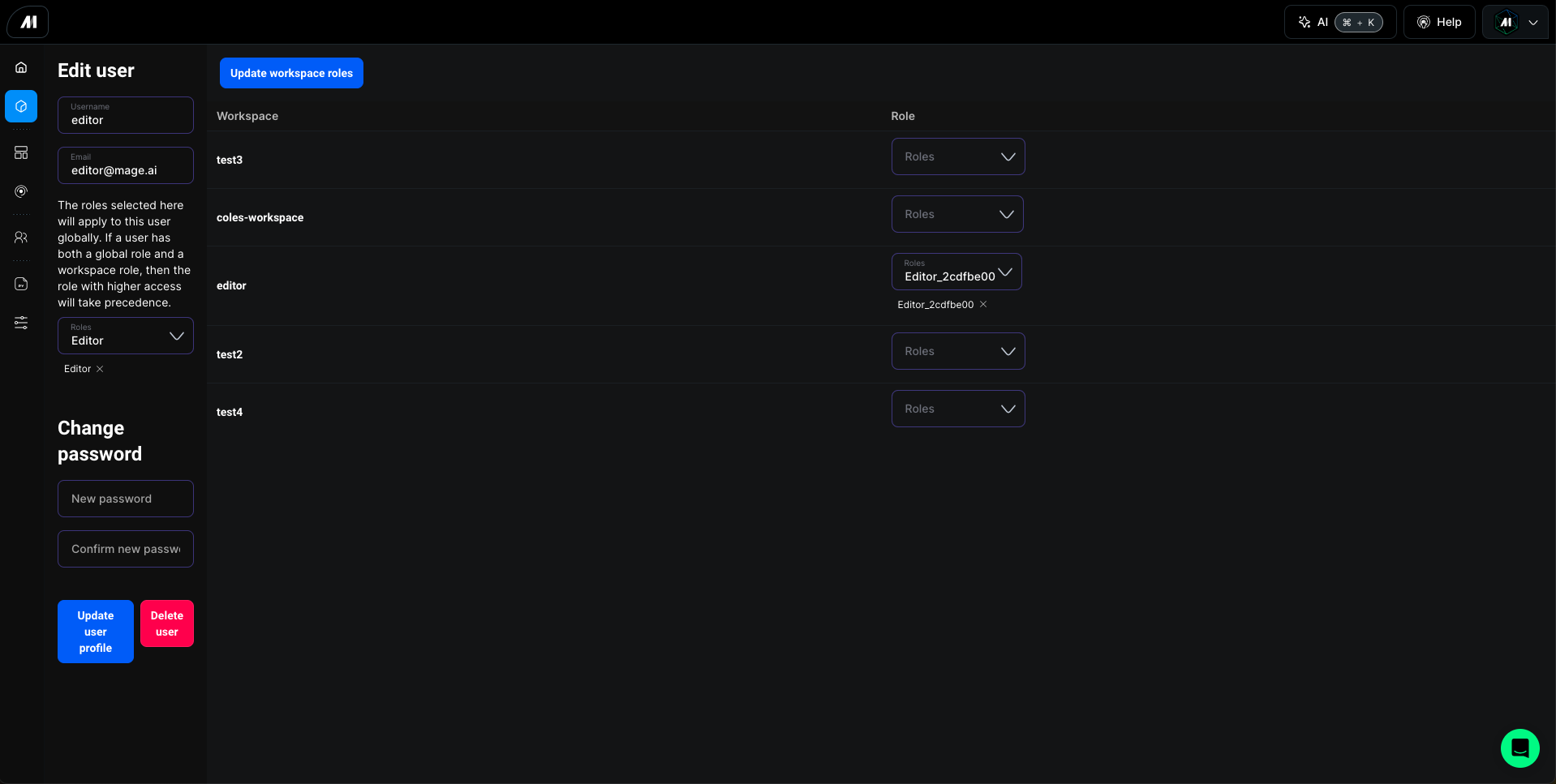
## Global Roles
Users can be assigned global roles that apply across all workspaces within your Mage Pro environment. Global role assignment is managed by project administrators through Users tab in left navigation menu located in the main project interface.
## Workspace-Specific Roles
Individual workspaces can have unique role settings. Workspace owners can:
* Assign user roles specific to their workspace
* Modify existing role assignments
* Remove user access to their workspace
Understanding and properly configuring your Mage Pro workspaces is essential for efficient data pipeline development and management. With the right combination of resource allocation, lifecycle policies, and user permissions, you can create a stable and secure environment tailored to your project's needs.