> ## Documentation Index
> Fetch the complete documentation index at: https://docs.mage.ai/llms.txt
> Use this file to discover all available pages before exploring further.

# Cross-pipeline dependencies

> Manage cross-pipeline dependencies and execution flow across every pipeline within a project.

export const ProOnly = ({button = 'Get started for free', description = 'Try our fully managed solution to access this advanced feature.', source = 'documentation', title = 'Only in Mage Pro.'}) => <div className="block my-4 px-5 py-4 overflow-hidden rounded-xl flex gap-3 border border-emerald-500/20 bg-emerald-50/50 dark:border-emerald-500/30 dark:bg-emerald-500/10">
    <div style={{
  display: 'flex',
  alignItems: 'center',
  width: '100%'
}}>
      <div className="text-sm prose min-w-0 text-emerald-900 dark:text-emerald-200" style={{
  flex: 1
}}>
        <span className="font-semibold">{title}</span>
        <p className="normal">{description}</p>
      </div>

      <div> </div>

      <div style={{
  height: 32,
  position: 'relative'
}}>
        <a target="_blank" rel="noopener noreferrer" className="group px-4 py-1.5 relative inline-flex items-center text-sm font-medium rounded-full" href={`https://cloud.mage.ai/sign-up?source=${source}`}>
          <span className="absolute inset-0 bg-primary-dark dark:bg-primary-light/10 border-primary-light/30 rounded-full dark:border group-hover:opacity-[0.9] dark:group-hover:border-primary-light/60">
          </span>

          <div className="mr-0.5 space-x-2.5 flex items-center">
            <span className="z-10 text-white dark:text-primary-light">
              {button}
            </span>

            <svg width="3" height="24" viewBox="0 -9 3 24" className="h-5 rotate-0 overflow-visible text-white/90 dark:text-primary-light">
              <path d="M0 0L3 3L0 6" fill="none" stroke="currentColor" strokeWidth="1.5" strokeLinecap="round"></path>
            </svg>
          </div>
        </a>
      </div>
    </div>
  </div>;

<ProOnly source="pipeline-dependencies" />

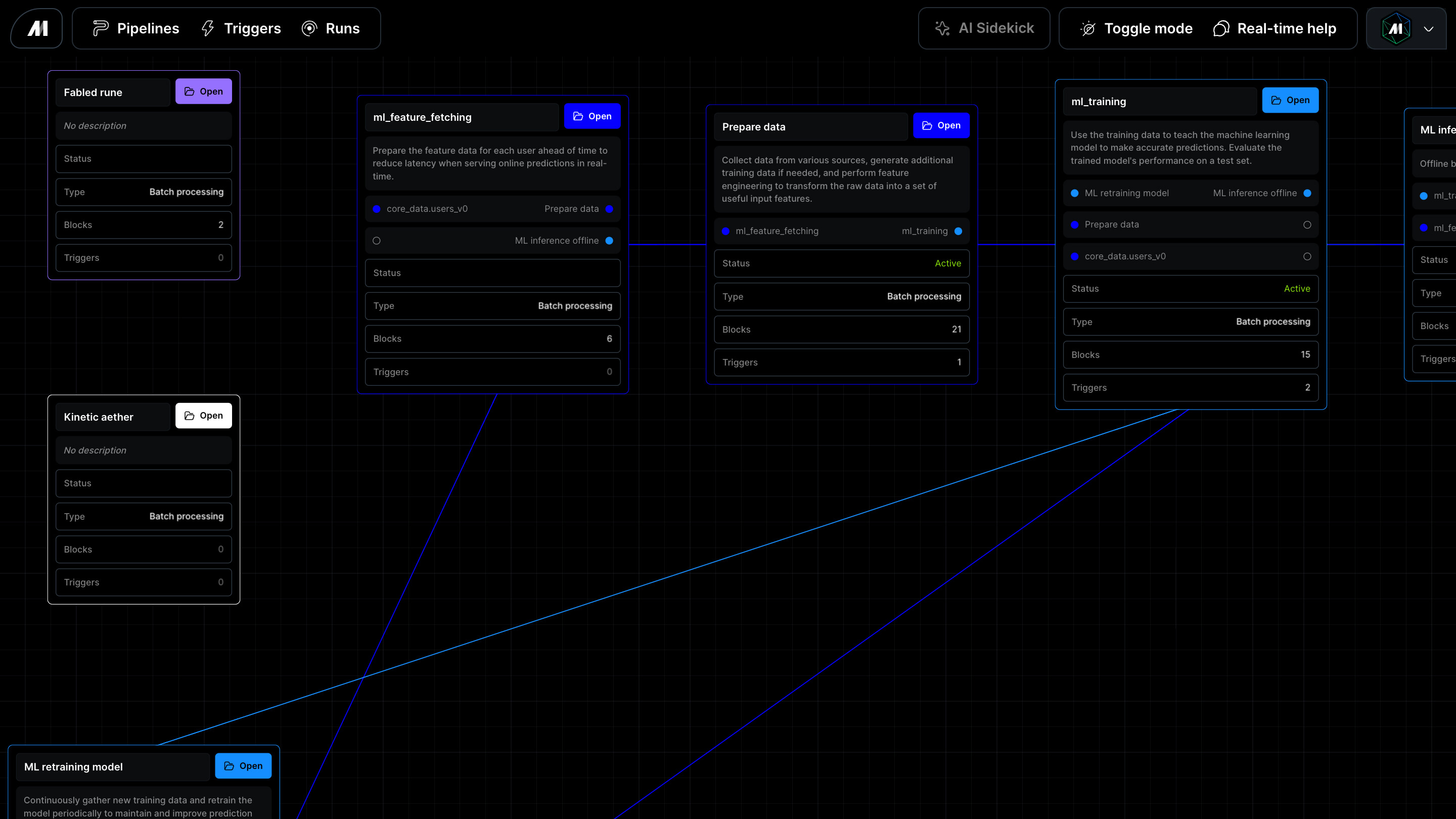
Use pipeline dependency views to understand how pipelines in one project depend
on each other.

<Frame>
  <img alt="Mage Pro Pipeline dependencies" src="https://mage-ai.github.io/assets/pro/features/pipeline-dependencies.jpg" />
</Frame>

## Explore the project graph

Open `/apps/pipelines/graph` to review the cross-pipeline dependency graph.
Each node represents a pipeline. Each edge points from an upstream pipeline to a
downstream pipeline:

1. **Upstream pipelines** must run first or provide data, state, or execution
   context used by the selected pipeline.
2. **Downstream pipelines** depend on the selected pipeline or run after it.
3. Selecting a pipeline focuses it and highlights the upstream and downstream
   paths that match the current trace direction.

The graph is read-only. Update pipeline relationships from the pipeline or
dependency configuration surfaces that create the underlying upstream and
downstream metadata. When the dependency response includes pipeline colors, the
graph uses those colors for the matching pipeline nodes.

## Focus on one pipeline

Use **Find pipeline** to search by pipeline name or UUID. Selecting a result
centers the graph on that pipeline, selects it, and highlights the dependency
paths that match the selected trace direction.

## Filter the neighborhood

Use the graph controls to narrow large projects:

1. **All pipelines** shows every pipeline node returned by the dependency
   source.
2. **With dependencies** hides isolated pipelines that do not have an upstream or
   downstream relationship.
3. **Both** highlights upstream and downstream pipelines around the focused
   pipeline.
4. **Upstream** highlights only pipelines that lead into the focused pipeline.
5. **Downstream** highlights only pipelines that depend on or follow the focused
   pipeline.

Clear the focus to return to the project-wide graph.

## Review pipeline relationships

Open a pipeline and select **Dependencies** to review the pipelines connected to
the current pipeline. The page groups relationships into upstream dependencies
and downstream pipelines, and shows the relationship type, active trigger count,
edge source, and latest run status when Mage can resolve that information.

Dependency edges can come from configured relationships, runtime lineage, or
pipeline code that calls helpers such as `trigger_pipeline`,
`trigger_pipeline_for_workspace`, `trigger_workspace_pipeline`, and
`check_status`.

When a pipeline is focused, highlighted graph edges show concise relationship
labels such as **Trigger**, **Sensor**, and **Global data product**.

## Use diagnostics

The graph reports diagnostics when dependency metadata is incomplete or
ambiguous, such as a pipeline referencing a missing pipeline, a self-dependency,
or a cycle. Use diagnostics to decide whether the project needs dependency
metadata cleanup before relying on the graph for release planning or incident
analysis.

## Validate relationship direction

When reviewing a dependency layout, confirm the selected pipeline context before
acting:

1. Select the pipeline you care about.
2. Check whether the highlighted relationships point upstream or downstream from
   the selected pipeline.
3. Use **Upstream** to highlight the pipelines that must run before the selected
   pipeline.
4. Use **Downstream** to highlight the pipelines that can be affected by the
   selected pipeline.
5. Follow the highlighted edge labels to confirm which dependency evidence Mage
   resolved for each relationship.

For dense graphs, keep the focused pipeline selected and move between direction
filters instead of trying to interpret every edge at once.

## Cancel downstream runs

When cancelling a running pipeline run, Mage can also cancel downstream runs that
were triggered by that run. In the cancellation confirmation, select **Cancel
downstream runs triggered by this run** to preview the eligible downstream runs
before confirming.

The preview only counts downstream runs that are still running or queued and
that you have permission to cancel. Runs that are already terminal are skipped,
and runs you cannot edit are shown as blocked. Leaving the option unchecked
cancels only the selected pipeline run.