> ## Documentation Index
> Fetch the complete documentation index at: https://docs.mage.ai/llms.txt
> Use this file to discover all available pages before exploring further.
# Browse all files
> Add, edit, move, and delete files or folders in your project.
## How to show the file browser
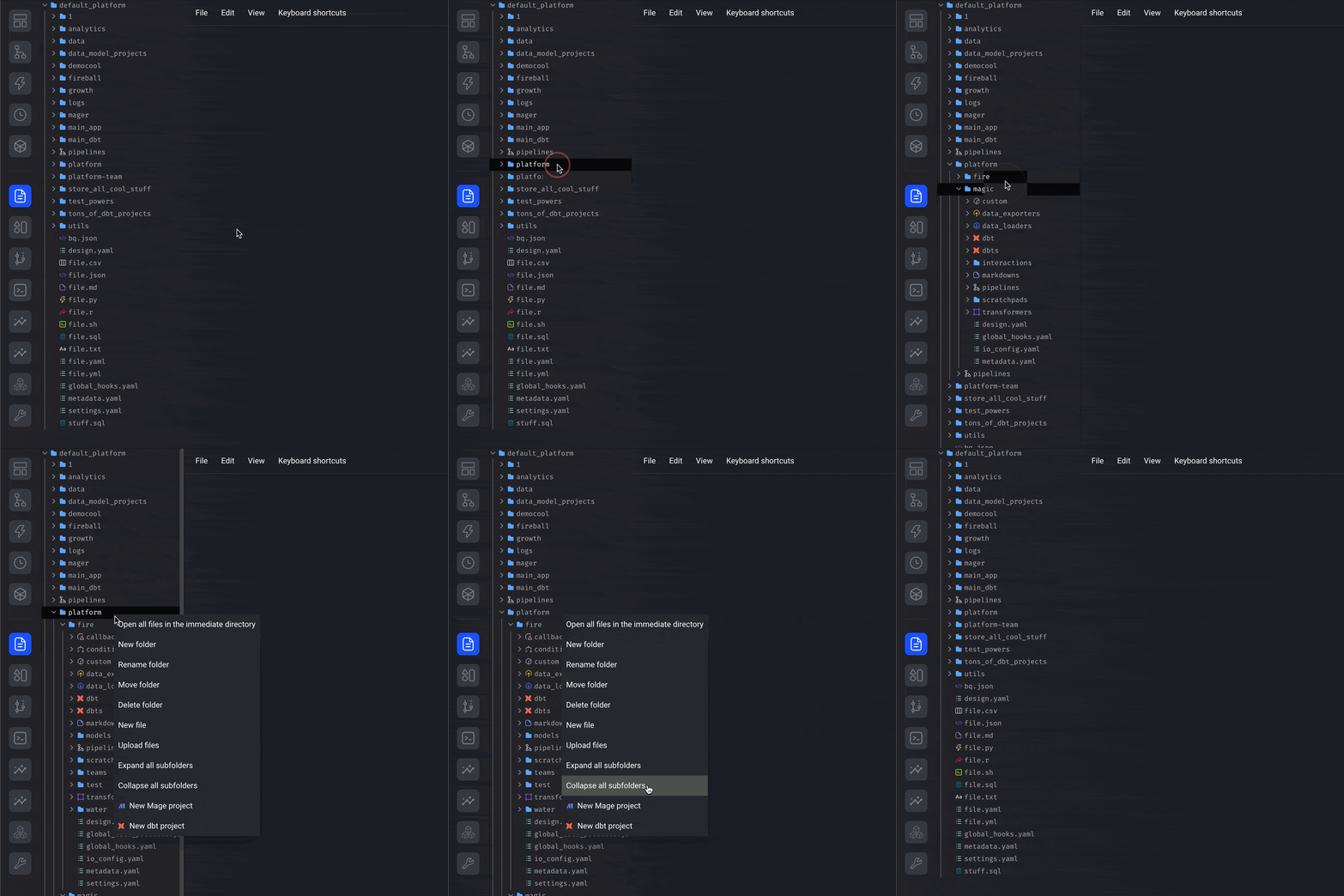
1. When editing a pipeline, expand the left side panel to show the file browser.
2. Go to the Files page [http://localhost:6789/files](http://localhost:6789/files).
3. Launch the Text Editor application.
***
## Right click menu
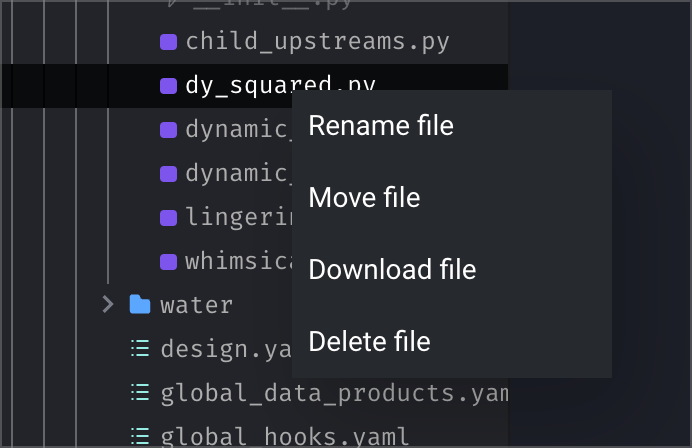
### File
* Rename file
* Move file
* Download file
* Delete file
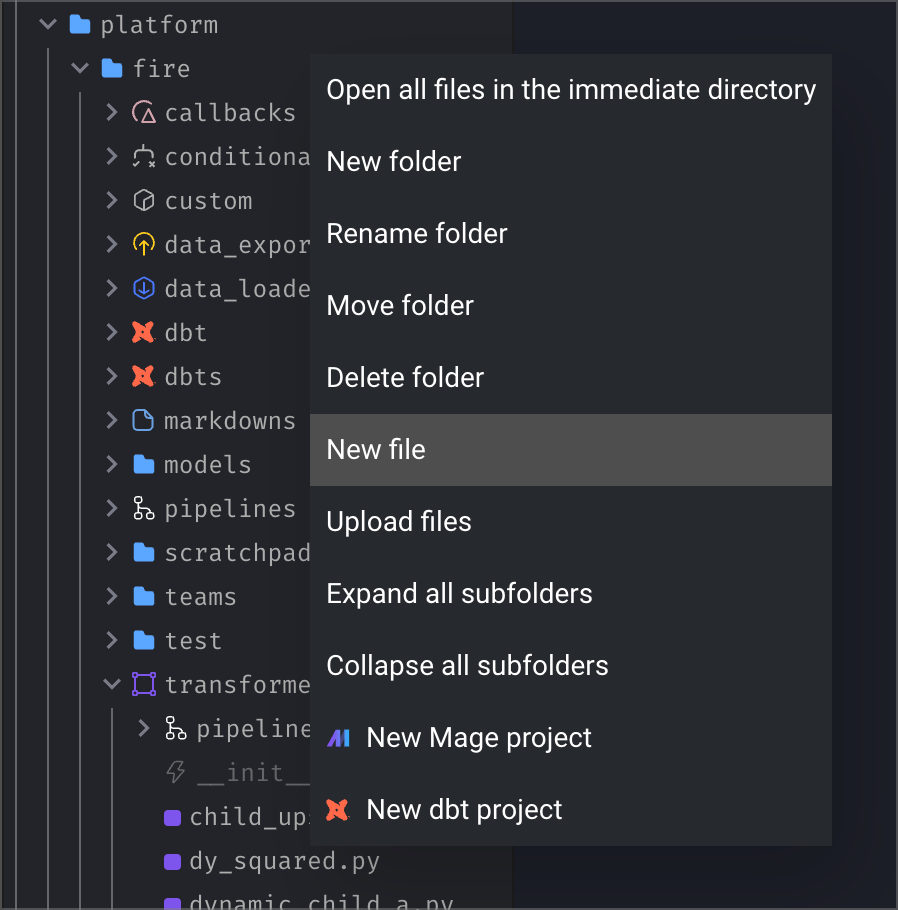
### Folder
* Open all files in the immediate directory
* New folder
* Rename folder
* Move folder
* Delete folder
* Upload files
* Expand all subfolders
* Collapse all subfolders
* New Mage project
* New dbt project
***
## File versions
When you save a file after making a change, a new file version is created and stored locally.
You can undo any change to a file by reverting to a previous version (this is different than git).
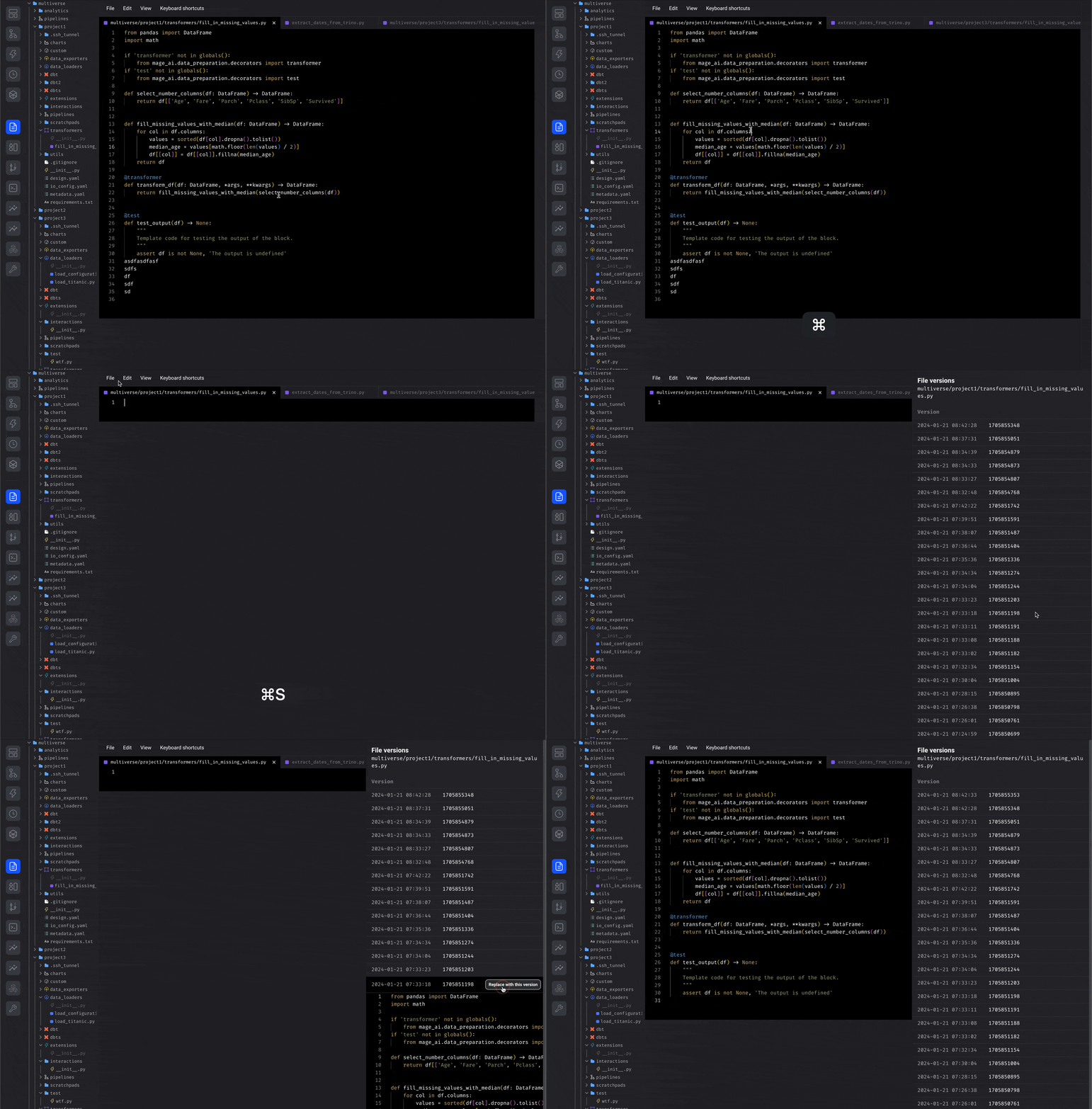
[Read more here](/getting-started/file-versions).
***
## Hidden files
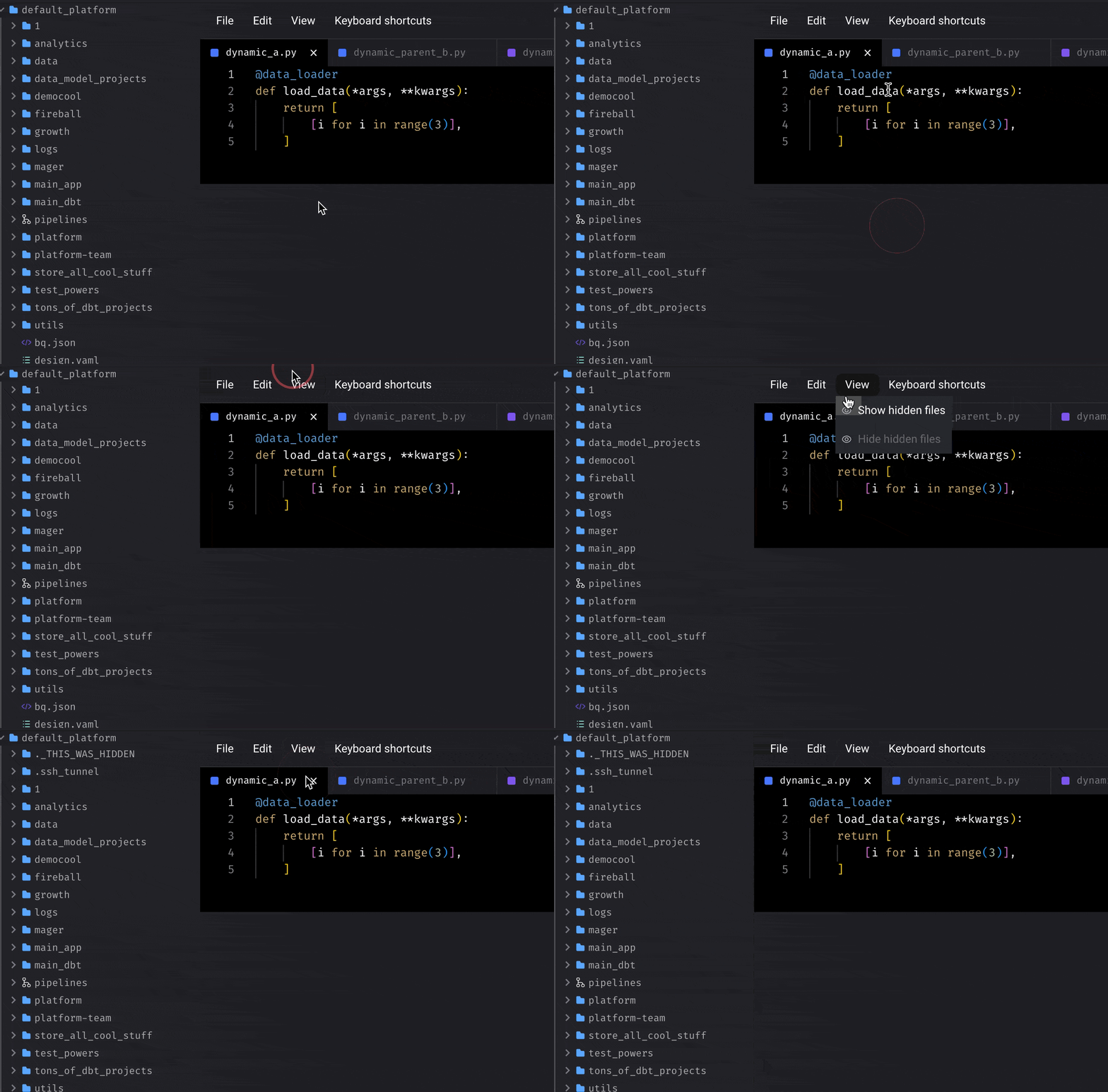
The file browser will hide hidden folders and files by default. You can show them by toggling
the option Show hidden files under the View menu dropdown options.
***
## Show blocks in current pipeline
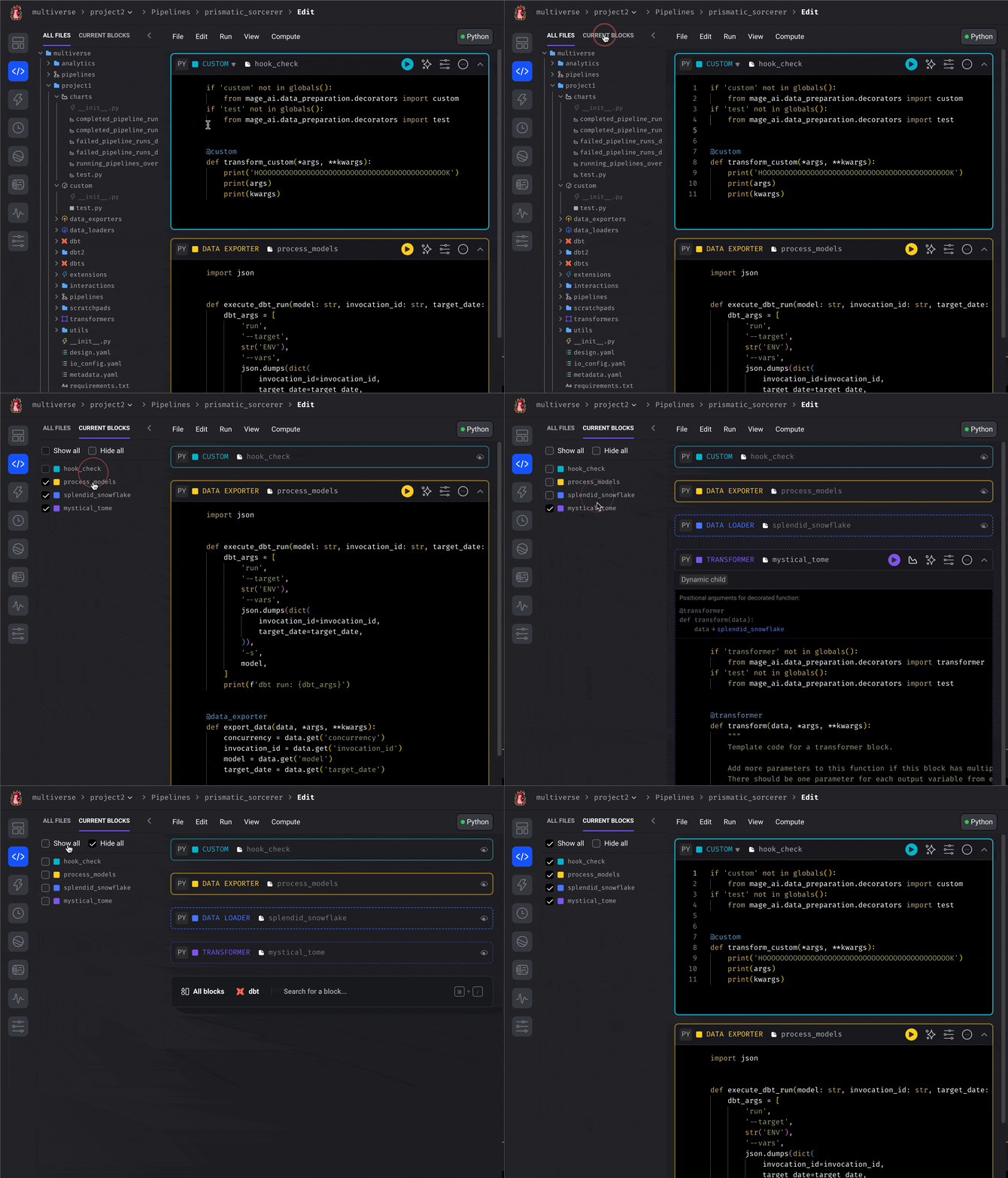
When editing a pipeline, you can switch the file browser view to show only the blocks in the
current pipeline.
After toggling this view, you can select which blocks to collapse and which to expand.
This can help optimize vertical screen space while writing code.
***
## Block files used/unused by pipelines
Requires version `0.9.63` or greater.
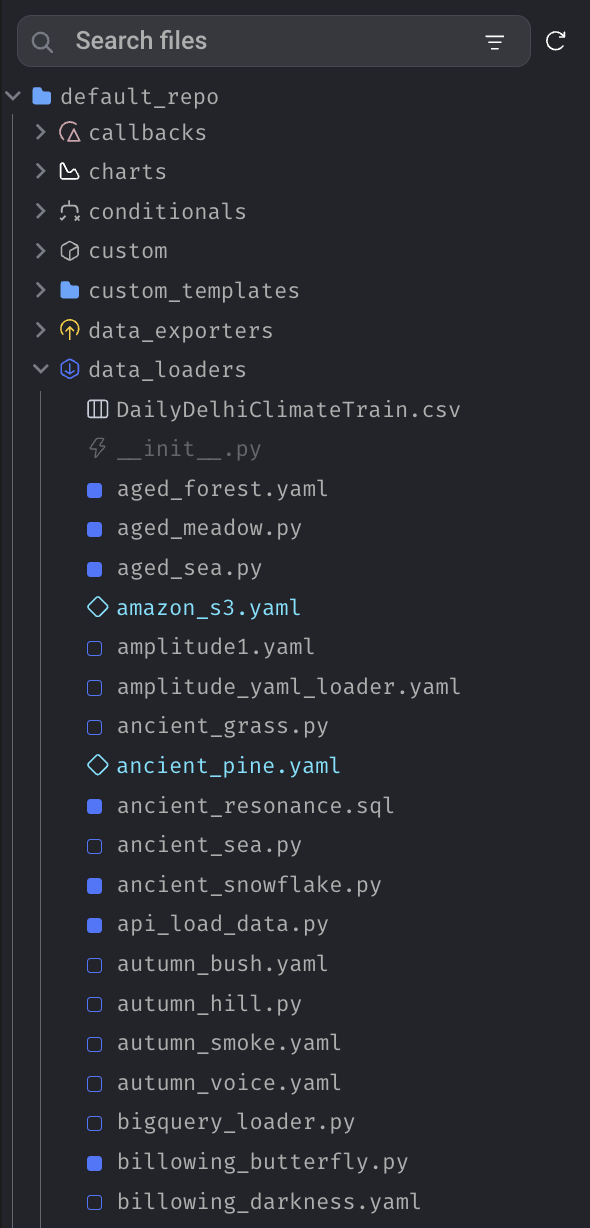
You can tell if a block is being used by a pipeline (or not used by any pipelines)
by looking at the related block file's icon in the file browser. This is a quick way
for users to see which block files are currently being used by *any* pipeline; the specific
pipeline using a block file is not indicated in the file browser.
You need to be viewing the file browser in the Files (`/files`) and Pipeline Editor
(`/pipelines/[pipeline_uuid]/edit`) pages specifically. Other pages, modals, or
components that have a file browser may not have this feature.
**Applicable block directories:** `callbacks`, `conditionals`, `custom`, `data_exporters`,
`data_loaders`, `dbt`, `extensions`, `markdowns`, `scratchpads`, `sensors`, and `transformers`
### Block file states
There are three different states for a block file in the file browser that can affect the
icon in front of the block filename and the filename font color. Note that the square icons
can be different colors depending on which block directory it is.
1. **Used by exactly one pipeline** - Filled square icon. For example in the screenshot
above, `aged_sea.py` and `api_load_data.py` are used by a single pipeline.
2. **Used by more than one pipeline** - Unfilled cyan diamond icon and filename with cyan
font color. In the screenshot above, `amazon_s3.yaml` and `ancient_pine.yaml` are used by
multiple pipelines.
3. **Not used by any pipeline** - Unfilled square icon. For example in the screenshot above,
`bigquery_loader.py` is not used by any pipeline.
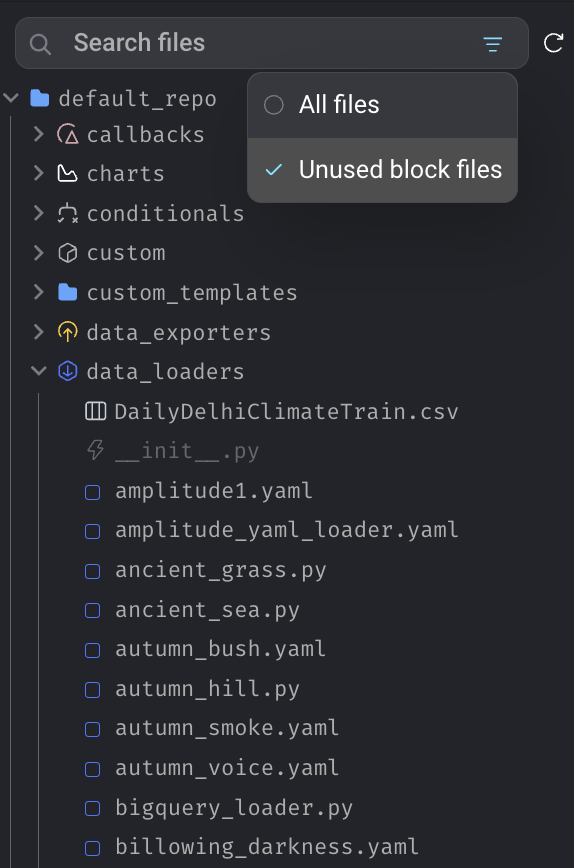
### Unused block files
If you specifically want to view the block files that are not being used by any pipeline,
you can apply the "Unused block files" filter found in the file search input at the top of
the file browser. Non-block files may still be visible when this filter is applied.
***
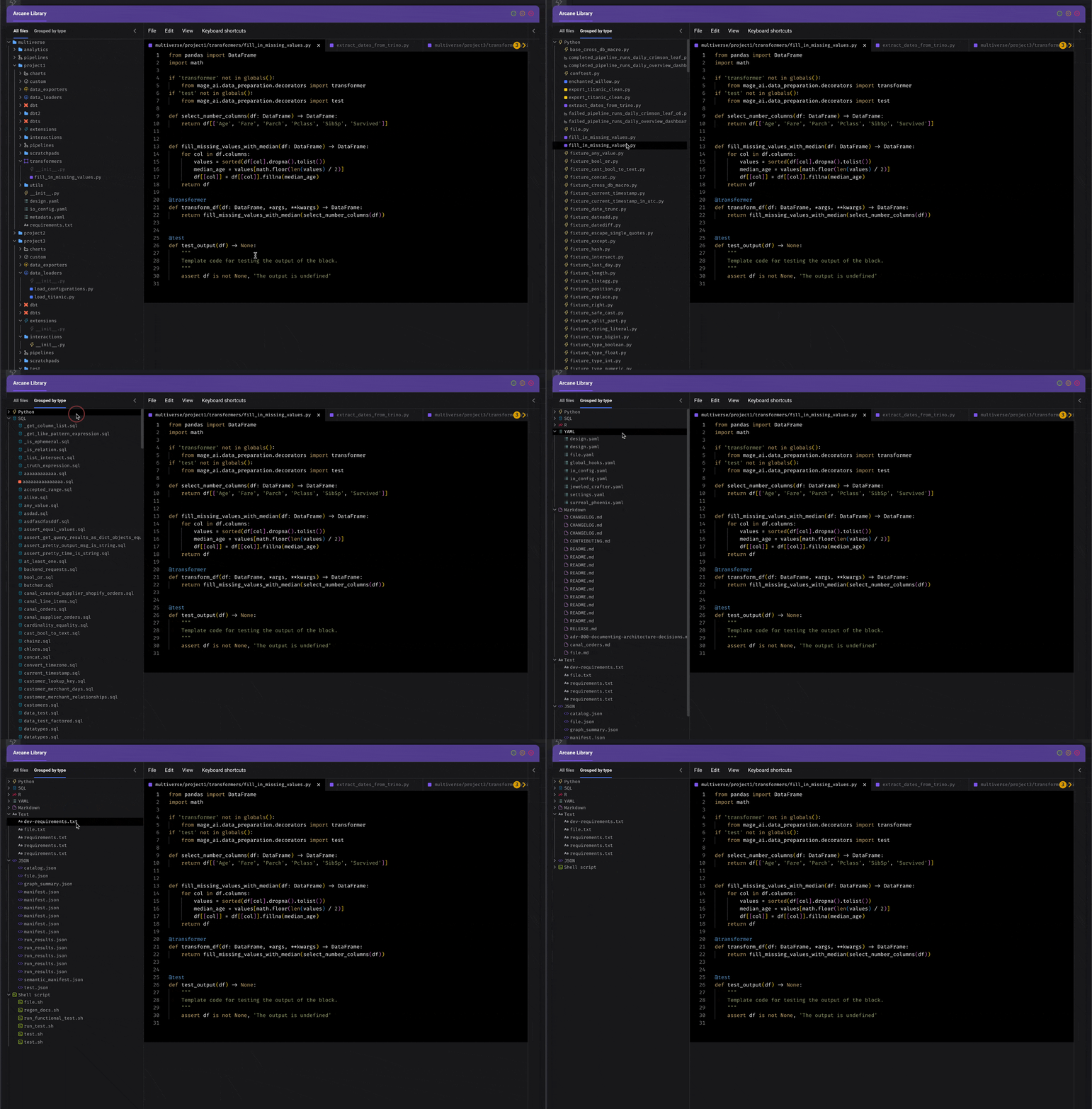
## Display files by type
The feature is currently only available in the Text Editor application
Instead of viewing all files grouped by its parent directory,
you can toggle a different view that shows these files flattened and then grouped
by its file extension type.
This can help browse relevant files faster since you don’t have to dig into each folder
to find the file you’re looking for.