> ## Documentation Index
> Fetch the complete documentation index at: https://docs.mage.ai/llms.txt
> Use this file to discover all available pages before exploring further.
# Writing data pipeline code
> Build the future you want to see.
## Adding blocks made easy
You can quickly add blocks of code to your pipeline with these methods:
**Supported block type directories:** `callbacks`, `conditionals`, `custom`, `data_exporters`, `data_loaders`, `dbt`,
`dbts`, `markdowns`, `scratchpads`, `sensors`, and `transformers`
Version 0.9.64 or greater is required to add `callback` and `conditional`
blocks from the file browser.
1. Open the file browser on the Pipeline Editor page.
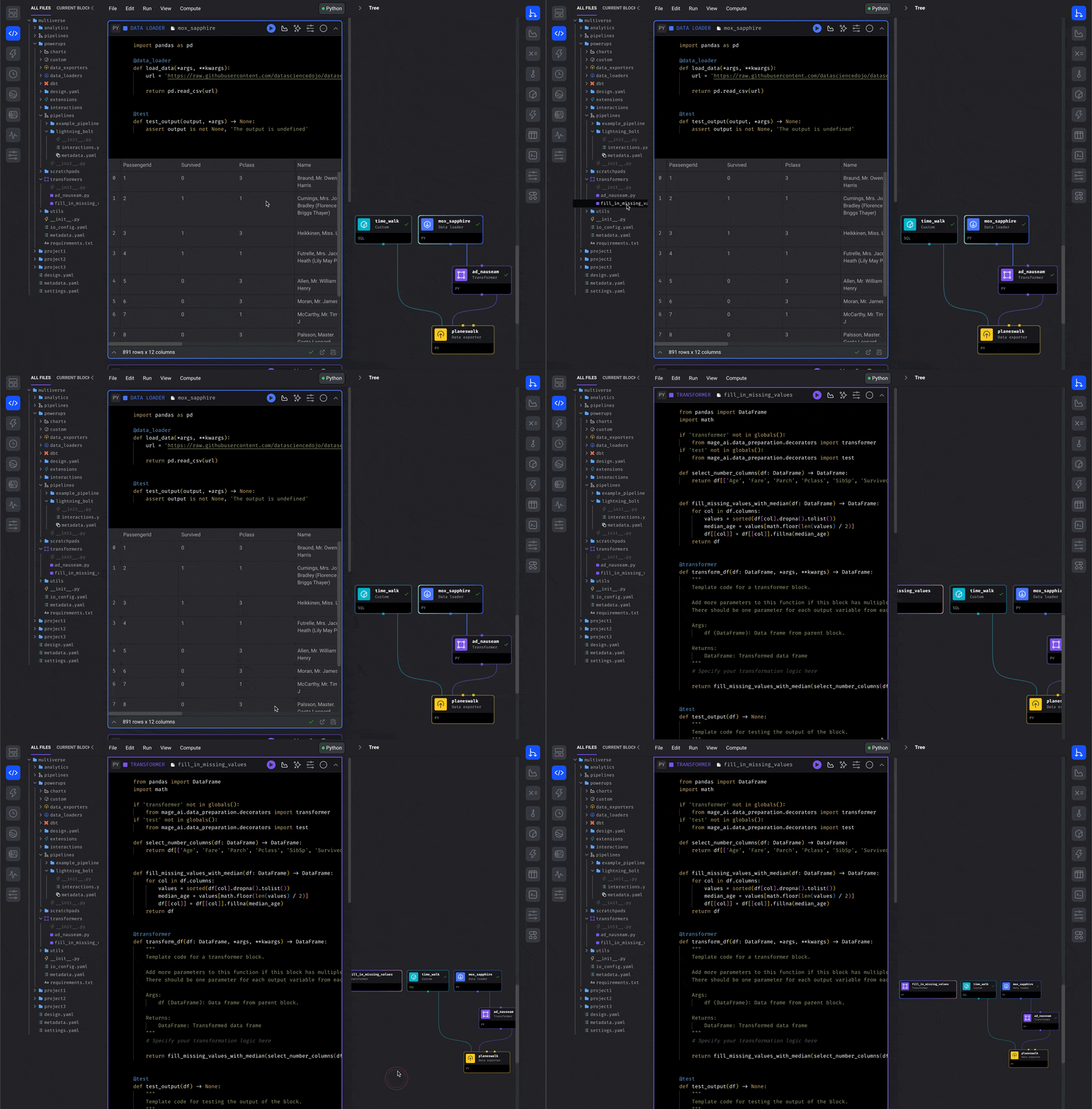
2. Click a block file and keep holding down.
3. Drag the block file onto the center of the page (the Notebook area).
4. Release the button and it’ll be added to the pipeline.
Find existing code and add it to the current pipeline.
You must first enable the feature named Add new block v2 in your
[project settings](http://localhost:6789/settings/workspace/preferences).
This feature is available in standard (batch) pipelines.
If you just recently enabled the feature Add new block v2, you must restart Mage
so that your blocks can be indexed.
Version 0.9.64 or greater is required to add `callback` and `conditional`
blocks from the block search.
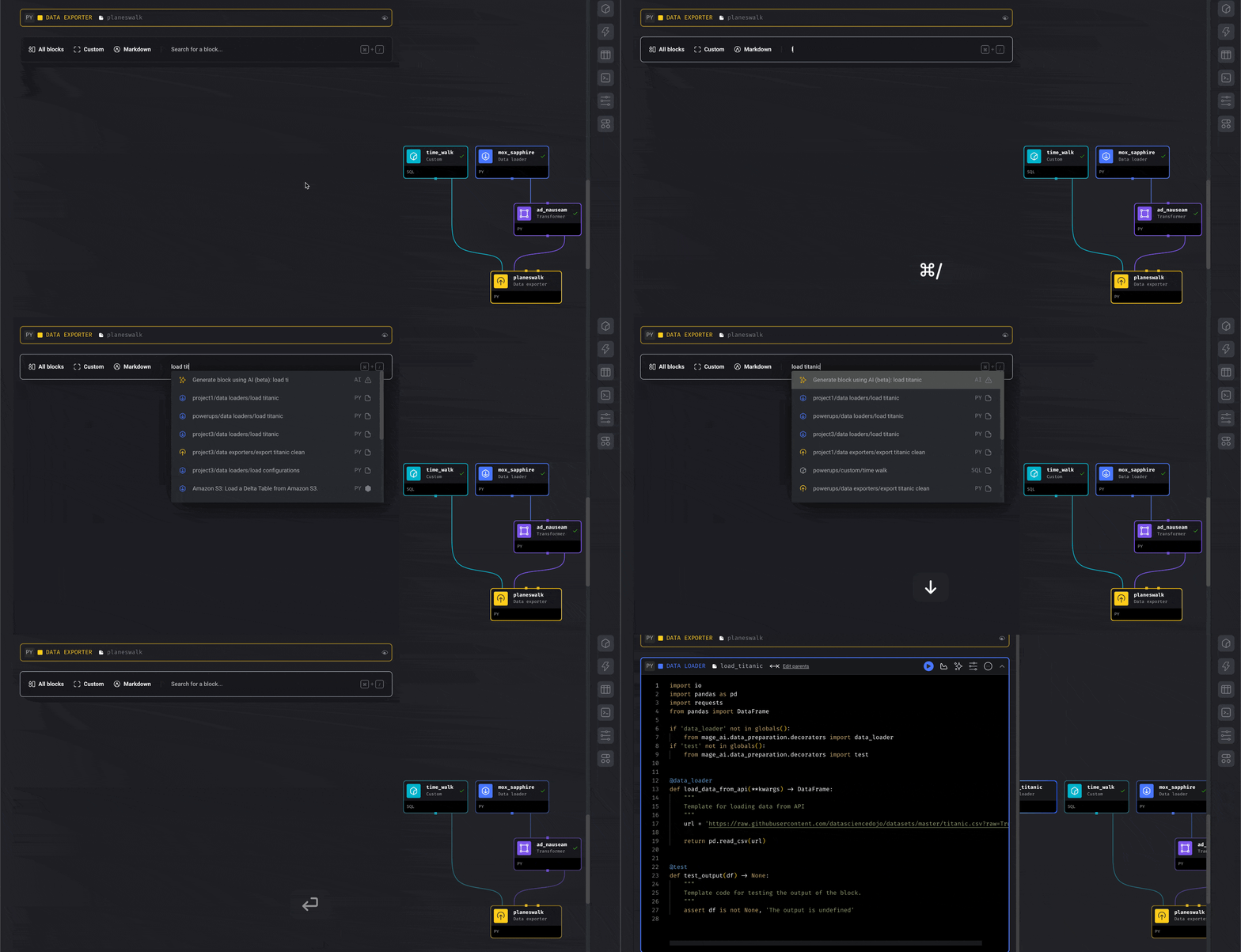
Instead of clicking a button to add a new block, type in the search bar to find an
existing block across all your projects.
⌘ + / (Command + Forward Slash) keyboard shortcut will instantly focus your typing on the
search bar from anywhere on the page (as long as you aren’t already typing in a
block of code).
Use the arrow up and arrow down key to browse
through the results.
Create a template for a block or a pipeline that can be reused throughout your project.
[Read more here](/custom-templates/overview)
***
## Notes on editing pipelines
Avoid opening and editing the **same pipeline in multiple browser tabs or windows** at the same time.
Changes from one tab may overwrite changes from another.
Tips to stay safe:
* Edit a pipeline in **one tab only**.
* If you need to monitor the pipeline elsewhere, use another tab in **read-only mode**.
* Close extra editing tabs if opened by mistake.
***
### Collaboration best practices
If multiple users need to develop the **same pipeline**:
* Use **[Workspace mode in Mage Pro](/guides/developer-ux/workspaces)**, which provides:
* Isolated environments per user or team.
* Safe collaboration without overwriting each other’s changes.
* The ability to merge updates back into shared pipelines.
This ensures smooth teamwork and prevents conflicts when more than one person is editing.
***
## Re-arrange and hide or show blocks
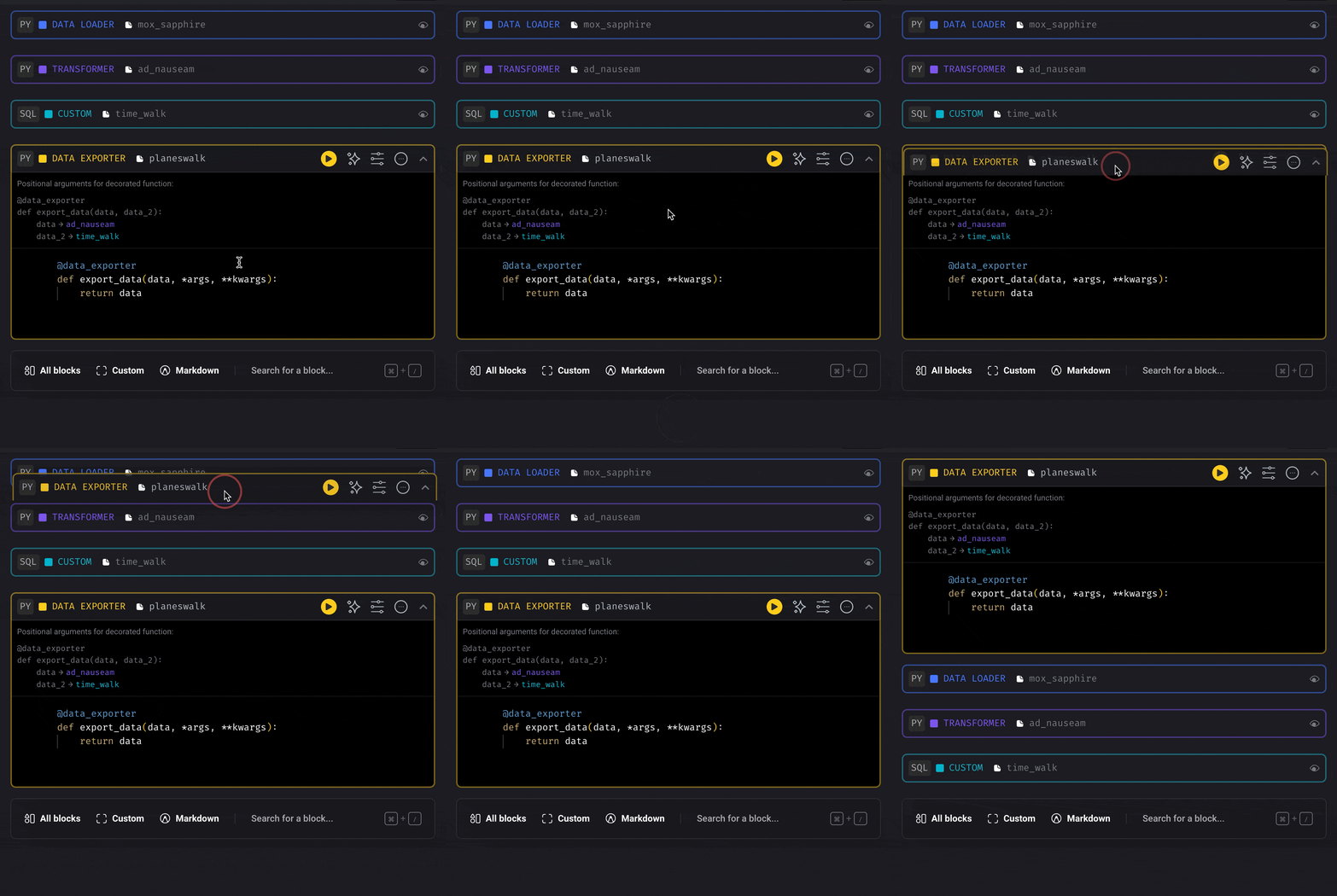
Drag a block and move it up or down by dropping it on another block.
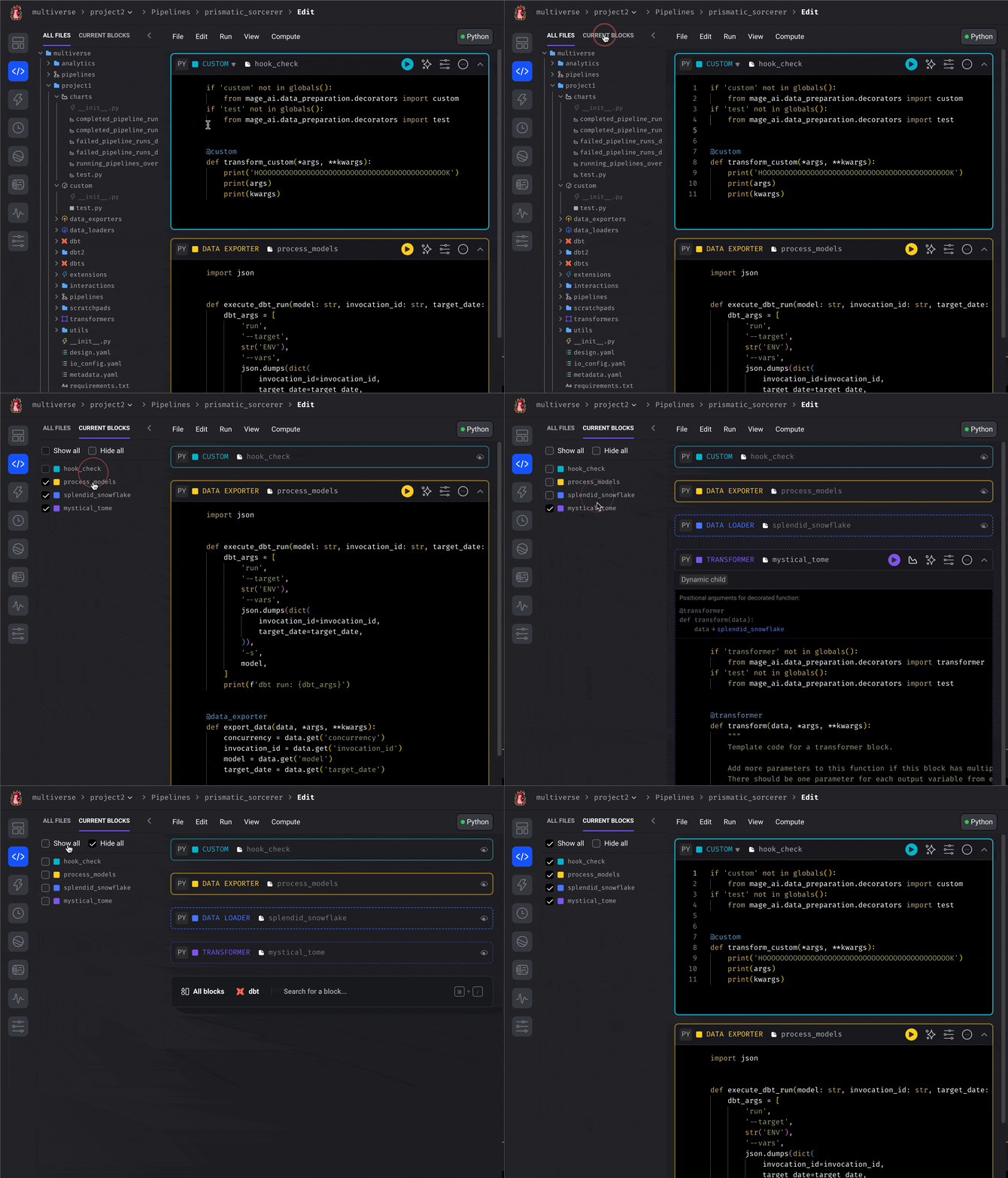
When editing a pipeline, you can switch the file browser view to show only the blocks in the
current pipeline.
After toggling this view, you can select which blocks to collapse and which to expand.
This can help optimize vertical screen space while writing code.
***
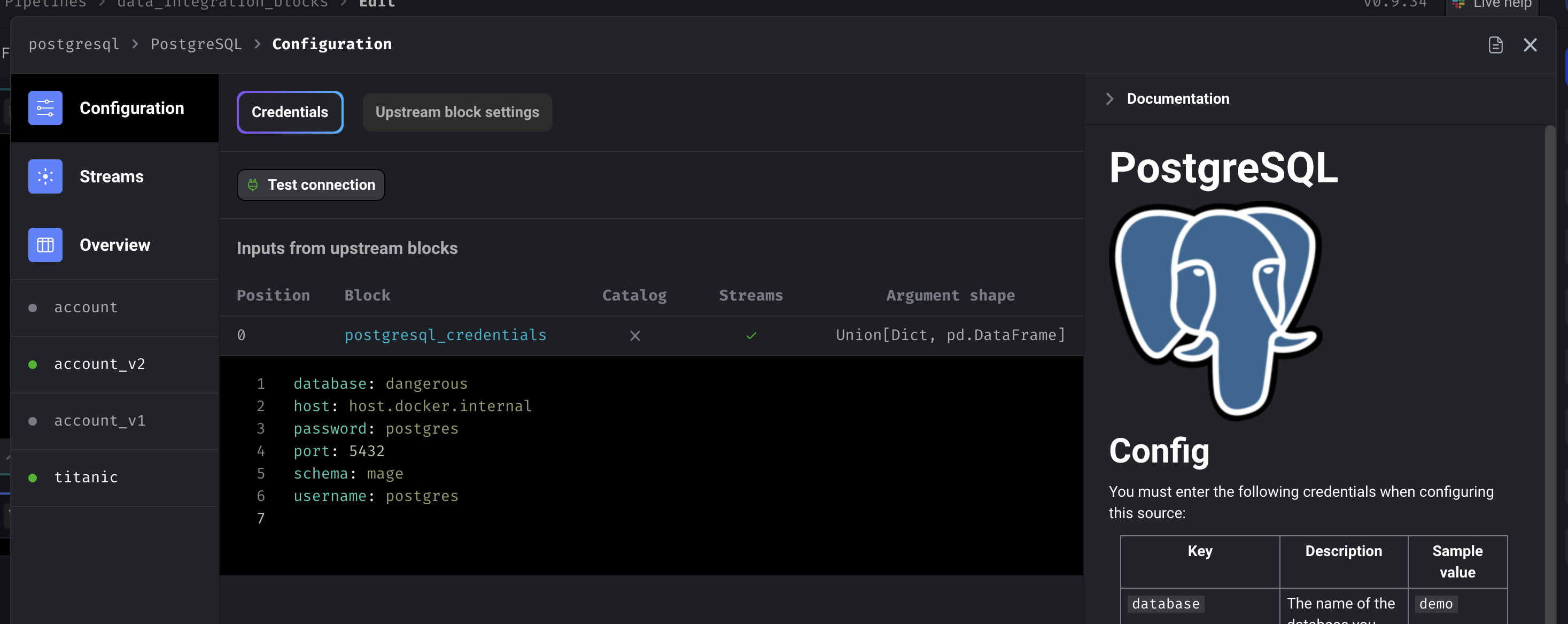
## Pre-built data integrations for 3rd party sources
Sync data from 3rd party sources without writing boilerplate code by using pre-built
data integrations (Singer Taps and Targets) provided by the data engineering community.
Data integrations to sync your data to 3rd party destinations are also available in the
same feature set.
These sources and destinations can be combined and chained together with
your existing blocks.
[Read more here](/data-integrations/batch-pipelines)
***
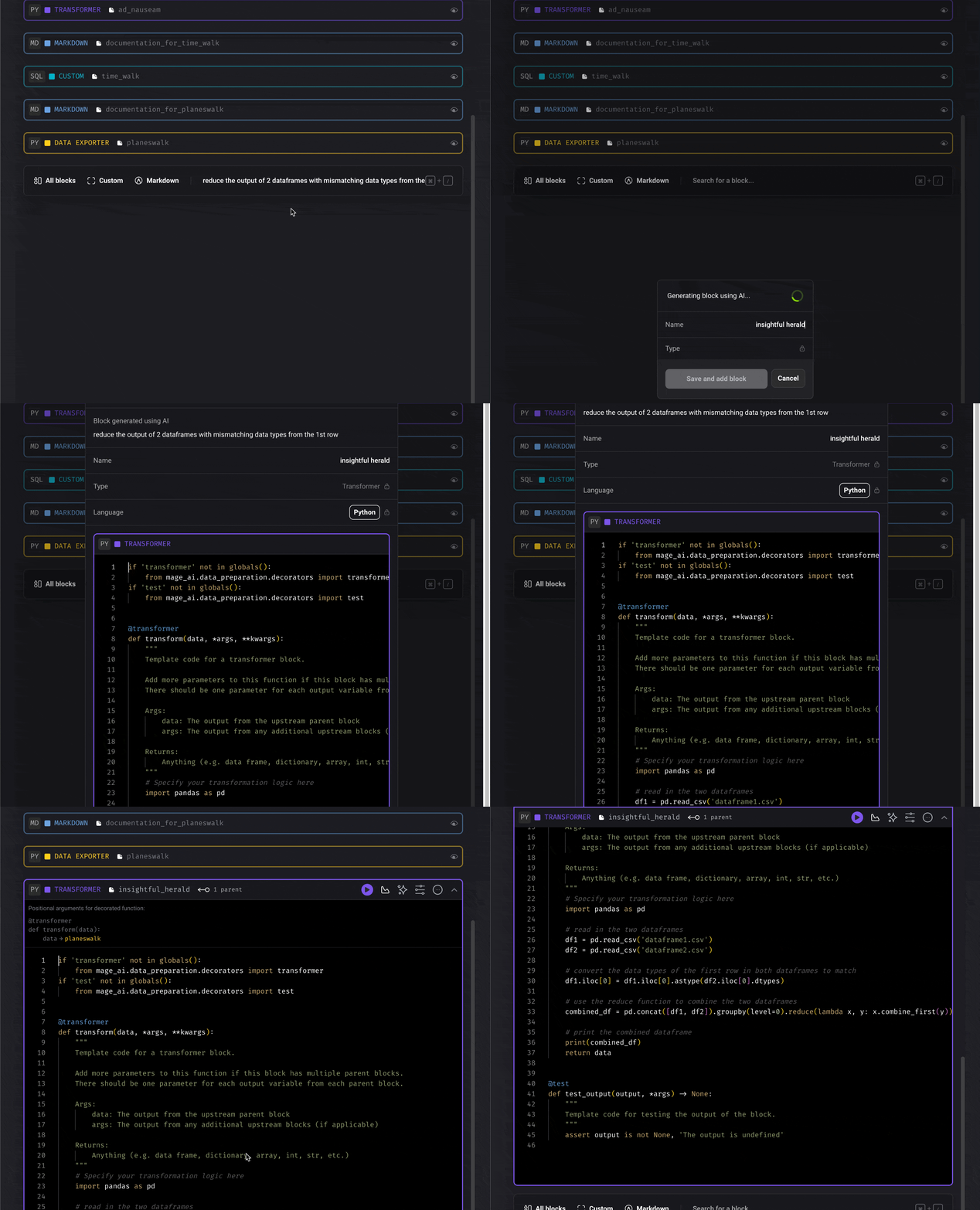
## Use AI to write code for you
A line of code you don’t write is a line of code you never have to debug.
Use AI to generate the code for you.
[Read more here](/guides/ai/overview#generate-block-using-ai)
***
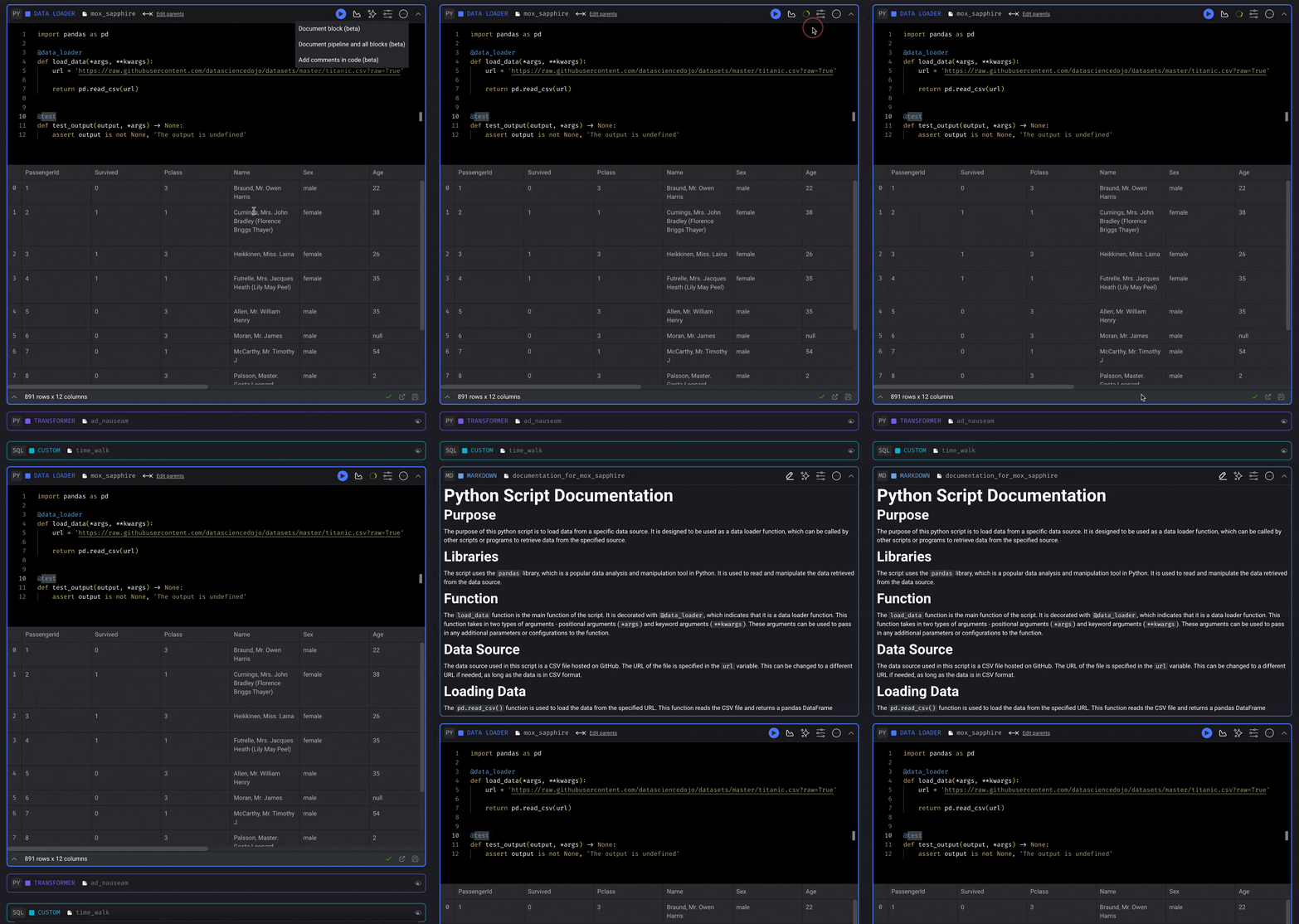
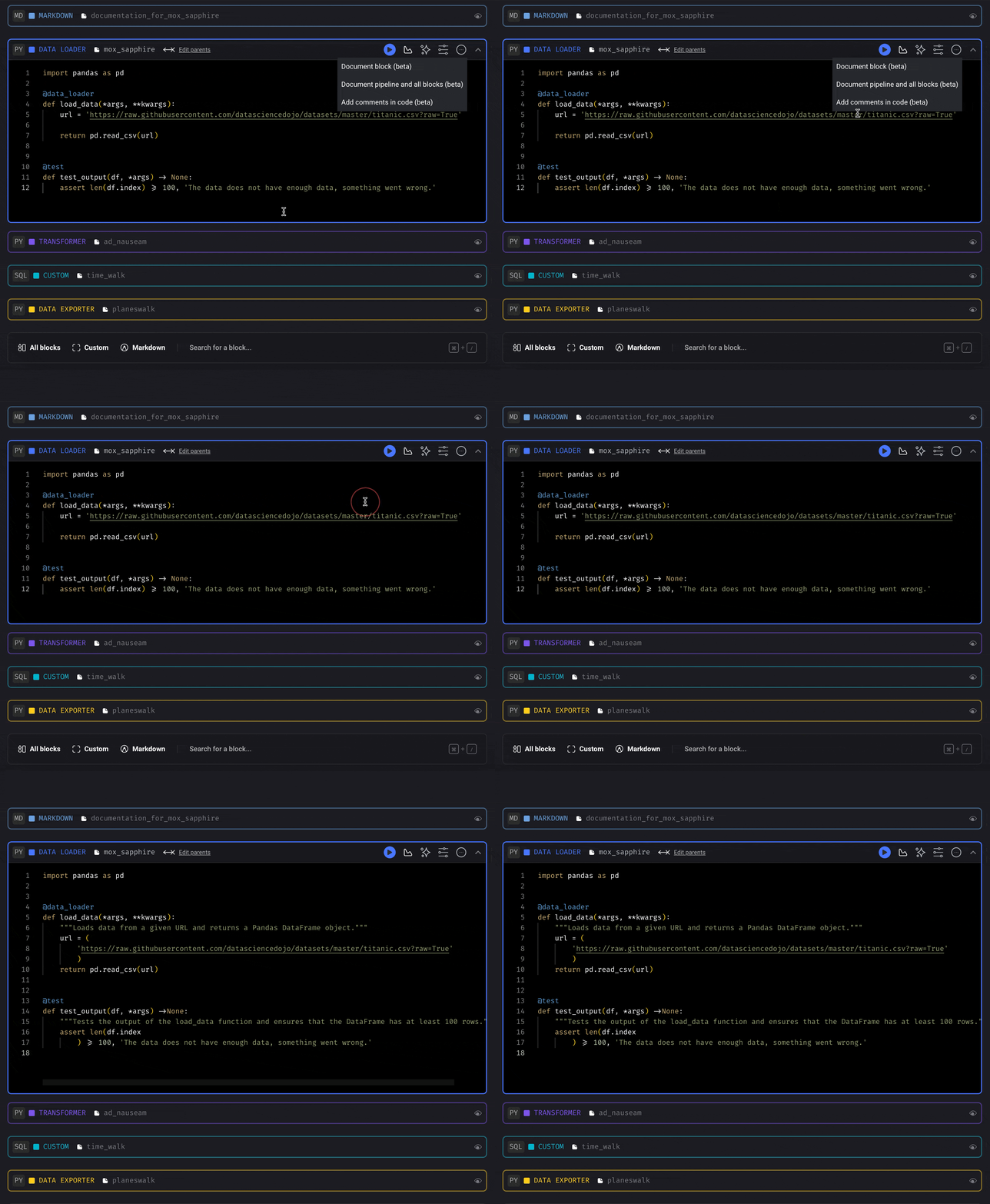
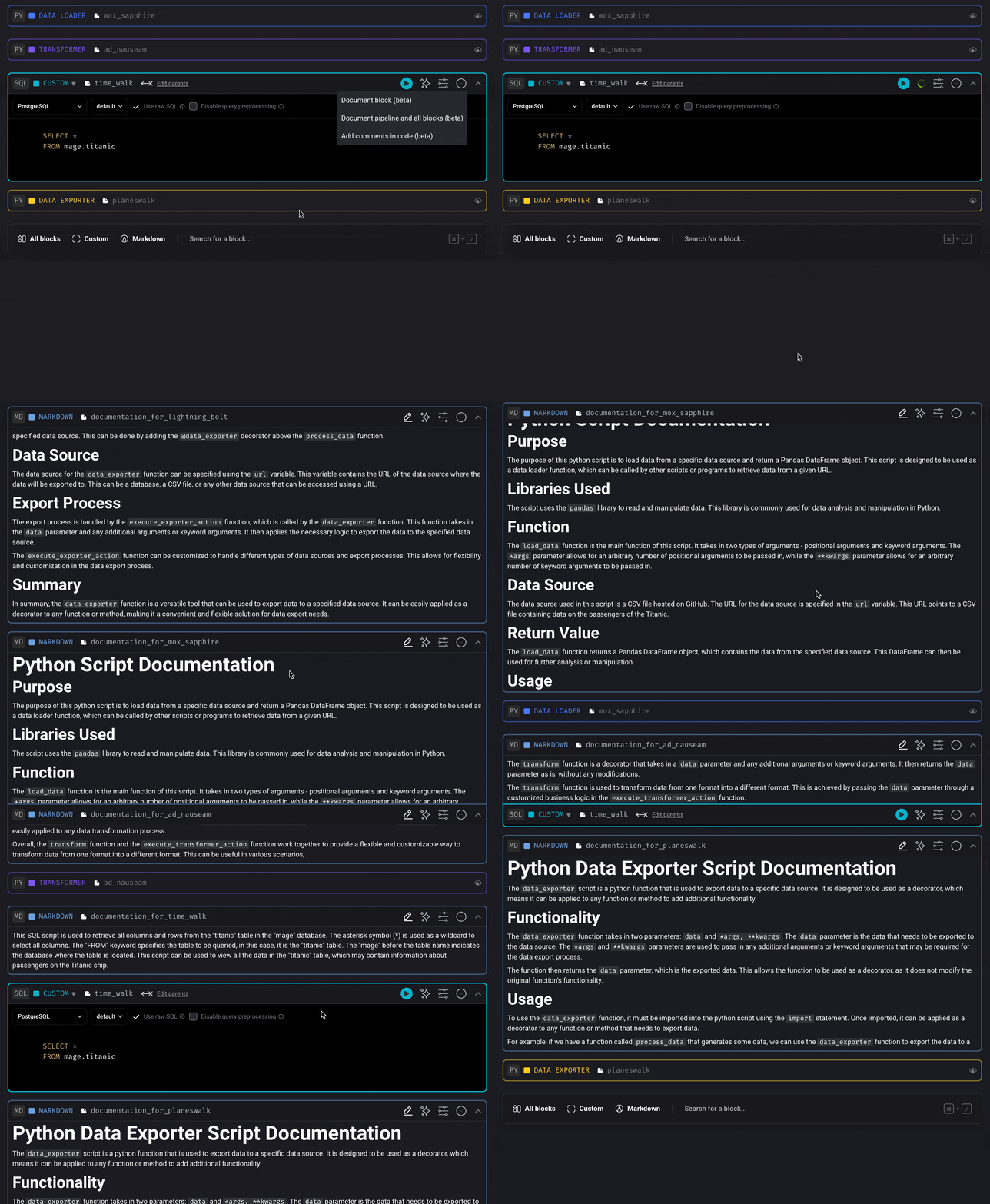
## Document and comment code (AI)
“Work smart, not hard.”
Let the robots document your code so you can focus on the fun and creative side of coding.
[Read more here](/guides/ai/overview#add-documentation-for-a-block)
[Read more here](/guides/ai/overview#add-comments-in-a-block)
[Read more here](/guides/ai/overview#add-documentation-for-a-pipeline-and-all-its-blocks)
***
## Block upgrades
Enhance your code with these quick power-ups:
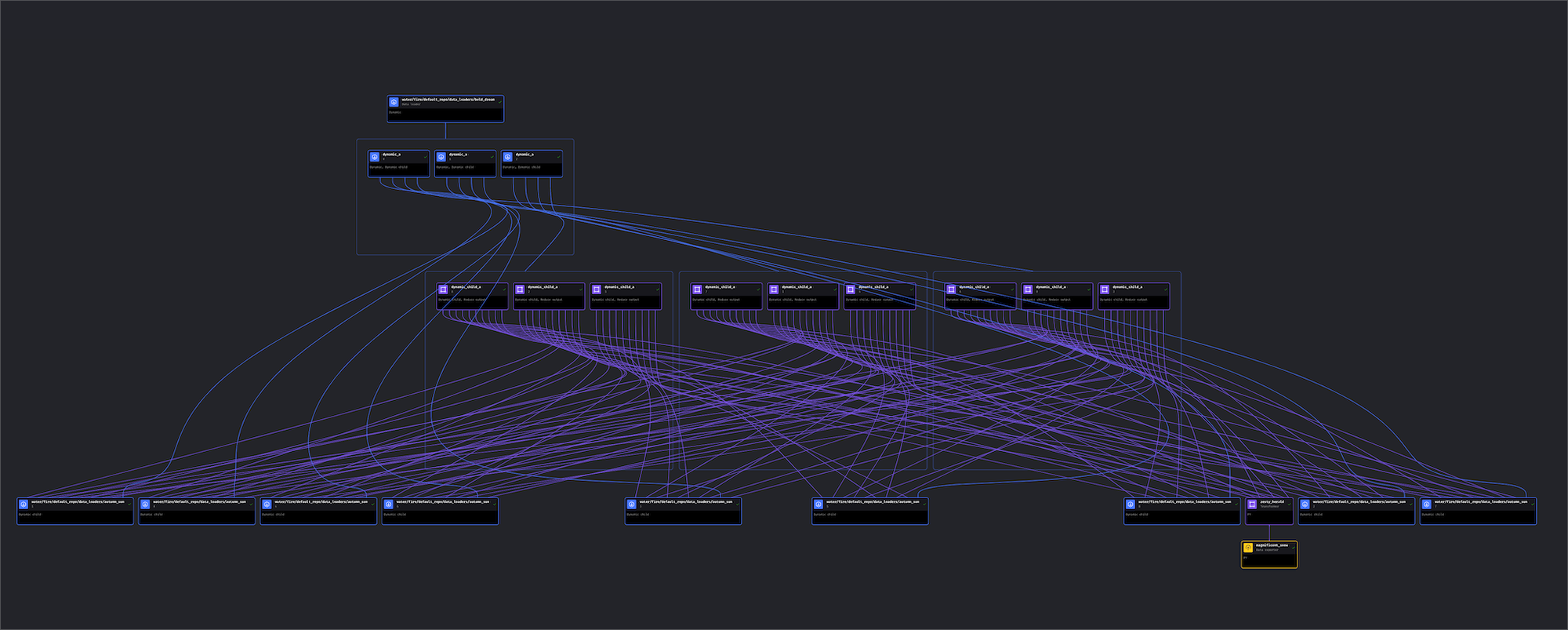
A very `powerful` ultimate *spell*.
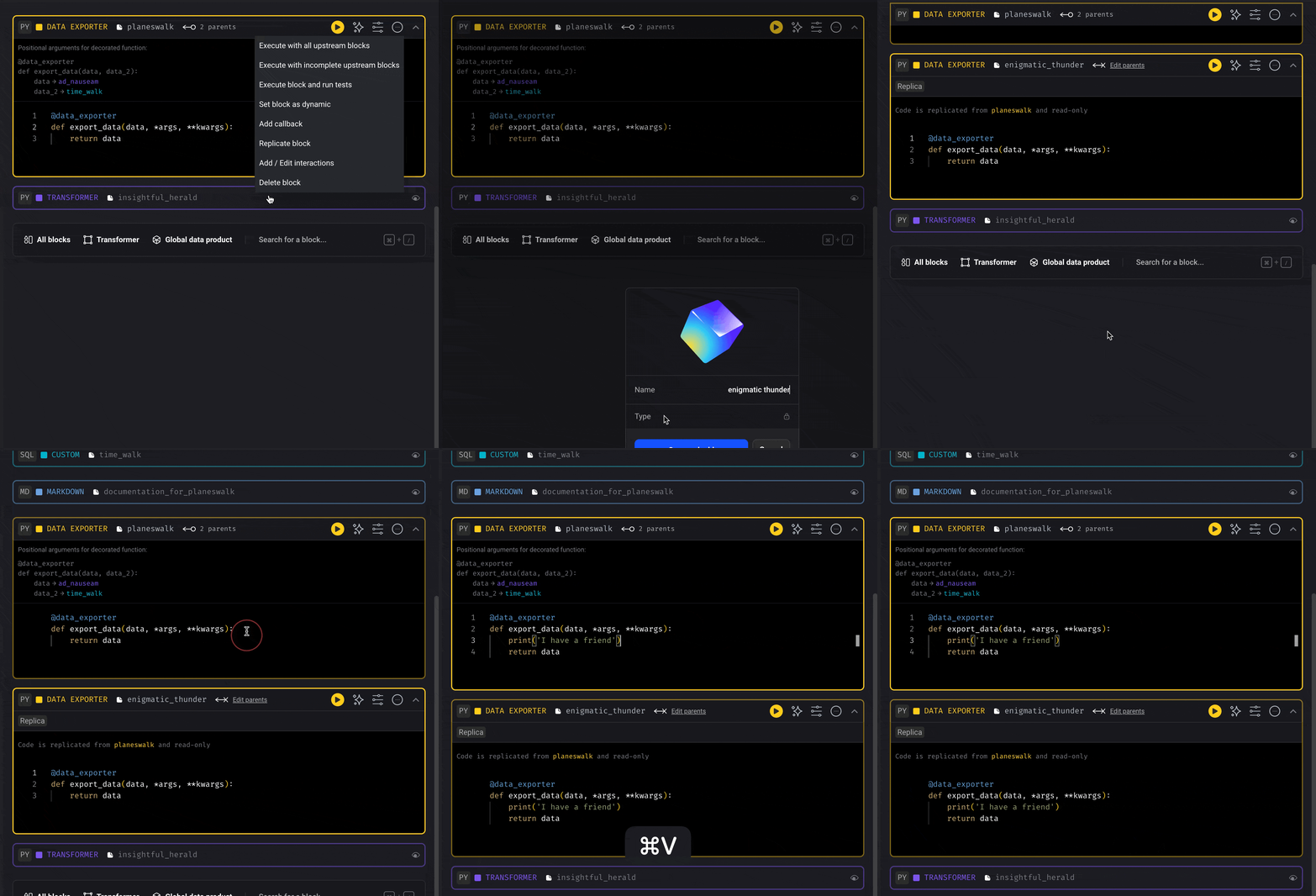
With great power... comes great fun.
[Read more here](/design/blocks/dynamic-blocks)
[Read more here](/guides/blocks/replicate-blocks)
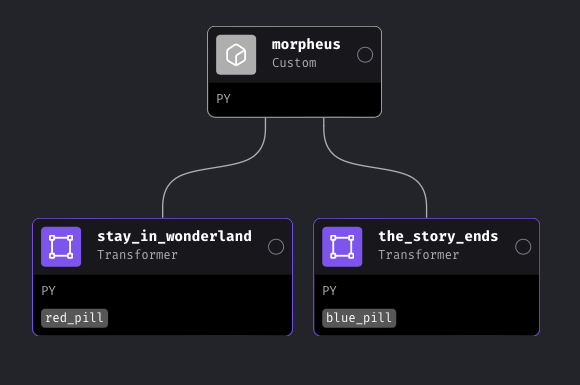
[Read more here](/design/blocks/conditionals)
A callback block is associated to another block.
When the parent block succeeds or fails, the callback block functions are executed.
[Read more here](/design/blocks/callbacks)
***
## Add new block v2
An improved experience for adding new blocks to your pipeline in the
Pipeline Editor (`/pipelines/[pipeline_uuid]/edit`), which allows you to
search for existing block files and use data integration blocks inside of
a standard (batch) pipeline.
***
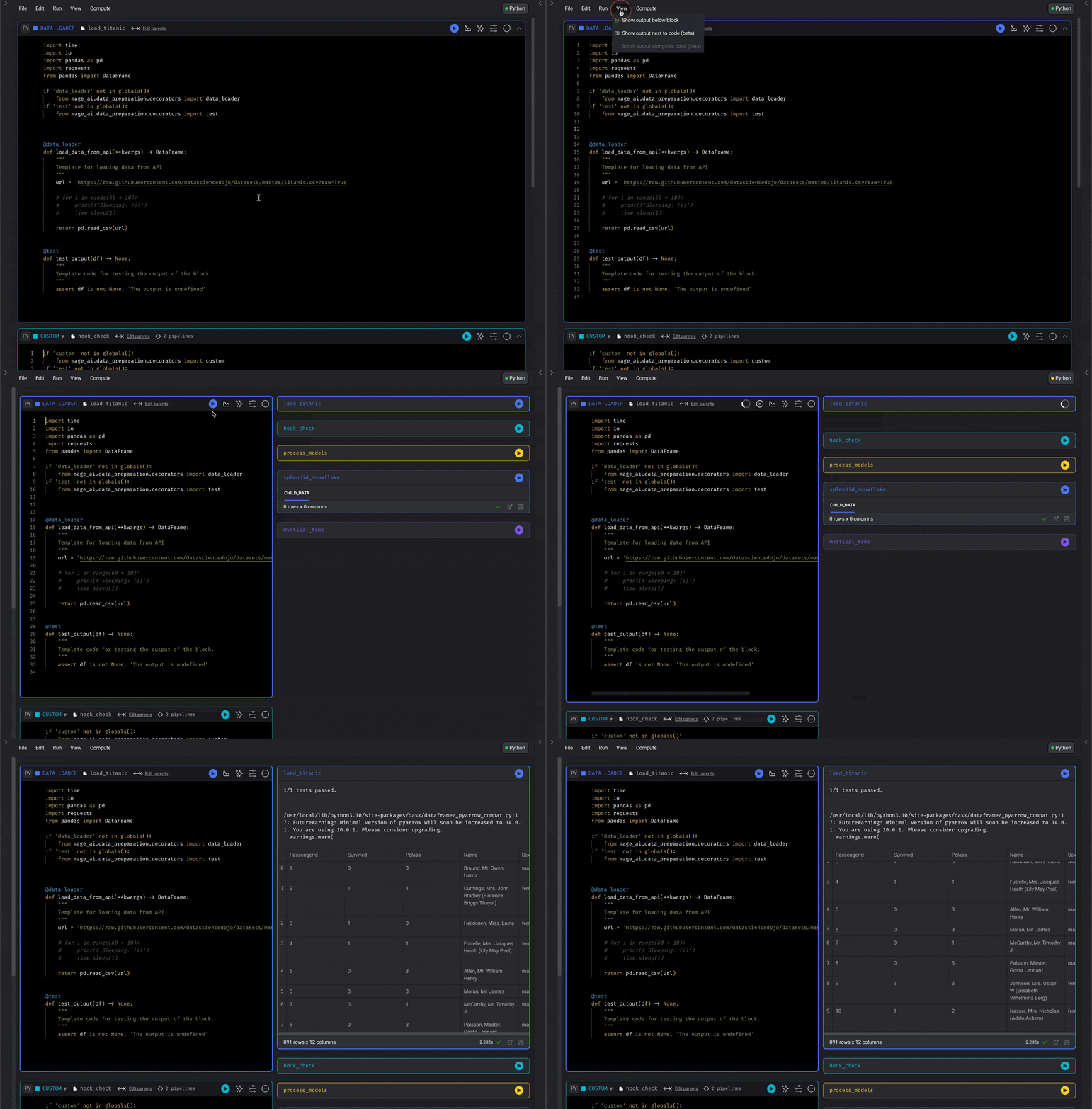
## Code and output side-by-side view
Run code and see its output right next to where you’re writing.
This makes it so that you don’t have to keep scrolling down every time you make a code change
and want to see its results.
To enable this feature:
1. Go to your [project settings](http://localhost:6789/settings/workspace/preferences).
2. Enable the feature named Notebook block output split view.
3. Open the edit view of a pipeline.
4. Under the header menu named View, click the option Show output next to code.
***