> ## Documentation Index
> Fetch the complete documentation index at: https://docs.mage.ai/llms.txt
> Use this file to discover all available pages before exploring further.
# Run dbt-spark against a pySpark session.
The following procedure demonstrates how to run `dbt-spark` with a pySpark session.
1. Build a Mage docker image with Spark following the instructions given at
[Build Mage docker image with Spark environment](/integrations/spark-pyspark#1-build-mage-docker-image-with-spark-environment).
2. Run the following command in your terminal to start Mage using docker:
```bash theme={"system"}
docker run -it --name mage_spark -p 6789:6789 -v $(pwd):/home/src mage_spark \
/app/run_app.sh mage start demo_project
```
3. Create a new pipeline with a name `dbt_spark`, and add a `Scratchpad` to
test out the connection with PySpark, with the following code:
```python theme={"system"}
from pyspark.sql import SparkSession
import os
spark = SparkSession.builder.master(os.getenv('SPARK_MASTER_HOST', 'local')).getOrCreate()
spark.sql("show databases;")
```
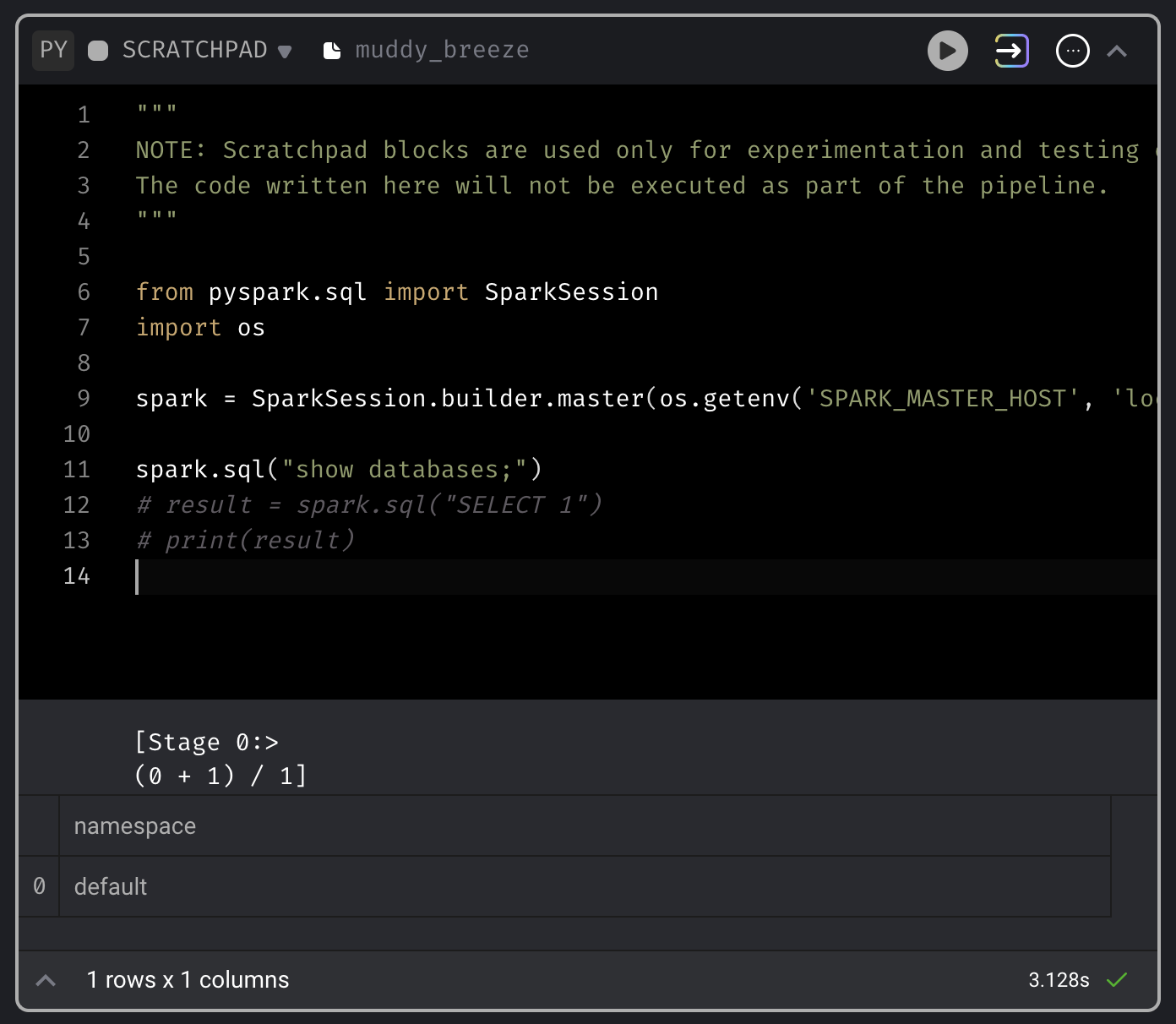
It should return results similar to the following when running:
```
[Stage 0:>
(0 + 1) / 1]
namespace
0 default
```
 4. Click the `Terminal` icon on the right side of the Mage UI, and create a dbt
project `spark_demo`, with the following commands:
```bash theme={"system"}
root@488dc9529cf3:/home/src# cd demo_project/dbt
root@488dc9529cf3:/home/src# dbt init spark_demo -s
root@488dc9529cf3:/home/src# touch spark_demo/profiles.yml
```
5. On the left side of the page in the file browser, expand the folder `demo_project/dbt/spark_demo/`.
Click the file named `profiles.yml`, and add the following settings to this file:
```yaml theme={"system"}
spark_demo:
target: dev
outputs:
dev:
type: spark
method: session
schema: default
host: local
```
6. Save the `profiles.yml` file by pressing `Command (⌘) + S`, then close the file
by pressing the X button on the right side of the file name `dbt/spark_demo/profiles.yml`.
7. Click the button `dbt model`, and choose the option `New model`. Enter `model_1`
as the `Model name`, and `spark_demo/models/example` as the folder location.
8. In the dbt block named `model_1`, next to the label `Target` at the top,
choose `dev` in the dropdown list. You can also check `Manually enter target`,
and enter `dev` in the input field.
9. Paste the following SQL into the dbt block `model_1`:
```python theme={"system"}
{{ config(materialized='table') }}
with source_data as (
select 1 as id
union all
select null as id
)
select *
from source_data
```
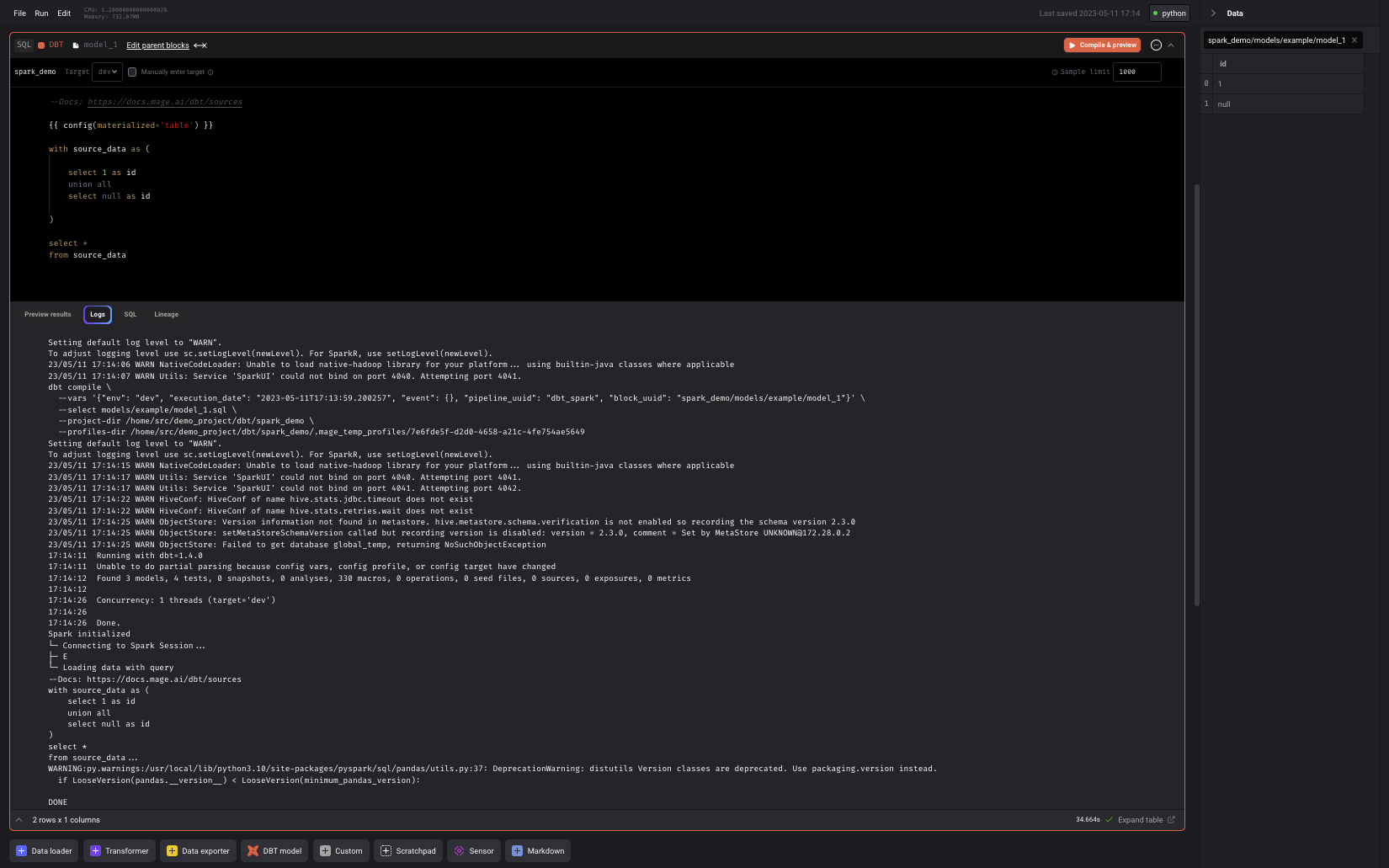
Click the `Compile & preview` button to execute this new model, which would
generate the results similar to the following:
4. Click the `Terminal` icon on the right side of the Mage UI, and create a dbt
project `spark_demo`, with the following commands:
```bash theme={"system"}
root@488dc9529cf3:/home/src# cd demo_project/dbt
root@488dc9529cf3:/home/src# dbt init spark_demo -s
root@488dc9529cf3:/home/src# touch spark_demo/profiles.yml
```
5. On the left side of the page in the file browser, expand the folder `demo_project/dbt/spark_demo/`.
Click the file named `profiles.yml`, and add the following settings to this file:
```yaml theme={"system"}
spark_demo:
target: dev
outputs:
dev:
type: spark
method: session
schema: default
host: local
```
6. Save the `profiles.yml` file by pressing `Command (⌘) + S`, then close the file
by pressing the X button on the right side of the file name `dbt/spark_demo/profiles.yml`.
7. Click the button `dbt model`, and choose the option `New model`. Enter `model_1`
as the `Model name`, and `spark_demo/models/example` as the folder location.
8. In the dbt block named `model_1`, next to the label `Target` at the top,
choose `dev` in the dropdown list. You can also check `Manually enter target`,
and enter `dev` in the input field.
9. Paste the following SQL into the dbt block `model_1`:
```python theme={"system"}
{{ config(materialized='table') }}
with source_data as (
select 1 as id
union all
select null as id
)
select *
from source_data
```
Click the `Compile & preview` button to execute this new model, which would
generate the results similar to the following: