> ## Documentation Index
> Fetch the complete documentation index at: https://docs.mage.ai/llms.txt
> Use this file to discover all available pages before exploring further.
# Git integration for code version control
> Mage's Git integration provides a way for you to push changes to a remote repository— for example collaborating on a Mage project with your teammates.
"Git integration" in Mage is a way to collaborate with teammates using Git. It provides a way to push changes to a branch in an external repository. If you're using GitHub, we recommend Mage's direct [GitHub integration](/production/data-sync/github) rather than this method.
First, you'll need to configure Git— see this [guide](/development/git/configure). Once your git settings are configured, you can perform various Git actions in Mage. To start, click the button at the top right with the name of the current branch.
 Once the modal is open, you can start performing actions. Currently, the Git integration supports the following actions:
Clone repository will allow you to clone the specified git repository to your local machine.
*This operation will overwrite all local changes you have in the local git directory.*
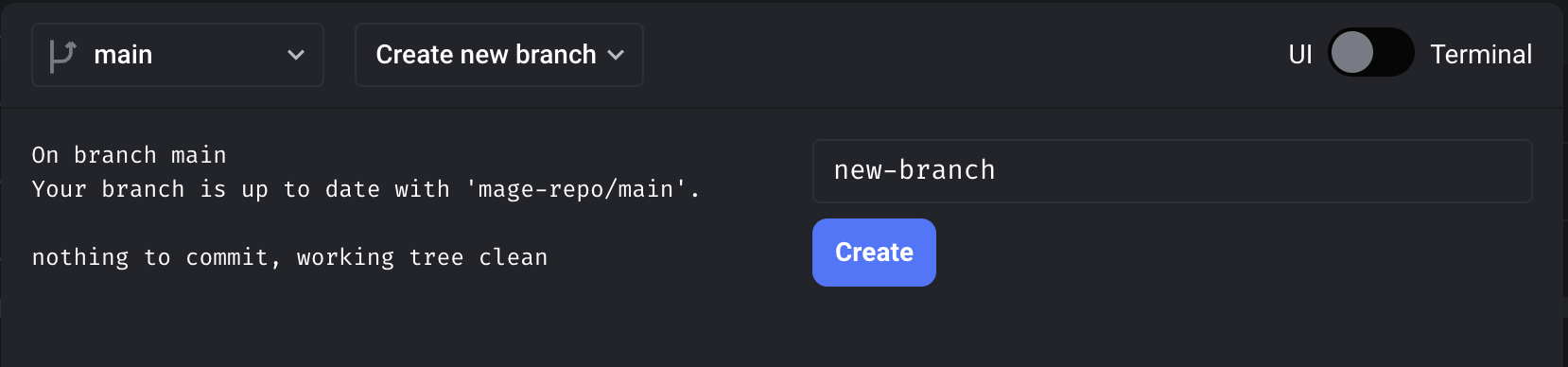
Create new branch will create a new branch in your local git directory. Specify the name of the branch and click `Create`. You will
automatically be switched to the new branch.
Once the modal is open, you can start performing actions. Currently, the Git integration supports the following actions:
Clone repository will allow you to clone the specified git repository to your local machine.
*This operation will overwrite all local changes you have in the local git directory.*
Create new branch will create a new branch in your local git directory. Specify the name of the branch and click `Create`. You will
automatically be switched to the new branch.
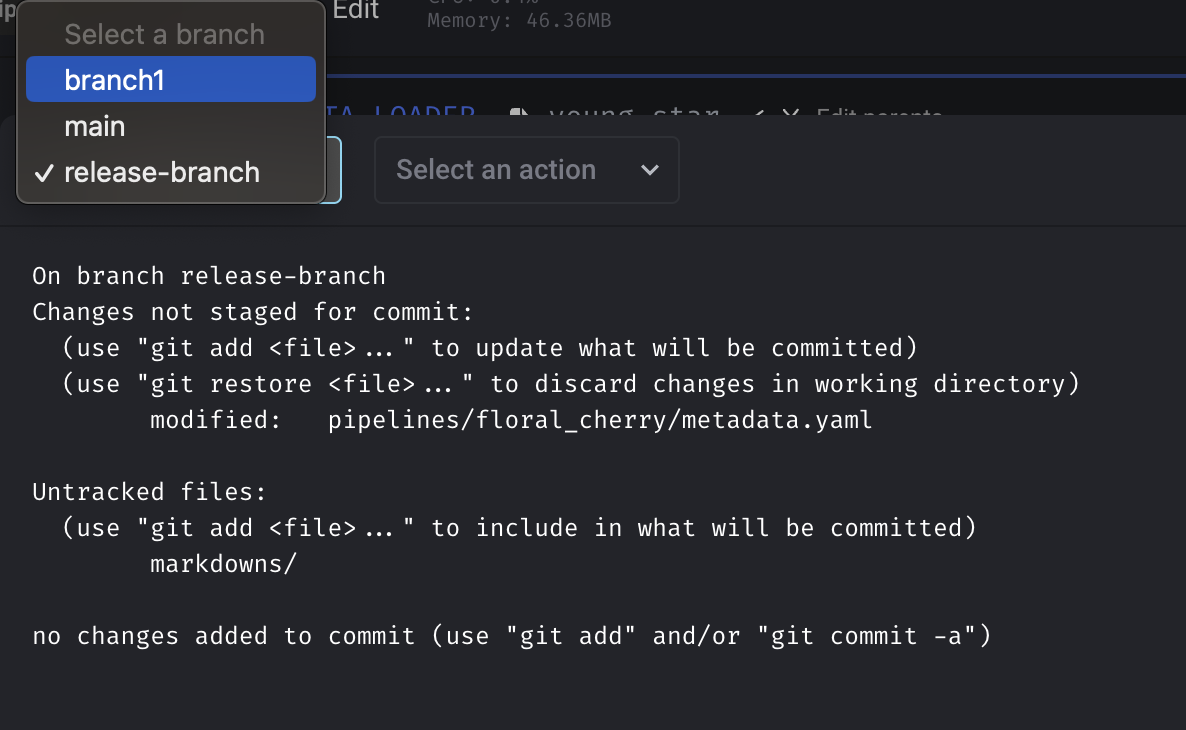
 To switch your local branch, you can click the dropdown menu with the current active branch and select the branch you would like to switch to.
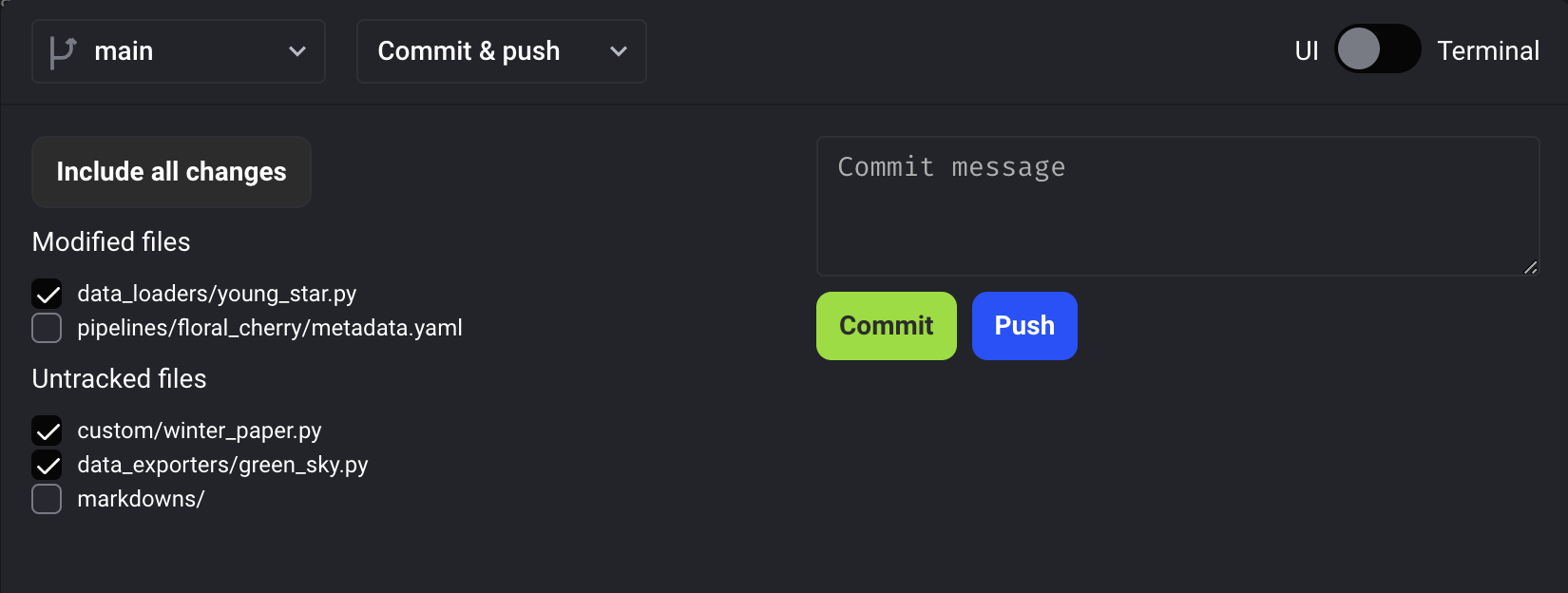
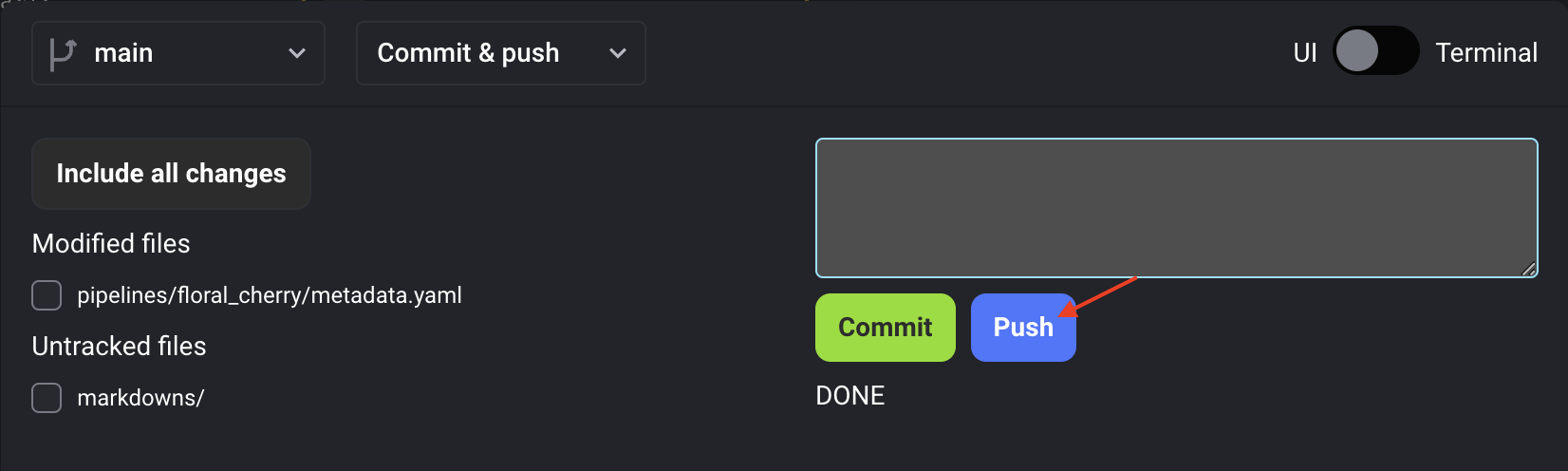
 First, select the files you would like to commit. You can select all files by clicking the `Include all changes` button.
 Then, enter a descriptive commit message and click `Commit`. This will commit your changes to your local git directory.
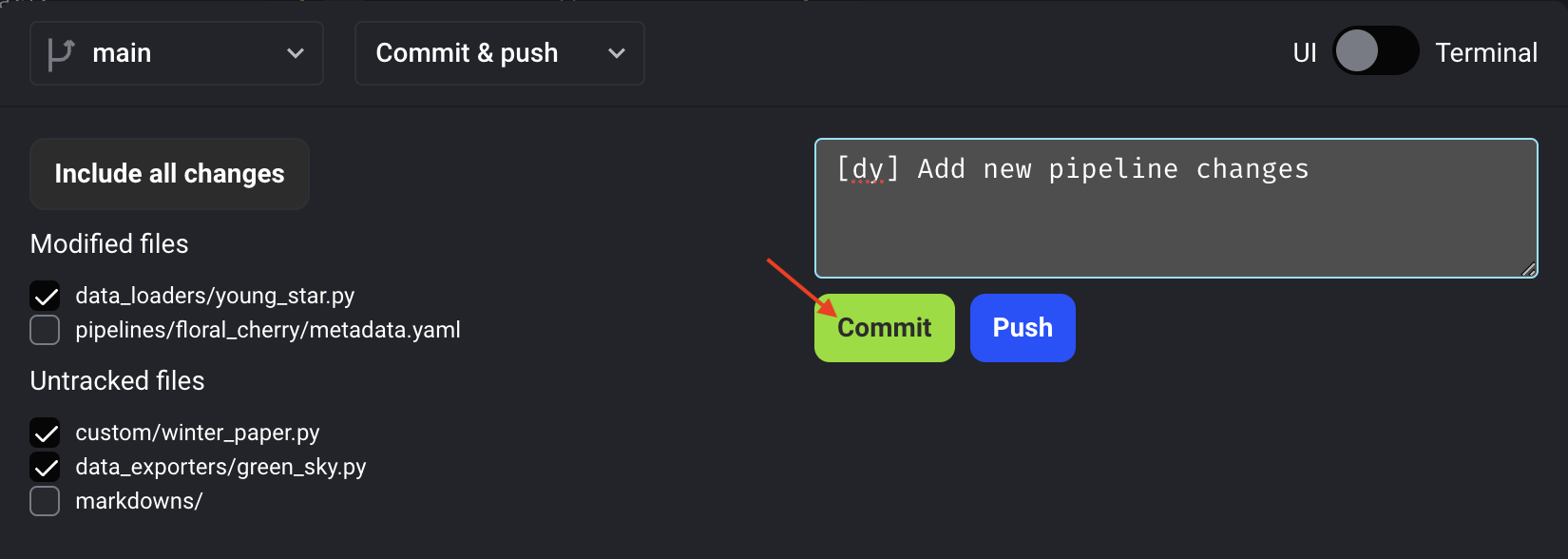 Once your changes are committed, you can push your commit to the remote repository by clicking `Push`.
 Pull your changes from the remote branch to your local branch. This operation is equivalent to `git pull mage-repo `.
Hard reset your local branch with the remote branch. This operation is equivalent to `git reset --hard mage-repo/`.
*This operation will overwrite your local changes.*
For any other operations you may need, you can perform them through the terminal. You can open the terminal by clicking the terminal toggle in the top right of the modal.
Pull your changes from the remote branch to your local branch. This operation is equivalent to `git pull mage-repo `.
Hard reset your local branch with the remote branch. This operation is equivalent to `git reset --hard mage-repo/`.
*This operation will overwrite your local changes.*
For any other operations you may need, you can perform them through the terminal. You can open the terminal by clicking the terminal toggle in the top right of the modal.