 ## Credentials
Before starting, you need to add credentials so Mage can execute your SQL
commands.
Follow the steps for the database or data warehouse of your choice:
* [BigQuery](/integrations/databases/BigQuery#add-credentials)
* [ClickHouse](/integrations/databases/ClickHouse#add-credentials)
* [Databricks](/integrations/databases/Databricks#add-credentials) (Mage Pro only)
* [Druid](/integrations/databases/Druid#add-credentials)
* [DuckDB](/integrations/databases/DuckDB#add-credentials)
* [MySQL](/integrations/databases/MySQL#add-credentials)
* [Oracle](/design/data-loading#oracledb) (Mage Pro only)
* [PostgreSQL](/integrations/databases/PostgreSQL#add-credentials)
* [Redshift](/integrations/databases/Redshift#add-credentials)
* [Snowflake](/integrations/databases/Snowflake#add-credentials)
* [SQLite](/integrations/databases/SQLite#add-credentials) (Mage Pro only)
* [Microsoft SQL Server](/integrations/databases/MicrosoftSQLServer#add-credentials)
* [Trino](/integrations/databases/Trino#add-credentials)
***
## Add SQL block to pipeline
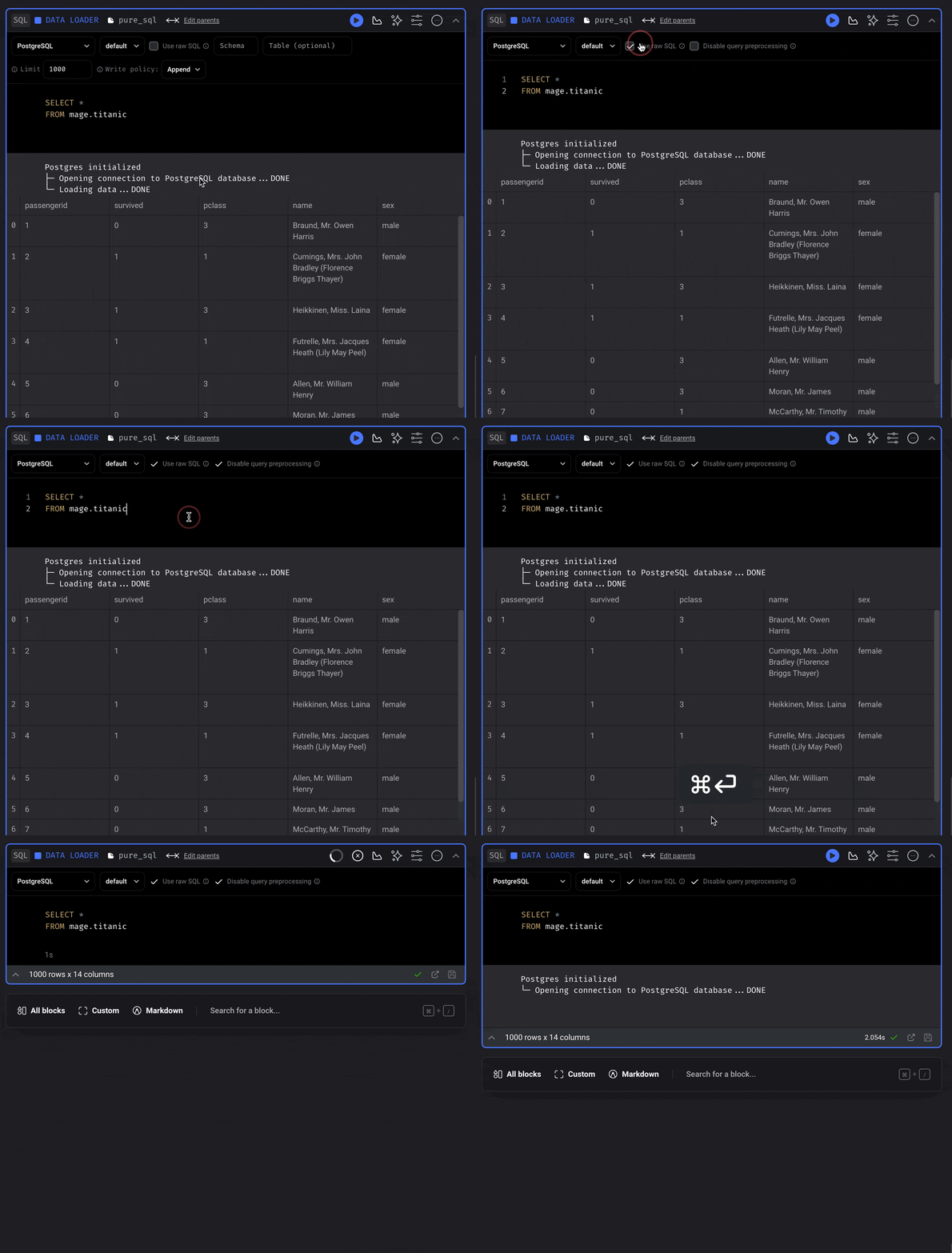
1. Create a new pipeline or open an existing pipeline.
2. Add a data loader, transformer, or data exporter block.
3. Select `SQL`.
***
## Configure SQL block
There are 4 - 5 fields that must be configured for each SQL block:
| Field | Required | Description |
| -------------- | ------------------------ | ------------------------------------------------------------------------------------------------------------------------------------------------------------------------------------------------------------------------------------------------------------------------------------------------------------------ |
| Data provider | Yes | The database or data warehouse you want to execute your SQL commands in. |
| Profile | Yes | When you add your credentials to the `io_config.yaml` file, you added them under a key. That key is called the profile. Choose which set of credentials you want this SQL block to use. For detailed information about setting up profiles, see the [IO Config Setup documentation](/development/io_config_setup). |
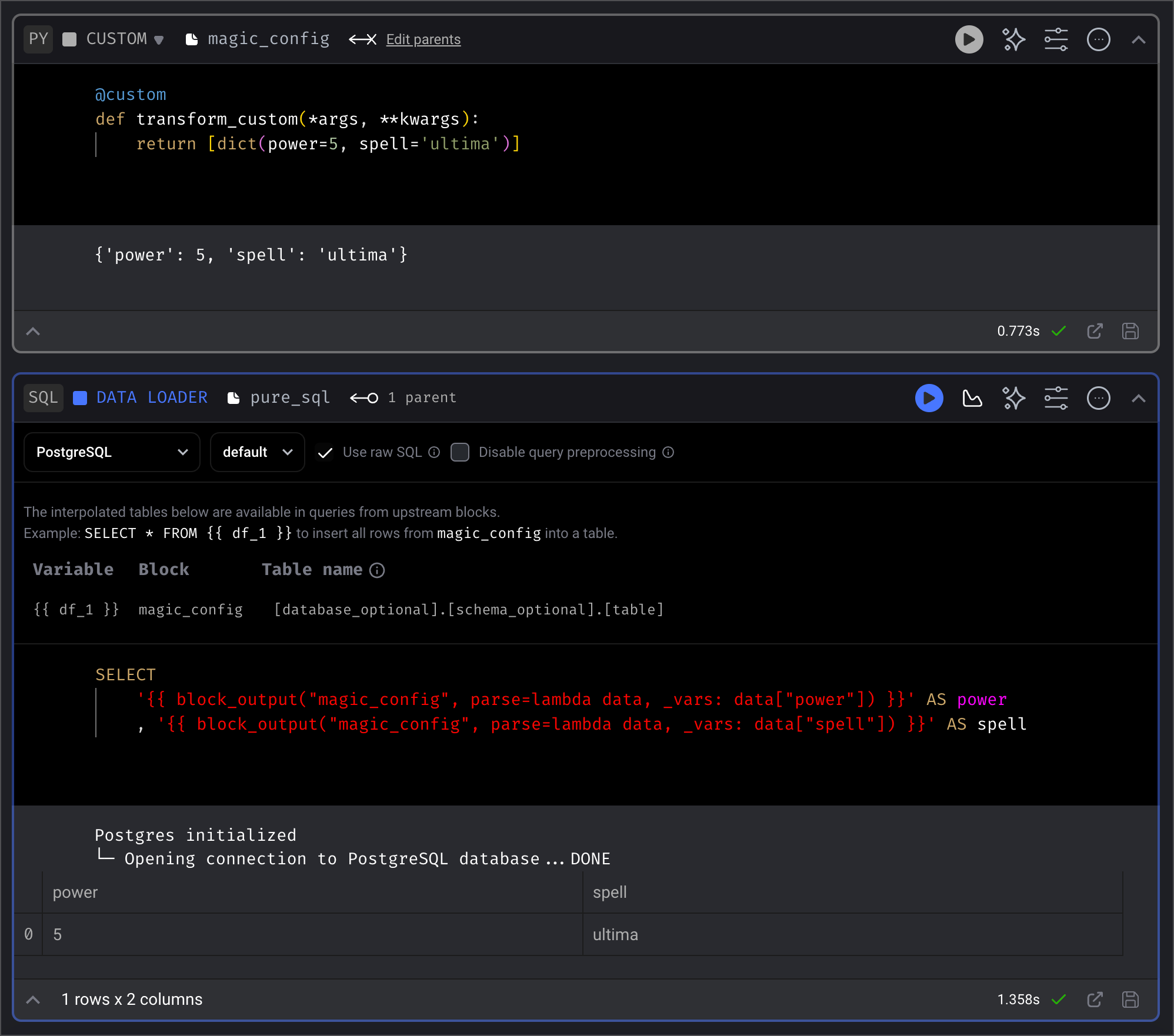
| Use raw SQL | No | You can write raw SQL and it’ll be executed as written in your data provider. |
| Database | Depends on data provider | Some data warehouses require that we explicitly state the name of the database we want to write to. If this is present, it’s required. The name of the table that is created follows this convention: `[database].[schema].[pipeline UUID]_[block UUID]`. |
| Schema to save | Yes | Every SQL block will save data to your data provider. The name of the table that is created follows this convention: `[schema].[pipeline UUID]_[block UUID]`. |
| Table | No | SQL blocks will automatically name your table for you using a naming convention (see the section `Automatic naming of tables` for more information). You can override this automatic naming convention by filling in a value in this field. |
| Write policy | Yes | How do you want to handle existing data with the same database, schema, and table name? See below for more information. |
#### Write policies
| Policy | Description |
| ------- | -------------------------------- |
| Append | Add rows to the existing table. |
| Replace | Delete the existing data. |
| Fail | Raise an error during execution. |
#### YAML configuration
You can also modify block configuration in pipeline's `metadata.yaml` file. Each block has a `configuration` field.
Example configuration
```yaml theme={"system"}
configuration:
data_provider: sqlserver
data_provider_profile: default
data_provider_schema: ''
export_write_policy: append
limit: 1000
limit_in_pipeline_run: 1
use_raw_sql: false
```
In addition to the fields mentioned in the table above. Here are some extra fields that can be included in the configuration:
| Field | Required | Description |
| ------------------------ | -------- | -------------------------------------------------------------------------------- |
| limit | No | The maximum number of rows to return in notebook. |
| limit\_in\_pipeline\_run | No | The maximum number of rows to return when running the block in the pipeline run. |
#### Dynamic `data_provider_profile`
You can configure the `data_provider_profile` in a SQL block to resolve dynamically at runtime using [Mage variable syntax](/development/variables/referencing-variables).
This is done by modifying the pipeline’s `metadata.yaml` directly.
**Example:**
```yaml theme={"system"}
configuration:
data_provider: snowflake
data_provider_profile: '{{ variables("DB_PROFILE") }}'
data_provider_schema: analytics
export_write_policy: append
```
When the pipeline runs, the profile name will be resolved from the referenced variable (environment variable, pipeline variable, or secret variable).
***
## Credentials
Before starting, you need to add credentials so Mage can execute your SQL
commands.
Follow the steps for the database or data warehouse of your choice:
* [BigQuery](/integrations/databases/BigQuery#add-credentials)
* [ClickHouse](/integrations/databases/ClickHouse#add-credentials)
* [Databricks](/integrations/databases/Databricks#add-credentials) (Mage Pro only)
* [Druid](/integrations/databases/Druid#add-credentials)
* [DuckDB](/integrations/databases/DuckDB#add-credentials)
* [MySQL](/integrations/databases/MySQL#add-credentials)
* [Oracle](/design/data-loading#oracledb) (Mage Pro only)
* [PostgreSQL](/integrations/databases/PostgreSQL#add-credentials)
* [Redshift](/integrations/databases/Redshift#add-credentials)
* [Snowflake](/integrations/databases/Snowflake#add-credentials)
* [SQLite](/integrations/databases/SQLite#add-credentials) (Mage Pro only)
* [Microsoft SQL Server](/integrations/databases/MicrosoftSQLServer#add-credentials)
* [Trino](/integrations/databases/Trino#add-credentials)
***
## Add SQL block to pipeline
1. Create a new pipeline or open an existing pipeline.
2. Add a data loader, transformer, or data exporter block.
3. Select `SQL`.
***
## Configure SQL block
There are 4 - 5 fields that must be configured for each SQL block:
| Field | Required | Description |
| -------------- | ------------------------ | ------------------------------------------------------------------------------------------------------------------------------------------------------------------------------------------------------------------------------------------------------------------------------------------------------------------ |
| Data provider | Yes | The database or data warehouse you want to execute your SQL commands in. |
| Profile | Yes | When you add your credentials to the `io_config.yaml` file, you added them under a key. That key is called the profile. Choose which set of credentials you want this SQL block to use. For detailed information about setting up profiles, see the [IO Config Setup documentation](/development/io_config_setup). |
| Use raw SQL | No | You can write raw SQL and it’ll be executed as written in your data provider. |
| Database | Depends on data provider | Some data warehouses require that we explicitly state the name of the database we want to write to. If this is present, it’s required. The name of the table that is created follows this convention: `[database].[schema].[pipeline UUID]_[block UUID]`. |
| Schema to save | Yes | Every SQL block will save data to your data provider. The name of the table that is created follows this convention: `[schema].[pipeline UUID]_[block UUID]`. |
| Table | No | SQL blocks will automatically name your table for you using a naming convention (see the section `Automatic naming of tables` for more information). You can override this automatic naming convention by filling in a value in this field. |
| Write policy | Yes | How do you want to handle existing data with the same database, schema, and table name? See below for more information. |
#### Write policies
| Policy | Description |
| ------- | -------------------------------- |
| Append | Add rows to the existing table. |
| Replace | Delete the existing data. |
| Fail | Raise an error during execution. |
#### YAML configuration
You can also modify block configuration in pipeline's `metadata.yaml` file. Each block has a `configuration` field.
Example configuration
```yaml theme={"system"}
configuration:
data_provider: sqlserver
data_provider_profile: default
data_provider_schema: ''
export_write_policy: append
limit: 1000
limit_in_pipeline_run: 1
use_raw_sql: false
```
In addition to the fields mentioned in the table above. Here are some extra fields that can be included in the configuration:
| Field | Required | Description |
| ------------------------ | -------- | -------------------------------------------------------------------------------- |
| limit | No | The maximum number of rows to return in notebook. |
| limit\_in\_pipeline\_run | No | The maximum number of rows to return when running the block in the pipeline run. |
#### Dynamic `data_provider_profile`
You can configure the `data_provider_profile` in a SQL block to resolve dynamically at runtime using [Mage variable syntax](/development/variables/referencing-variables).
This is done by modifying the pipeline’s `metadata.yaml` directly.
**Example:**
```yaml theme={"system"}
configuration:
data_provider: snowflake
data_provider_profile: '{{ variables("DB_PROFILE") }}'
data_provider_schema: analytics
export_write_policy: append
```
When the pipeline runs, the profile name will be resolved from the referenced variable (environment variable, pipeline variable, or secret variable).
***
 ***
## Automatically created tables
Each SQL block will create a table in the data provider of your choice.
When you run a block, it’ll execute your SQL command, then store the results in
a table created in your database or data warehouse.
### Using raw SQL
***
## Automatically created tables
Each SQL block will create a table in the data provider of your choice.
When you run a block, it’ll execute your SQL command, then store the results in
a table created in your database or data warehouse.
### Using raw SQL