> ## Documentation Index
> Fetch the complete documentation index at: https://docs.mage.ai/llms.txt
> Use this file to discover all available pages before exploring further.
# Reuse blocks
> Learn how to reuse blocks within pipelines, across pipelines, and across projects in Mage for better code organization and efficiency.
## Overview
Mage allows you to reuse blocks across multiple pipelines within the same project, enabling you to build modular, maintainable data pipelines. When you reuse a block, any changes made to that block will automatically apply to all pipelines that use it.
### Benefits of reusing blocks
* **Code efficiency** - Write once, use many times
* **Consistency** - Ensure the same logic is applied across all pipelines
* **Maintenance** - Update logic in one place and it applies everywhere
* **Modularity** - Build complex pipelines from smaller, reusable components
* **Testing** - Test block logic once and reuse with confidence
## Reuse Scenarios and Methods
| Scenario | Method | Description | Best For |
| -------------------- | ----------------------------------------------------------- | ---------------------------------------------------- | ------------------------------------------------------------- |
| **Within Pipeline** | [Replicate blocks](#replicate-blocks-within-a-pipeline) | Right-click to duplicate blocks in the same pipeline | Similar data sources, parallel processing, testing variations |
| **Across Pipelines** | [Drag & drop](#drag-and-drop-from-file-browser) | Drag blocks from file browser to pipeline canvas | Quick reuse of existing blocks |
| **Across Pipelines** | [Search bar](#use-the-search-block-bar) | Search and add blocks from all projects | Finding specific blocks across projects |
| **Code Reuse** | [Utility files](#create-utility-files-and-import-in-blocks) | Create shared Python modules and import them | Small functions, data processing utilities |
| **Code Reuse** | [Block templates](#use-block-templates) | Create reusable templates with placeholders | Common patterns with slight variations |
| **Across Projects** | [Pro templates](#block-templates-across-projects-mage-pro) | Use Mage Pro's template library | Organization-wide standardization |
| **Across Projects** | [Export/import](#cross-project-block-sharing) | Export blocks from one project to another | Sharing between different projects |
## How block sharing works
When you create a block in one pipeline, you can reference that same block in other pipelines. The block file exists in the project's file system and can be imported by any pipeline within the same project.
### Block sharing indicators
When viewing a pipeline, you'll see indicators showing which blocks are shared:
* **Shared blocks** display a symbol like `<> 2 pipelines` in the block header
* **Non-shared blocks** show no additional symbols
* The number indicates how many pipelines are using that block
### Viewing pipelines using a block
To see which pipelines are using a specific block:
1. **Click on a block** in the pipeline editor
2. **Open block settings** - Click the settings icon in the right side panel
3. **View "Pipelines using this block"** - See a list of all pipelines that reference this block
4. **Check project paths** - See which project each pipeline belongs to
This helps you understand the impact of changes to shared blocks across your project.
## Methods to reuse blocks
### Drag and drop from file browser
This is the most intuitive way to reuse blocks across pipelines:
1. **Open the file browser** on the Pipeline Editor page
2. **Navigate to the block** you want to reuse in the file browser
3. **Click and hold** the block file
4. **Drag the block file** onto the center of the page (the Notebook area)
5. **Release the button** and the block will be added to the pipeline
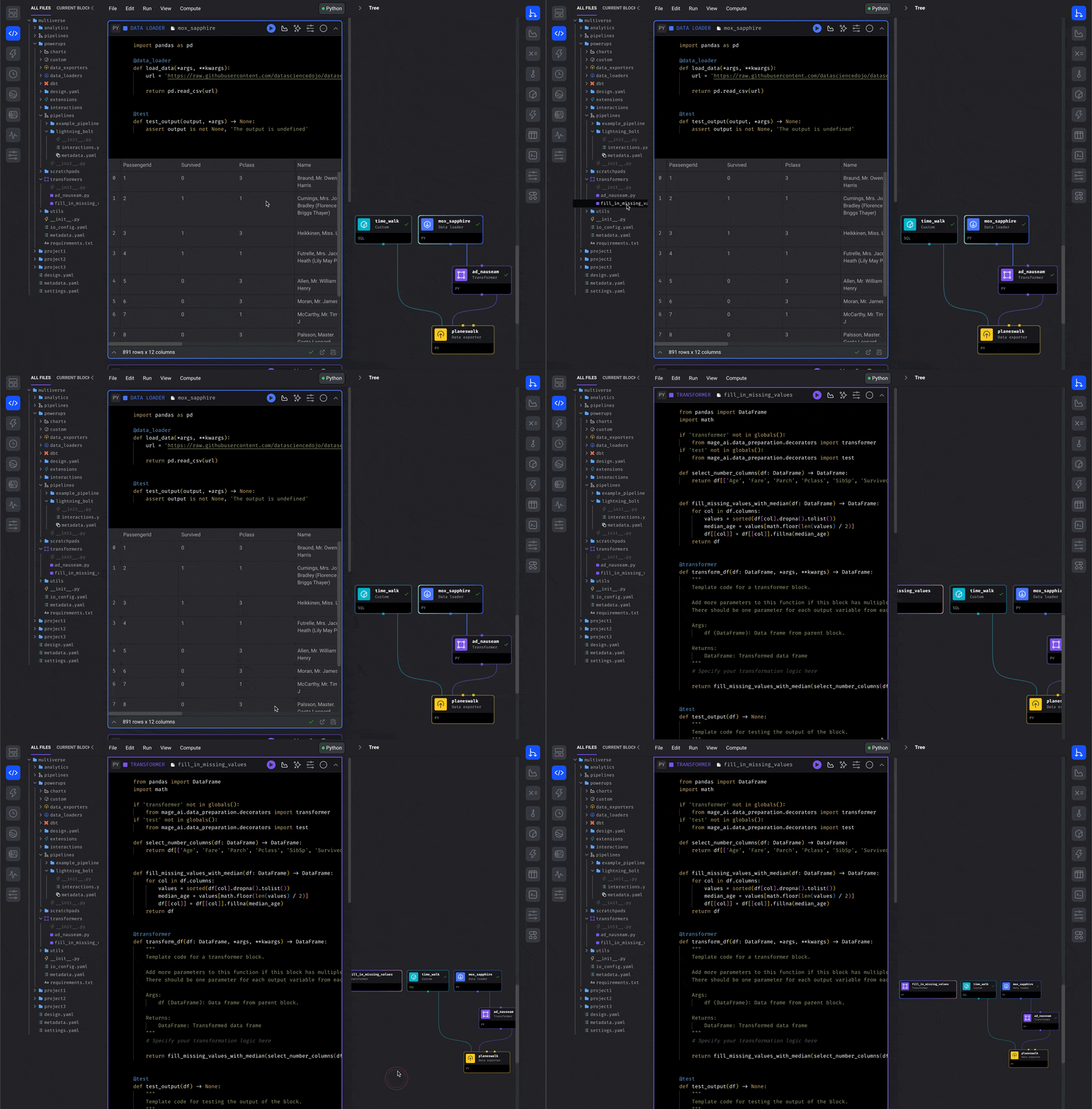
**Supported block types:**
* `callbacks`, `conditionals`, `custom`, `data_exporters`, `data_loaders`
* `dbt`, `dbts`, `markdowns`, `scratchpads`, `sensors`, `transformers`
**Mage OSS**: Version 0.9.64 or greater is required to add callback and conditional blocks from the file browser.
**Mage Pro**: Callback and conditional blocks are supported by default in all versions.
### Use the search block bar
Search for existing blocks across all your projects:
1. **Click in the search bar** at the bottom of the pipeline editor
2. **Type keywords** to search for existing blocks (e.g., "load titanic")
3. **Browse the search results** showing blocks from different projects
4. **Click on a block** from the dropdown to add it to your pipeline
5. **The block will be added** to your current pipeline
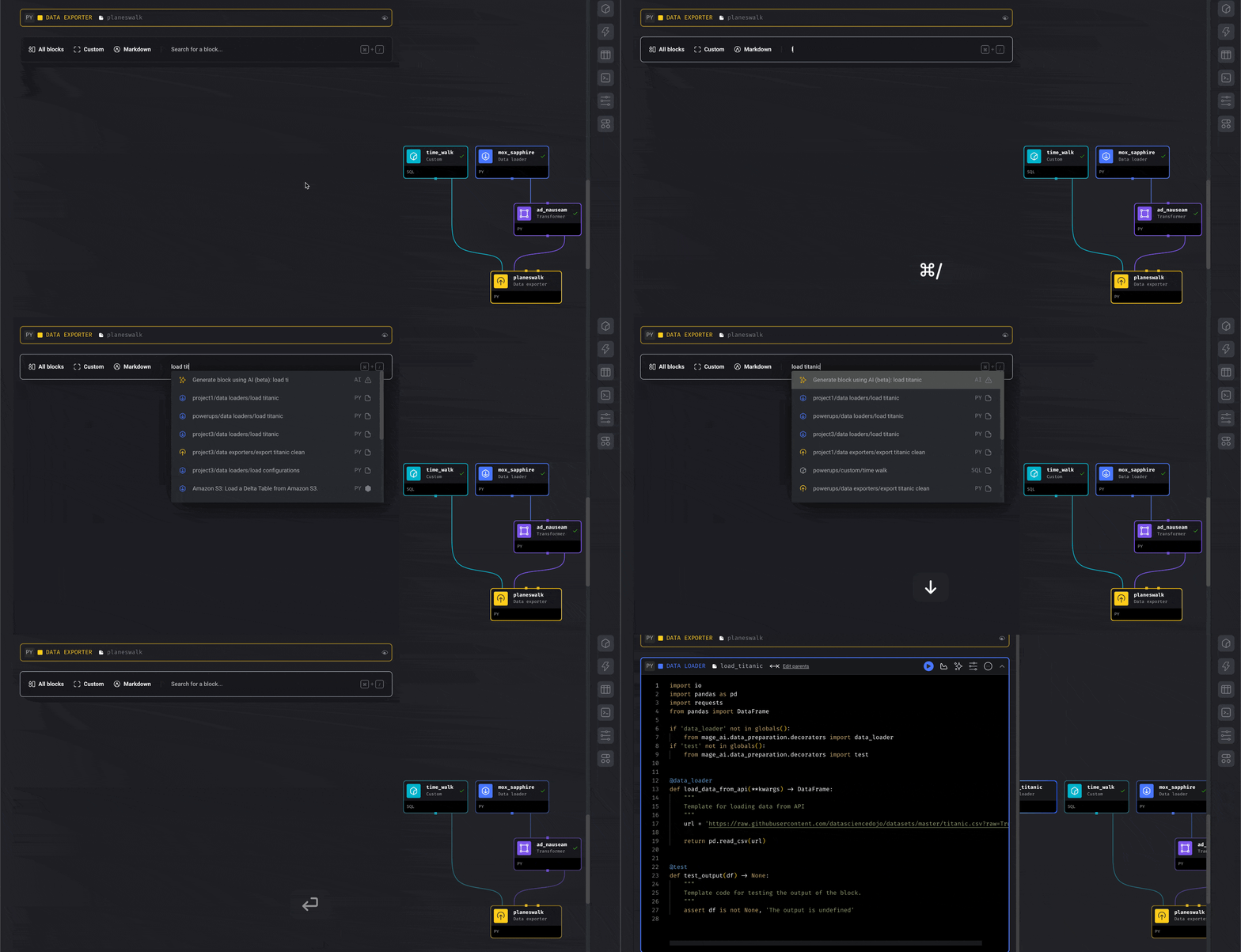
**Mage OSS**: The "Add new block v2" feature must be enabled in project settings and is available in standard (batch) pipelines. If recently enabled, Mage must be restarted for blocks to be indexed.
**Mage Pro**: This feature is enabled by default and available in all pipeline types.
### Replicate blocks within a pipeline
To reuse a block within the same pipeline (create a copy):
1. **Click the triple dot icon** in the top right corner of the block you want to replicate
2. **Select "Replicate block"** from the dropdown menu
3. **Name the new replica block** (optional)
4. **Customize the new block** as needed for your specific use case
5. **Connect the blocks** in your pipeline flow as required
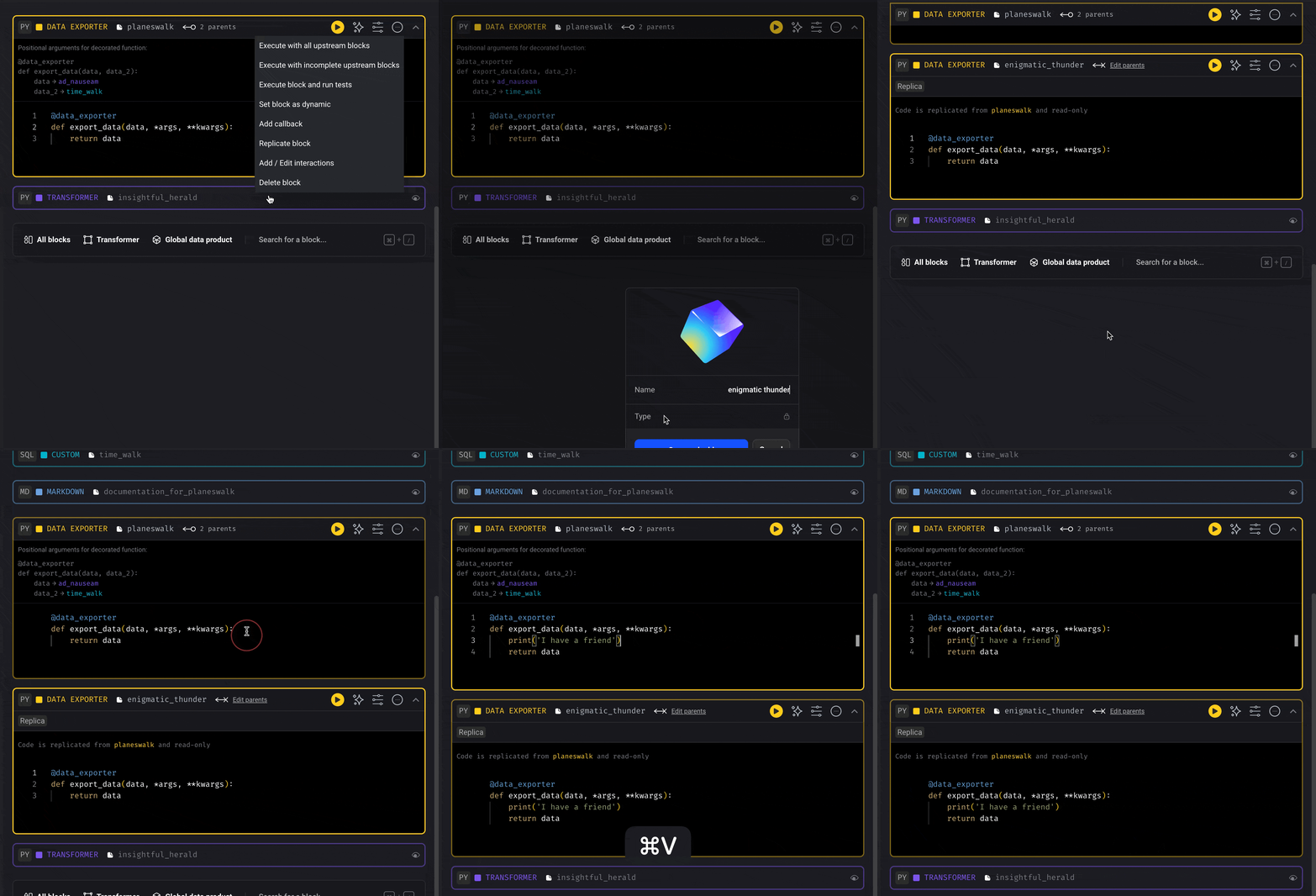
**Use cases for block replication:**
* **Similar data sources** - Load from different tables with similar structure
* **Multiple transformations** - Apply similar logic to different data streams
* **Parallel processing** - Process the same data with different parameters
* **Testing variations** - Compare different approaches side by side
Learn more about [replicating blocks](/guides/blocks/replicate-blocks).
## Other ways to reuse code
### Create utility files and import in blocks
For shared functions and logic that don't need to be full blocks:
1. **Create a utility file** in your project (e.g., `default_repo/utils/data_processing.py`)
2. **Write reusable functions** in the utility file
3. **Import the functions** in your blocks using standard Python imports
**Example utility file:**
```python theme={"system"}
# default_repo/utils/data_processing.py
import pandas as pd
def clean_column_names(df):
"""Clean column names by removing spaces and special characters."""
df.columns = df.columns.str.replace(' ', '_').str.lower()
return df
def validate_dataframe(df, required_columns):
"""Validate that dataframe has required columns."""
missing_cols = set(required_columns) - set(df.columns)
if missing_cols:
raise ValueError(f"Missing columns: {missing_cols}")
return True
```
**Using in a block:**
```python theme={"system"}
# In your data loader block
from default_repo.utils.data_processing import clean_column_names, validate_dataframe
@data_loader
def load_data():
df = pd.read_csv('data.csv')
df = clean_column_names(df)
validate_dataframe(df, ['id', 'name', 'email'])
return df
```
Learn more about [importing custom Python code](/development/dependencies/custom-files#importing-custom-python-code).
### Use block templates
Create reusable block templates for common patterns:
1. **Navigate to Templates** - Click "Templates" in the left navigation menu
2. **Create new template** - Click "New block template" button
3. **Define template properties** - Set template UUID, block type, and language
4. **Edit template content** - Write the template code with placeholders
5. **Save template** - Click "Save template" to create the template
Learn more about [creating and using user-defined templates](/guides/blocks/user-defined-templates).
## Reusing blocks across projects
### Block templates across projects (Mage Pro)
**Mage Pro feature**: Mage Pro supports configuring a central template library that shares templates across projects, allowing you to create and share reusable block templates across multiple projects in your organization.
**Creating block templates:**
1. **Navigate to Templates** - Click "Templates" in the left navigation menu
2. **Create new template** - Click "New block template" button
3. **Define template properties** - Set template UUID, block type, and language
4. **Edit template content** - Write the template code with placeholders
5. **Save template** - Click "Save template" to create the template
**Using block templates:**
1. **Open pipeline editor** - Navigate to the pipeline where you want to add the block
2. **Add new block** - Click the "+" button to add a new block
3. **Browse templates** - Select "Browse templates" from the block creation options
4. **Select template** - Choose the template you want to use from the available templates
5. **Name the block** - Enter a specific name for your new block instance
### Cross-project block sharing
For organizations with multiple projects:
1. **Export blocks** by downloading the block file from the source project
2. **Import blocks** by uploading the block file in the file browser of the target project
3. **Maintain version control** across project boundaries
4. **Share common utilities** and configurations
**Best practices for cross-project sharing:**
* **Document dependencies** - Clearly list required packages and configurations
* **Use relative imports** - Make blocks portable across different project structures
* **Test thoroughly** - Ensure blocks work in different project environments
## Best practices for block reuse
### Design reusable blocks
* **Make blocks generic** - Avoid hardcoded values, use runtime variables instead
* **Clear naming** - Use descriptive names that indicate the block's purpose
* **Documentation** - Add comments explaining what the block does and its inputs/outputs
* **Error handling** - Include proper error handling for different use cases
### Runtime variables for flexibility
Use runtime variables to make blocks adaptable across different pipelines:
```python theme={"system"}
# Instead of hardcoded values
database_name = "production_db"
# Use runtime variables
database_name = kwargs.get("database_name", "default_db")
```
Learn more about [using runtime variables](/getting-started/runtime-variable#using-runtime-variables).
### Block dependencies
When reusing blocks, consider their dependencies:
* **Data loaders** - Ensure data sources are accessible from all pipelines
* **Transformers** - Make sure input data format is consistent
* **Exporters** - Verify output destinations are appropriate for each pipeline
## Managing shared blocks
### Viewing shared block usage
1. **Click on a shared block** in any pipeline
2. **Look for the sharing indicator** (`<> X pipelines`)
3. **Click the indicator** to see which pipelines are using the block
4. **Review the usage** to understand the block's impact
### Updating shared blocks
When you modify a shared block:
1. **Changes apply everywhere** - All pipelines using the block will be affected
2. **Test thoroughly** - Ensure changes work for all use cases
3. **Communicate changes** - Notify team members about significant modifications
4. **Version control** - Use Git to track changes and enable rollbacks if needed
### Detaching blocks when needed
If you need to customize a shared block for a specific pipeline:
1. **Use the detach feature** - See [Detaching blocks](/guides/blocks/detach-blocks) guide
2. **Create a copy** - This creates an independent version
3. **Customize freely** - Make changes without affecting other pipelines
## Common use cases
### Data loading blocks
Reuse data loading logic across multiple pipelines:
```python theme={"system"}
# Shared data loader block
@data_loader
def load_customer_data():
# Load customer data from database
# Use runtime variables for database connection
return df
```
### Transformation blocks
Share common data transformations:
```python theme={"system"}
# Shared transformer block
@transformer
def clean_customer_data(df):
# Standard customer data cleaning logic
# Works with any customer dataset
return cleaned_df
```
### Export blocks
Reuse export logic for different destinations:
```python theme={"system"}
# Shared exporter block
@data_exporter
def export_to_warehouse(df):
# Export to data warehouse
# Use runtime variables for destination configuration
pass
```
## Related documentation
* [Block design overview](/design/blocks) - Understanding block architecture
* [Detaching blocks](/guides/blocks/detach-blocks) - Separating shared blocks
* [User-defined templates](/guides/blocks/user-defined-templates) - Creating custom block and pipeline templates
* [Runtime variables](/getting-started/runtime-variable) - Making blocks flexible