> ## Documentation Index
> Fetch the complete documentation index at: https://docs.mage.ai/llms.txt
> Use this file to discover all available pages before exploring further.
# Reordering blocks
> Reorder blocks in the notebook when editing a pipeline.
## Overview
When you are in the Pipeline Editor page of a standard or streaming pipeline, you might
want to rearrange the order that the blocks appear in the notebook. This could help with
organizing your pipeline or allow you to group your blocks a certain way.
Keep in mind that reordering the blocks from the UI will change the order of
the blocks in your pipeline's `metadata.yaml` configuration file.
## How to reorder blocks
1. Go to your pipeline's Edit page (`/pipelines/[pipeline_uuid]/edit`).
2. Click on the block header of the block you want to move, and drag it
over the block whose position you want to move it to.
3. Dragging a block from below another block will move it to the position
above that block. Dragging a block from above another block will move it
to the position below that block.
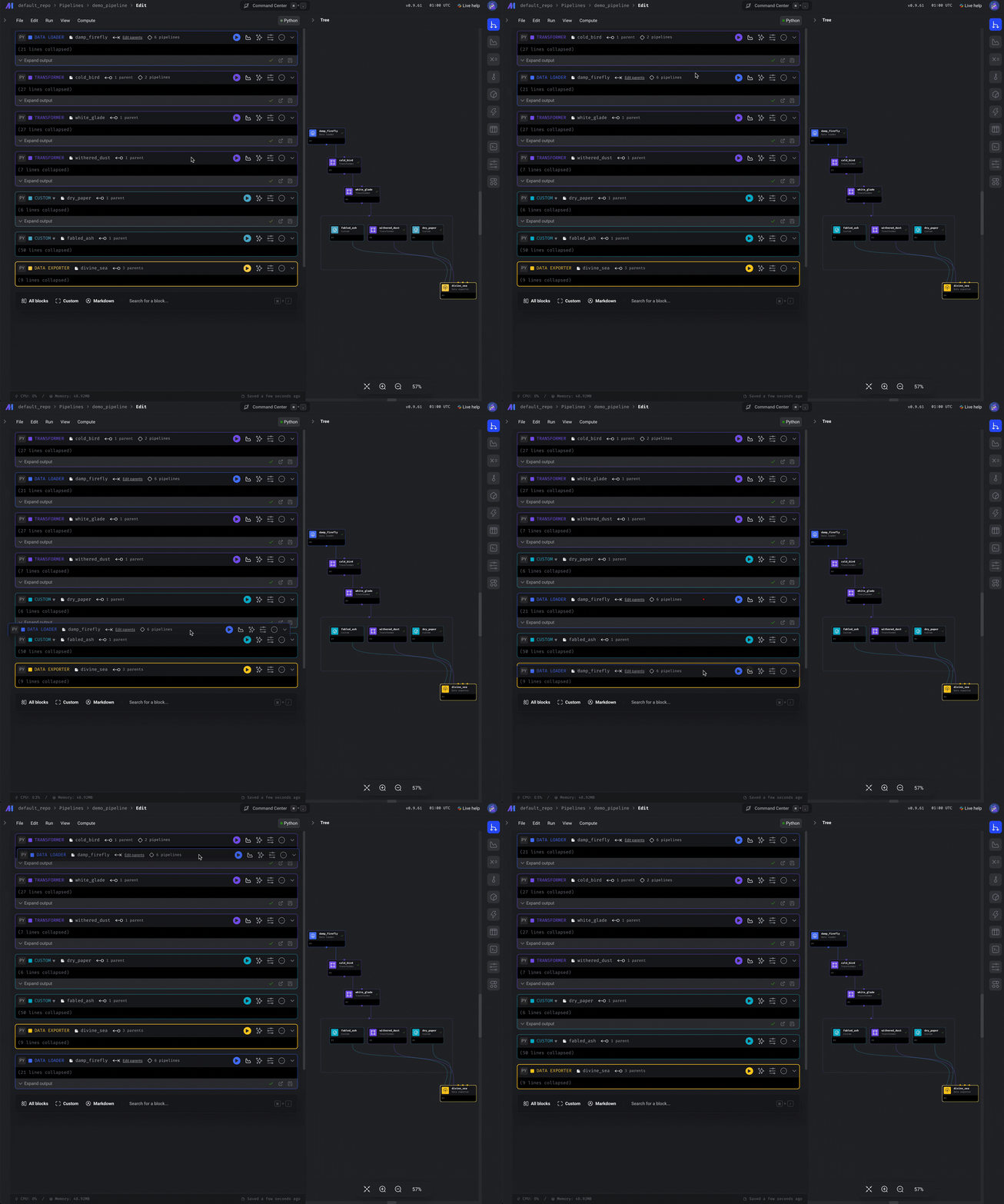 4. Once you have the block in the position you want, drop the block.
5. The updated block order should be reflected in your pipeline's
`metadata.yaml` file.
## Reordering upstream blocks received as positional arguments
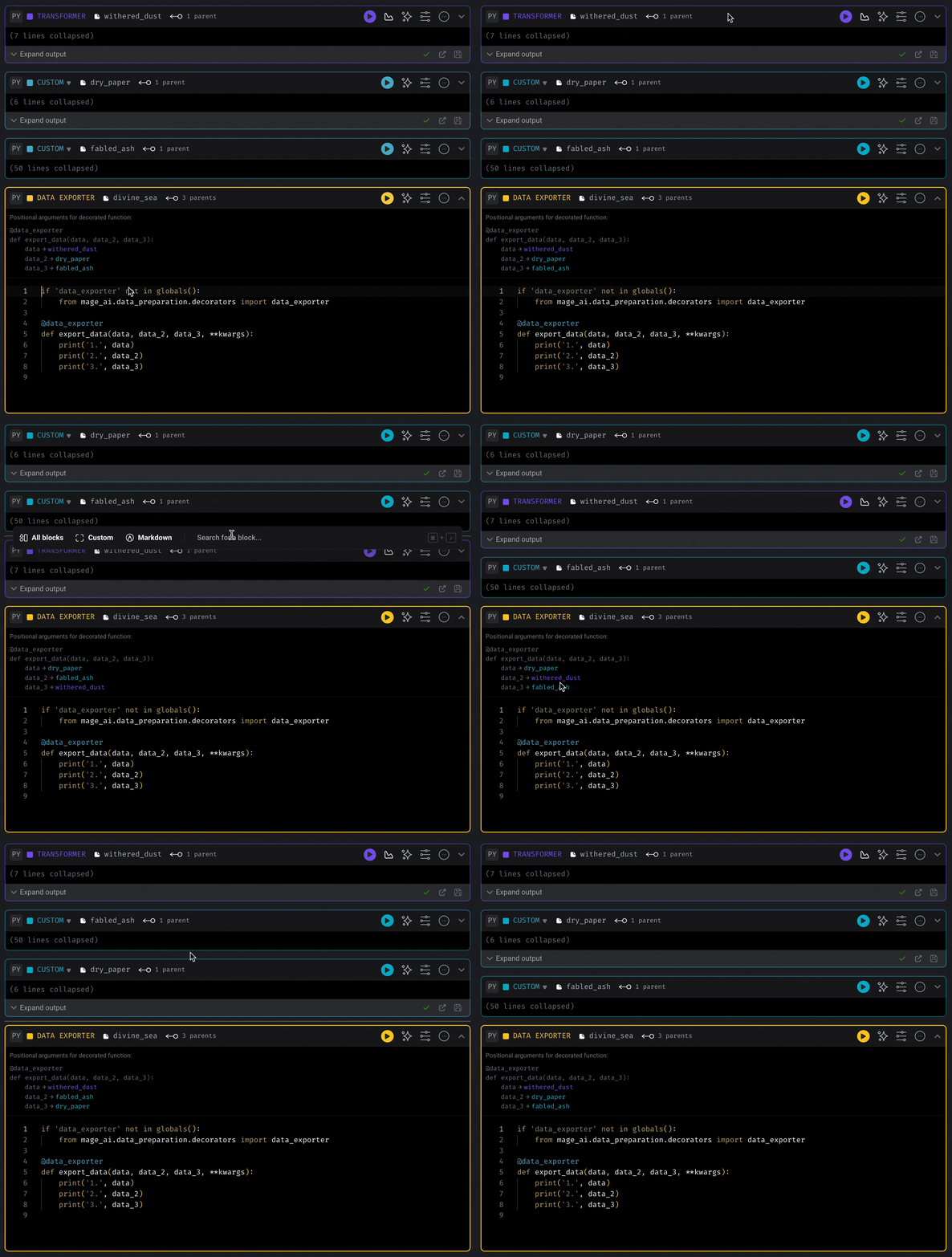
If a block has multiple upstream blocks, you can access the upstream blocks' outputs via
the positional arguments of the downstream block's decorated function. You can rearrange
these positional arguments by dragging and dropping the associated blocks using the same
steps as [above](#how-to-reorder-blocks) for reordering blocks.
4. Once you have the block in the position you want, drop the block.
5. The updated block order should be reflected in your pipeline's
`metadata.yaml` file.
## Reordering upstream blocks received as positional arguments
If a block has multiple upstream blocks, you can access the upstream blocks' outputs via
the positional arguments of the downstream block's decorated function. You can rearrange
these positional arguments by dragging and dropping the associated blocks using the same
steps as [above](#how-to-reorder-blocks) for reordering blocks.