> ## Documentation Index
> Fetch the complete documentation index at: https://docs.mage.ai/llms.txt
> Use this file to discover all available pages before exploring further.
# Configure your development environment
> Want to get started contributing code? You're in the right place! Read on to learn how to set up your development environment.
## Getting started
Configuring a development environment can be *hard*, but at Mage we're trying to make things as simple and straightforward as possible.
To get started, you'll need Docker installed on your machine. You can read more about Docker [here](https://www.docker.com/).
## Environment setup
Next, you'll need to configure your development environment. This should be as simple as running a few commands. You can watch the video below or skip to the numbered instructions.
Configure your coding environment for local development: `pyenv`, pre-commit hooks, etc. Follow the instructions [here](https://github.com/mage-ai/mage-ai/blob/master/README_dev.md).
```bash theme={"system"}
./scripts/init.sh [project_name]
```
```bash theme={"system"}
./scripts/dev.sh [project_name]
```
If you only work on backend, use the command below for better performance
```bash theme={"system"}
./scripts/start.sh [project_name]
```
When developing frontend, use port 3000. If you only need to develop backend, you can use port 6789. Find these ports at [http://localhost:3000](http://localhost:3000) & [http://localhost:6789](http://localhost:6789).
## Push code changes
Once your environment is configured, you can make edits and see changes in real time! Now you're ready to contribute to the Mage repo. This is very similar to contributing to other open source projects on GitHub.
If you *don't* have any experience contributing code and this is confusing, feel free to reach out in Slack and we'll help you get started.
Otherwise, follow the steps below to push your code changes to the Mage repo.
## Troubleshoot
### Permission denied
If you get an error relating to permission denied when trying to execute a script,
it might have something to do with SELinux.
Two or more containers are trying to mount the same volume. With SELinux it’s not possible without
the `z` option.
For more information about using the `z` option,
read [Docker’s documentation](https://docs.docker.com/storage/bind-mounts/).
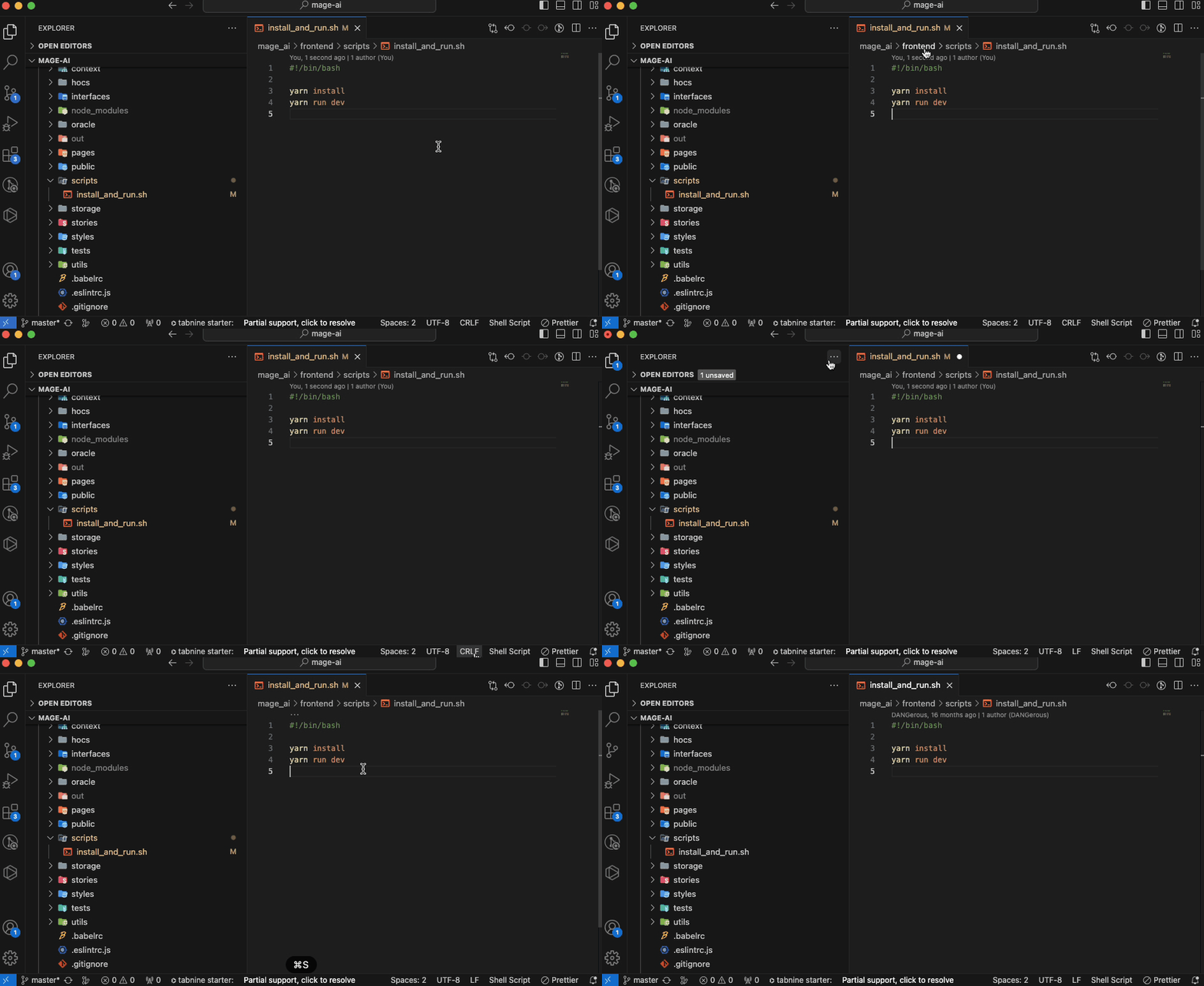
### No such file or directory for "install\_and\_run.sh" file
If you are using a Windows machine and run into the following error while executing the
`docker-compose.yml` file: `exec ./scripts/install_and_run.sh: no such file or directory`,
it may be due to a difference in line-endings used on Windows versus Macs.
You can check the `mage_ai/frontend/scripts/install_and_run.sh` file in VSCode to see if
it is using CRLFs (carriage return line feeds), and if it is, change it to LFs (line feeds)
and save the file. Then try running the `docker-compose` command again.
### ModuleNotFoundError: No module named 'x'
If there were added new libraries you should manually handle new dependencies. It can be done in 2 ways:
1. `docker-compose build` from project root will fully rebuild an image with new dependencies - it can take lots of time
2. `pip install x` from inside the container will only install the required dependency - it should be much faster
 ### ModuleNotFoundError: No module named 'x'
If there were added new libraries you should manually handle new dependencies. It can be done in 2 ways:
1. `docker-compose build` from project root will fully rebuild an image with new dependencies - it can take lots of time
2. `pip install x` from inside the container will only install the required dependency - it should be much faster
### ModuleNotFoundError: No module named 'x'
If there were added new libraries you should manually handle new dependencies. It can be done in 2 ways:
1. `docker-compose build` from project root will fully rebuild an image with new dependencies - it can take lots of time
2. `pip install x` from inside the container will only install the required dependency - it should be much faster