> ## Documentation Index
> Fetch the complete documentation index at: https://docs.mage.ai/llms.txt
> Use this file to discover all available pages before exploring further.
# Using AI (artificial intelligence)
> Use AI to perform various actions in Mage.

Mage uses AI to help you build data pipelines faster— with our OpenAI integration, you can automate the tedious parts of pipeline development and focus on the fun stuff.
You will need to add an OpenAI API key to your project before you can use AI for various actions.
We currently support the following AI features:
* Generate pipelines
* Generate blocks
* Document code
* Block documentation
* Block comments
* Pipeline documentation
* Simultaneously document *all* blocks in a pipeline
To see examples of how to use AI in Mage, check out our [AI guides](/guides/ai/overview).
## Setup
You need to add an OpenAI API key to your project before you can use AI for various actions.
Read [OpenAI’s documentation](https://help.openai.com/en/articles/4936850-where-do-i-find-my-secret-api-key)
to get your API key.
Once you have your OpenAI API key, go to project settings (click the "wizard" in the top right > Workspace > Preferences) and enter the OpenAI API key under the section labeled OpenAI.
## Generate pipeline using AI
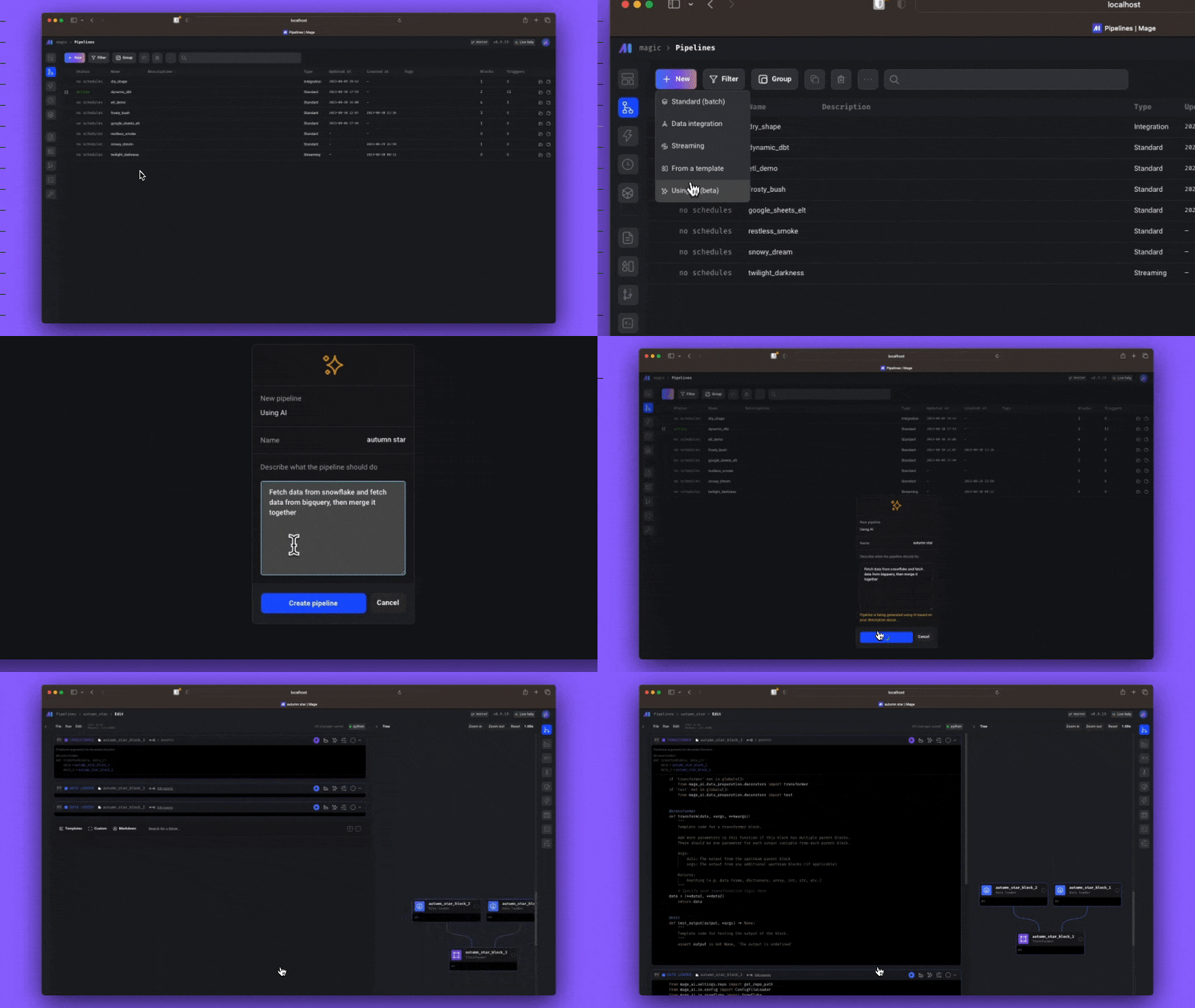
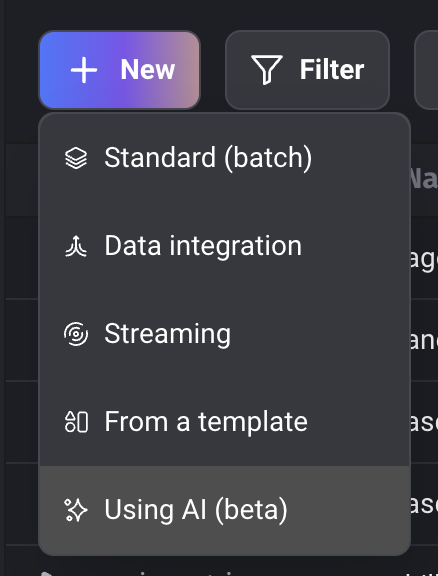
When creating a new pipeline, select the option labeled Using AI.
Then, type the description of what the pipeline should do.
For example:
*Load data from an API,
then clean the column names,
and finally export the dataframe to PostgreSQL.*
 ## Generate block using AI
You must turn on the feature named `add_new_block_v2`
in your project settings. (click the "wizard" in the top right > Workspace > Preferences)
When adding a new block, type in the description of what you want the block to do.
In the autocomplete dropdown list, select the 1st option with a label starting with
Generate block using AI: ...
## Generate block using AI
You must turn on the feature named `add_new_block_v2`
in your project settings. (click the "wizard" in the top right > Workspace > Preferences)
When adding a new block, type in the description of what you want the block to do.
In the autocomplete dropdown list, select the 1st option with a label starting with
Generate block using AI: ...
 ## Document code using AI
 ### Add documentation for a block
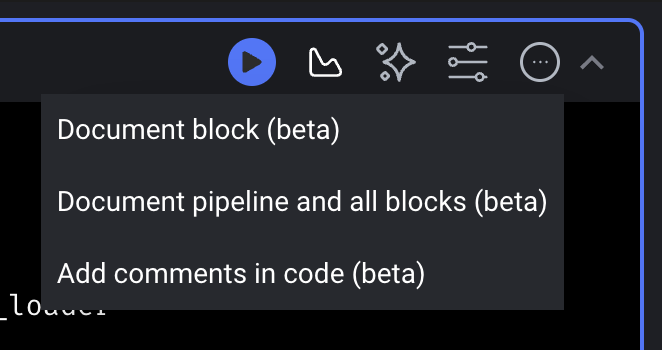
On the edit pipeline page in the top right corner of a block, click the AI actions icon.
Select the option labeled Document block.
### Add documentation for a pipeline and all its blocks
On the edit pipeline page in the top right corner of a block, click the AI actions icon.
Select the option labeled Document pipeline and all blocks.
### Add comments in a block
On the edit pipeline page in the top right corner of a block, click the AI actions icon.
Select the option labeled Add comments in code.
### Add documentation for a block
On the edit pipeline page in the top right corner of a block, click the AI actions icon.
Select the option labeled Document block.
### Add documentation for a pipeline and all its blocks
On the edit pipeline page in the top right corner of a block, click the AI actions icon.
Select the option labeled Document pipeline and all blocks.
### Add comments in a block
On the edit pipeline page in the top right corner of a block, click the AI actions icon.
Select the option labeled Add comments in code.